
Quick Start to AI Autocomplete Feature
This article introduces how to quickly enable and use the AI-powered inline code autocomplete feature in your Integrated Development Environment (IDE), including how to trigger suggestions and the keyboard shortcuts for accepting, rejecting, or partially accepting completions.
How to Enable and Use the Autocomplete Feature
The AI autocomplete feature provides inline code suggestions in real-time as you code, helping you write correct, style-consistent code more efficiently.
ⓘ Whether you can use the autocomplete feature depends on whether the autocomplete role is configured in the model.
Steps to enable autocomplete for local models:
In the agent selection dropdown, switch to Local Agents.
Click the ⚙️ Settings icon on the right to enter the
config.yamlconfiguration page.Find the local model you want to use for autocomplete and add
autocompleteto itsrolesfield.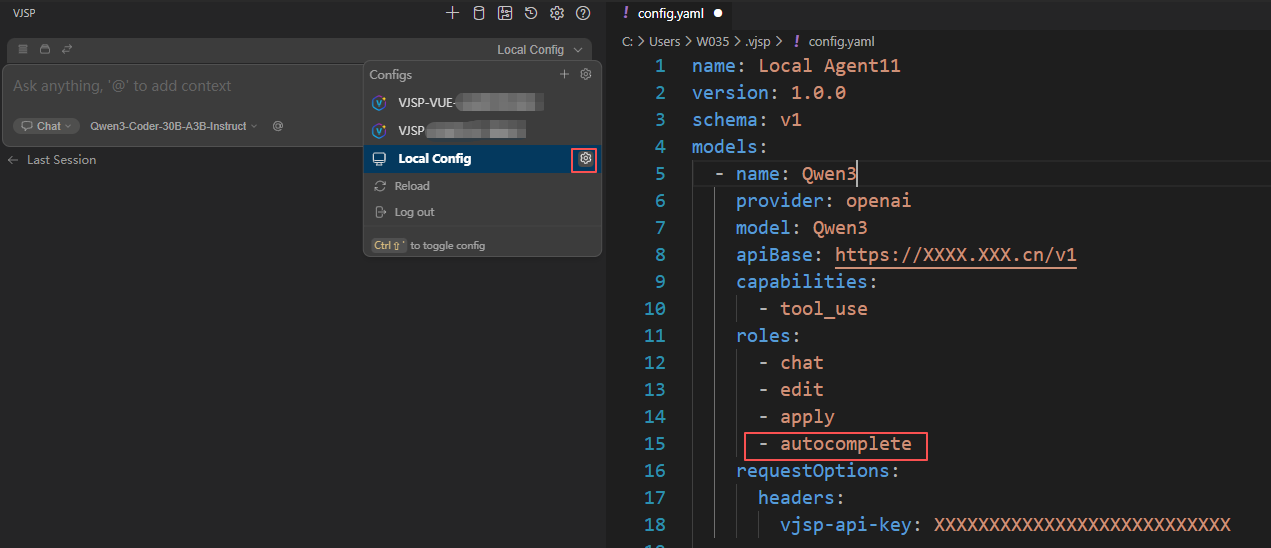
Keyboard Shortcuts for Autocomplete Feature
Accept Full Completion Suggestion
Press the Tab key to accept the full completion suggestion.
Reject Full Completion Suggestion
Press the Esc key to reject the full completion suggestion.
Partially Accept Completion Suggestion
For more granular control, use the cmd/ctrl + → key combination to accept the completion suggestion word by word.
Force Trigger Completion Suggestion (VS Code Only)
If you want to trigger a completion suggestion immediately without waiting, or if you've dismissed a suggestion and need a new one, use the keyboard shortcut cmd/ctrl + alt + space to force trigger it.
How the Autocomplete Feature Works
AI autocomplete not only relies on model capabilities but also combines multiple engineering optimization strategies to ensure suggestions are both intelligent and efficient.
Timing Optimization for Autocomplete
To achieve fast suggestion display while avoiding sending too many requests, we employ the following two core strategies:
Debouncing: If you type quickly, the system won't send requests for every keystroke but will wait for a pause in input before taking action.
Caching: If completion content has been generated for a cursor position before, that content will be reused. For example, when you backspace, previously seen completion suggestions can be displayed immediately.
Context Awareness
The system dynamically retrieves relevant context from your codebase (such as function definitions, type information, similar code snippets, etc.) and incorporates it into the prompt, making completion suggestions more aligned with your project's style and semantic logic.
Filtering and Post-processing of AI Suggestions
Language models aren't perfect, but their utility can be greatly enhanced through output adjustments. Before displaying completion suggestions, we perform comprehensive post-processing on the model's response, including:
Removing special tokens
Early termination during code regeneration to avoid generating lengthy, irrelevant output
Fixing indentation format to ensure code formatting standards
Occasionally discarding low-quality responses, such as suggestions with excessive repetitive content
You can learn more about the working details in the Autocomplete Deep Dive.
The Role of Autocomplete
Understand how the autocomplete role works, the types of models suitable for it, and how to customize prompt templates for inline code suggestions.
Autocomplete models are a class of large language models (LLMs) specifically optimized for code completion tasks, typically trained using the "Fill-in-the-Middle" (FIM) format. This format provides the model with a code prefix (content before the cursor) and suffix (context after the cursor), allowing it to predict the missing middle part. Due to the highly focused nature of this task, these models can perform excellently in code completion scenarios even with relatively small parameter counts (e.g., 3B scale).
In contrast, general-purpose chat models, despite having larger parameter counts, are usually not as effective for inline completion tasks even with complex prompt engineering, as they haven't been specifically optimized for FIM tasks.
In this system, models marked with the autocomplete role will be used to generate inline suggestions in real-time as you code. Simply add autocomplete to the model's roles field in the config.yaml configuration file to designate it as an autocomplete model.
Custom Prompt Templates
You can customize the prompt template used for autocomplete requests by configuring the promptTemplates.autocomplete property. The system uses Handlebars syntax to support dynamic content insertion.
Example:
    models:
    - name: My Custom Autocomplete Template
        provider: ollama
        model: qwen2.5-coder:1.5b
        promptTemplates:
        autocomplete: |
            `
            globalThis.importantFunc = importantFunc
            <|fim_prefix|>{{{prefix}}}<|fim_suffix|>{{{suffix}}}<|fim_middle|>
            `