
Agent Hub Commands
Commands are a series of professional development instructions provided by the platform, used to standardize development processes, unify output formats, and provide support for intelligent development and collaboration.
Through standardized intelligent commands, efficiently improve development collaboration efficiency and achieve unified and efficient code formatting.
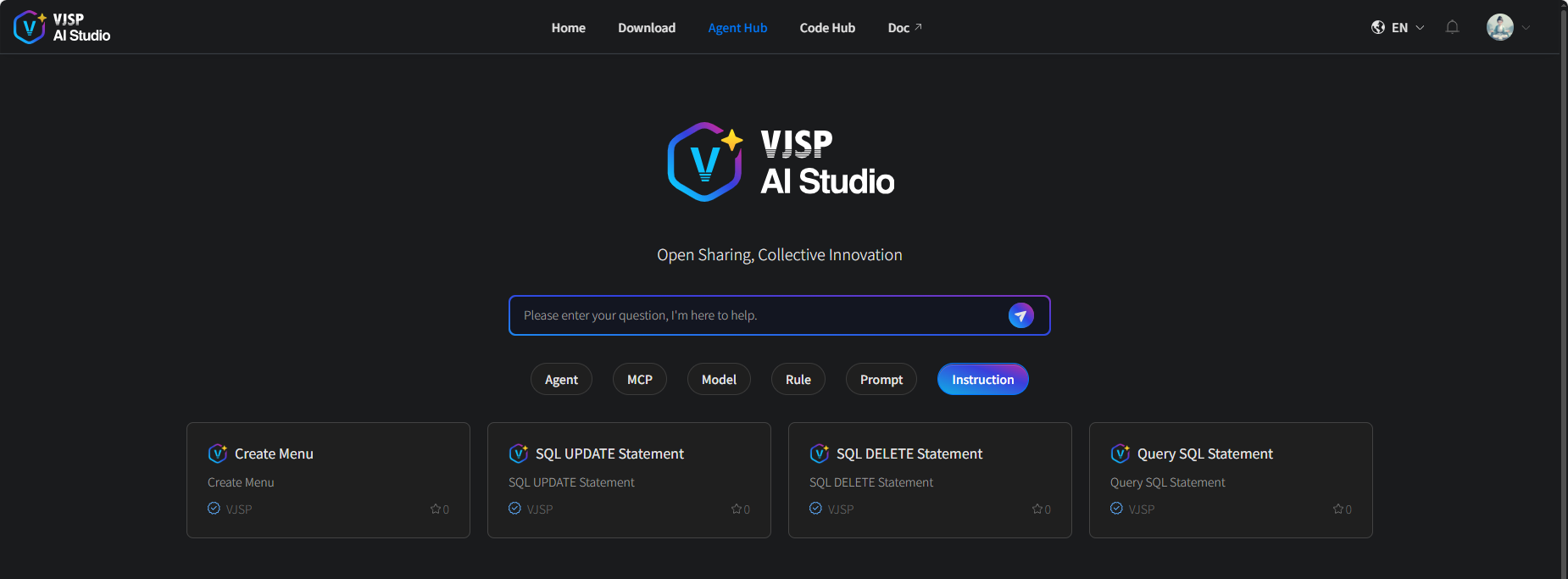
Commands Page Overview
Log in to the Agent Hub page
Click 「Commands」 to directly enter the commands list display page
Using Official Commands
Browse existing command lists and view command cards on the Agent Hub page.
View details by clicking any card to enter the details page and learn about its description information.
Click "Use Now".
Prerequisite: You must be logged into the system. If not logged in, please complete login first.
Custom Commands
1. Create New Command
Operation Steps:
- Log in to the official platform,
- Select "My Commands" in the left navigation bar of the console, click the 【New Command】 button to open the "Create Command" page.
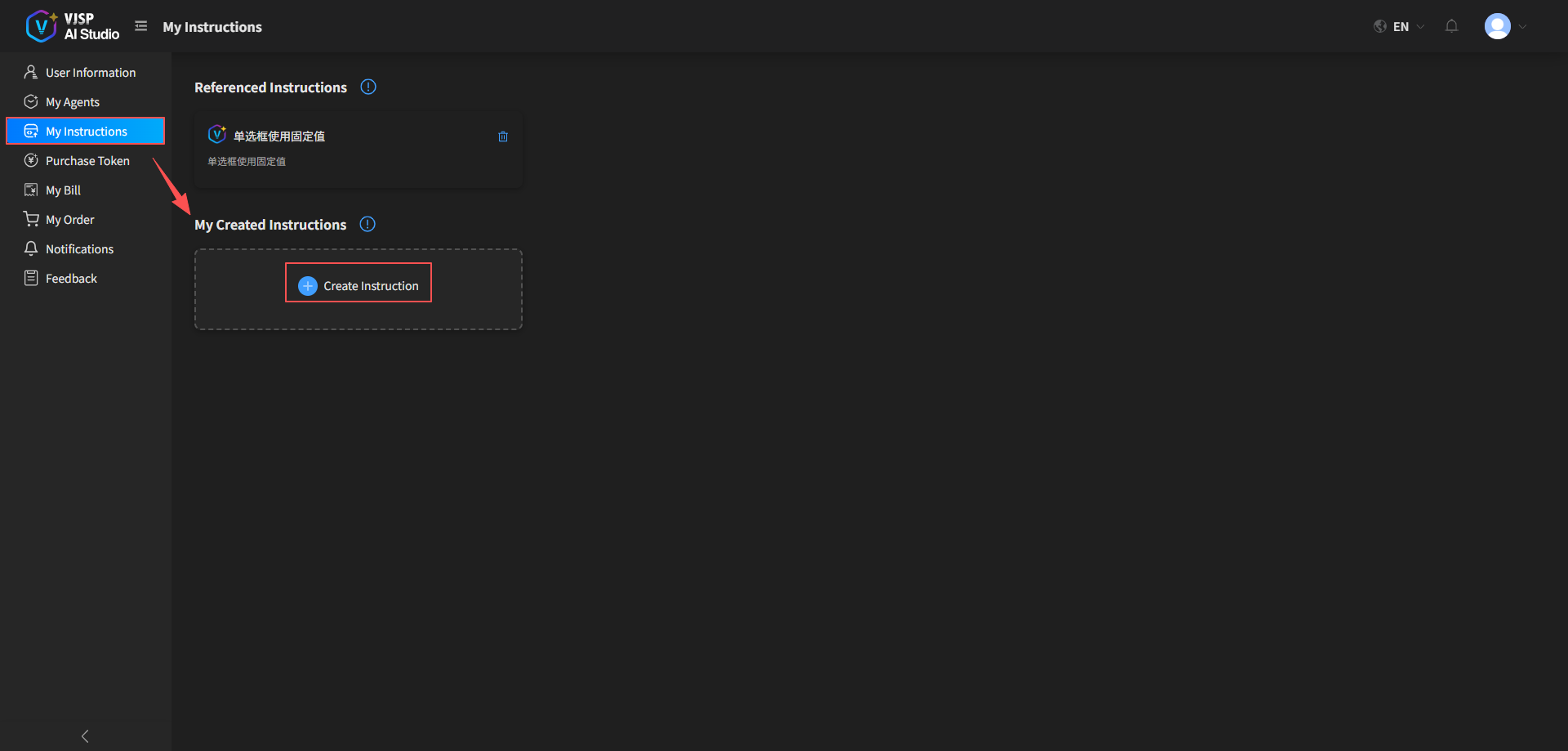
- On the opened page, completely fill in the relevant configuration information for the command as required, and submit to complete command creation.
2. Edit Command
Function Purpose: Iterate on existing command content to adapt to personalized requirements of different project scenarios.
Operation Steps:
Click the settings button of the target command card to enter the "Edit Command" page.
Modify command text, functional description, and other related content.
The system automatically updates after saving.
3. Command Example
⚠️Layout Requirements

Display two fields per row (i.e., "two columns per row", using `col-6` layout)Using Custom Commands
After custom commands are successfully created, you can see the newly added commands and use them after reopening the IDE.