
Rules
Rules allow you to provide specific instructions to guide how AI agents behave when processing code. You can clearly define guidelines to ensure consistent, context-appropriate responses, rather than having AI make assumptions about your coding standards, architectural patterns, or project-specific requirements.
Think of rules as "guardrails" for AI coding agents, serving to:
Enforce company-specific coding standards and security practices
Implement quality checks that align with your engineering culture
Pave a clear path for developers to follow organizational best practices
By setting rules, you can transform AI from a generic coding assistant into a knowledgeable team member that understands your project's unique requirements and constraints.
How Rules Work
Your agents detect and apply specified rules in Chat, Plan, and Agent modes.
Rule Management
📂 Local Rules (.vjsp/rules)
Create files in the .vjsp/rules folder
Automatically synchronized and displayed with Hub assistants
Can be directly edited in the file system
Version controlled with code
Most suitable for project-specific rules
☁️ Hub Rules
Managed in Agent Hub - Personal Center
Referenced in Hub Agents
Can be publicly shared
Easy to reuse across multiple agents
Most suitable for organizational-level rules
Creating and Managing Rules
Rules are used to provide system message instructions for Chat, Plan, and Agent mode requests to the model.
ⓘ Rules do not apply to autocomplete or apply functions.
Understanding Integration Differences Between Hub Rules and Local Rules
⚠️ Important Note
Rules created in different locations have different behaviors and synchronization methods.
VJSP supports two types of rules, each with distinct behaviors:
📂 Local Rules
Location: .vjsp/rules folder in workspace
Visibility: Automatically displayed when using Hub assistants
Creation Method: Via "Add Rule" button in VS Code, or manually creating files
File Management: Generates actual .md files that can be directly edited
☁️ Hub Rules
Location: Managed in Personal Center - My Agents page
Visibility: Only displayed when referenced in Hub Agent configuration
Creation Method: Created directly on Hub or reference official ones
How to Create Rules
Creating Local Rules
In Agents, select "Local Agent", click Configure rules
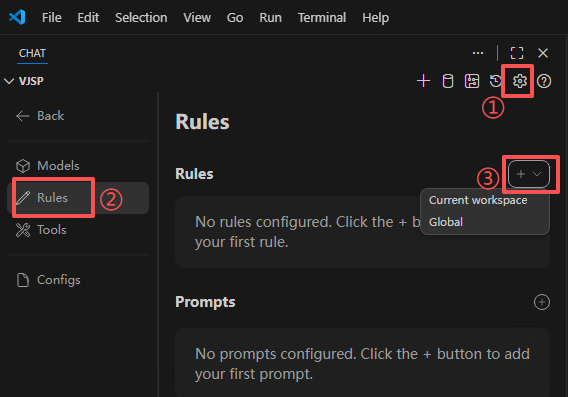
On the "Rules" page, click the Add rules button to add rules locally.
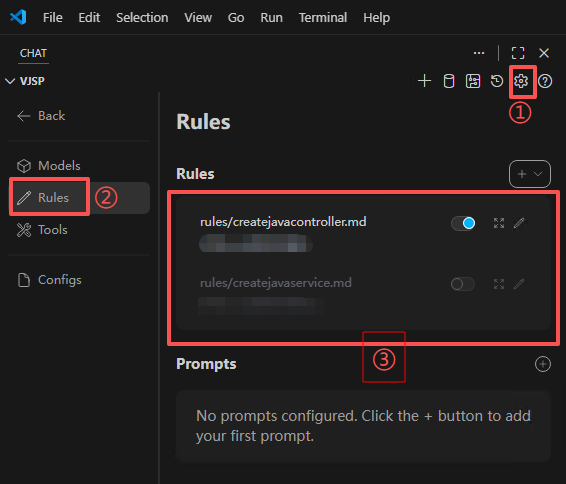
ⓘ Automatically Create Local Rules
In Agent mode, if the create_rule_block tool is enabled, you can prompt the Agent to create rules for you.
For example, you can say "Create a rule for this", and a rule will be created for you in .vjsp/rules based on your conversation.
Creating Hub Rules
You can also create and manage rules on Agent Hub:
Rule Examples
Here's a quick example of creating a new rule file:
Create a folder named
.vjsp/rulesin your workspace root directoryAdd a file named
rule.mdin this folderWrite the following content in
rule.mdand save
---
description: Language Style
---

Answer questions using Northeastern Chinese dialectNow you can test if your rule is working by asking questions about a file in the chat.
Rule Troubleshooting
Issue 1: Rules created in different locations cannot synchronize
Symptom: Rules created in Hub are not displayed in VS Code, or vice versa.
Solution:
Hub rules need to be referenced via
uses:syntax inconfig.yamlto be displayed;Local rules are automatically displayed when using Hub assistants;
Currently, bidirectional automatic synchronization between local and Hub rules is not supported.
Issue 2: "Edit" link points to wrong location
Symptom: When clicking the "Edit" button for rules in VS Code, it tries to open Hub even for local rules, or displays incorrect URLs.
Root Cause: When both local and Hub rules exist, VJSP cannot correctly identify the source of each rule.
Temporary Solution:
Local rules: Navigate directly to the
.vjsp/rules/folder and edit the corresponding.mdfiles;Hub rules: Visit the Agent Hub's assistant page directly and edit within the page;
Record the type of each rule (local/Hub) to avoid confusion.
Issue 3: Rules not displayed in assistant
Symptom: Rules have been created but do not appear in the rules toolbar.
Items to Check:
File Location: Confirm local rules are stored in the
.vjsp/rules/folder (not.vjsp/rule/, note the plural form);File Format: Rules must be
.mdfiles with proper YAML frontmatter;Configuration Reference: Hub rules must be configured and referenced in
config.yaml;Assistant Type: Confirm you're using the correct type of assistant (local assistant / Hub assistant).