
Chat Mode
Communicate directly with the AI assistant within your IDE - explain code, generate logic, fix errors, or optimize performance without switching windows. The AI automatically understands your current code context and supports one-click application of results to your project.
💬 Basic Operations
Start a Conversation
Enter your question in the chat box and press Enter to send.
Examples:
- "Why is this code throwing a null pointer exception?"
- "Add unit tests for this method"
Add Code Context
Select code in the editor and use shortcuts to send it to the chat:
| IDE | Shortcut |
|---|---|
VS Code | Ctrl + L |
IntelliJ IDEA | Ctrl + J |
Reference Additional Context
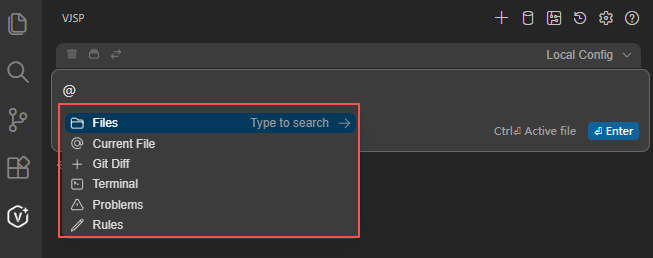
Type @ to add more context, for example:
@Files: Reference files in your project@Terminal: Include terminal error logs
Handle AI Responses
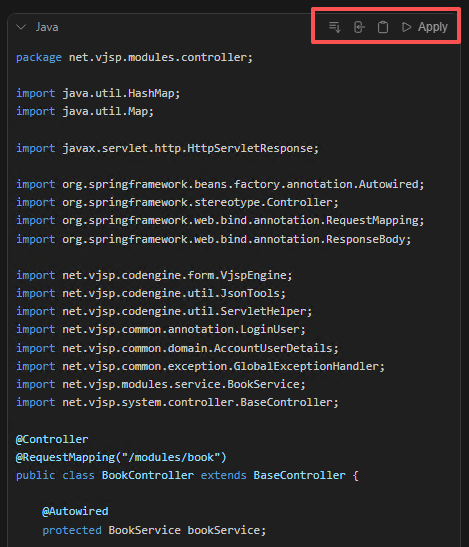
When AI returns code, you can use the following actions:
- Quote: Add content to the chat to continue asking questions
- Insert: Insert code at the cursor position
- Copy: Copy to clipboard
- Apply: Replace selected code (requires confirmation)
🛠️ Usage Tips
- Start New Session: Press
Ctrl+L(VS Code) orCtrl+J(IDEA) in an empty chat box - Be Specific: Describe goals, constraints, and expected style
- Support Multiple Iterations: Not satisfied? Continue asking or add information to optimize results
🧪 Common Scenarios
| Scenario | Example Questions |
|---|---|
Code Explanation | "What does this code do?" |
| Error Fixing | "How to solve 'Cannot read property of undefined'?" |
Code Generation | "Write a submission form with name, email, and submit button" |
Code Optimization | "Can this SQL be optimized with indexes?" |
🔍 Context Support (Helping AI Understand You Better)
When chatting, AI automatically combines the following information to understand your needs:
| Context Type | Description |
|---|---|
Selected Code | Currently highlighted code snippet |
Current File | Press Alt + Enter to send the entire file |
@Files | Manually select one or multiple files |
@Git Diff | Automatically include uncommitted code changes |
@Terminal | Include terminal errors or logs |
Problems | Automatically read errors and warnings in the editor |
Rules | Inject team coding standards or security rules |
These contexts help AI precisely locate problems and generate solutions that can be used directly.
💡 Tip: Richer context = More accurate answers. Make good use of
@and shortcuts to let AI become your efficient partner!