
Plugin Features
The plugin provides capabilities such as automatic code completion, code generation, and code editing to enhance your development efficiency.
Prerequisites:
The plugin sidebar chat panel must be active.
Code Completion
VJSP Assistant can understand the current code context and suggest completions accordingly.
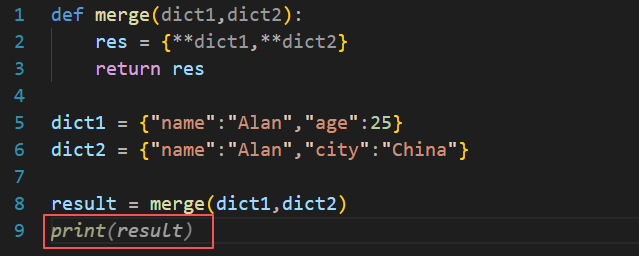
Scenario 1: Press Enter to create a new line at the relevant code location. VJSP Assistant will read and interpret the current code, then automatically complete the subsequent code.
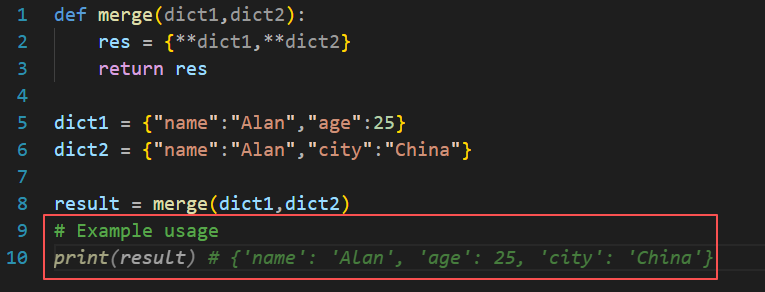
Scenario 2: Add a comment at the desired position, then press Enter to create a new line. VJSP Assistant will read and interpret the comment, then directly generate the corresponding code.
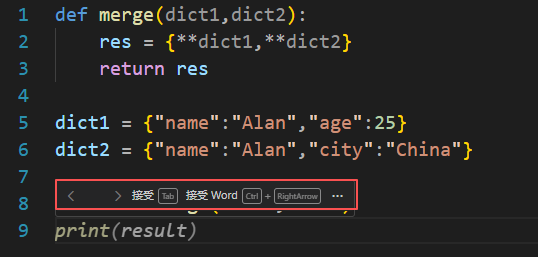
- Click the Accept button or press the Tab key to insert all recommended code.
- Click the Accept Word button or use the Ctrl + → shortcut to insert the recommendation word by word.
- Press the Esc key to discard the suggested code.
Code Generation
VJSP Assistant can generate code snippets based on your natural language descriptions.
- Describe your requirement using natural language in the input box.
- Click the Send button or press Enter.
VJSP Assistant will start generating the requested code snippet.
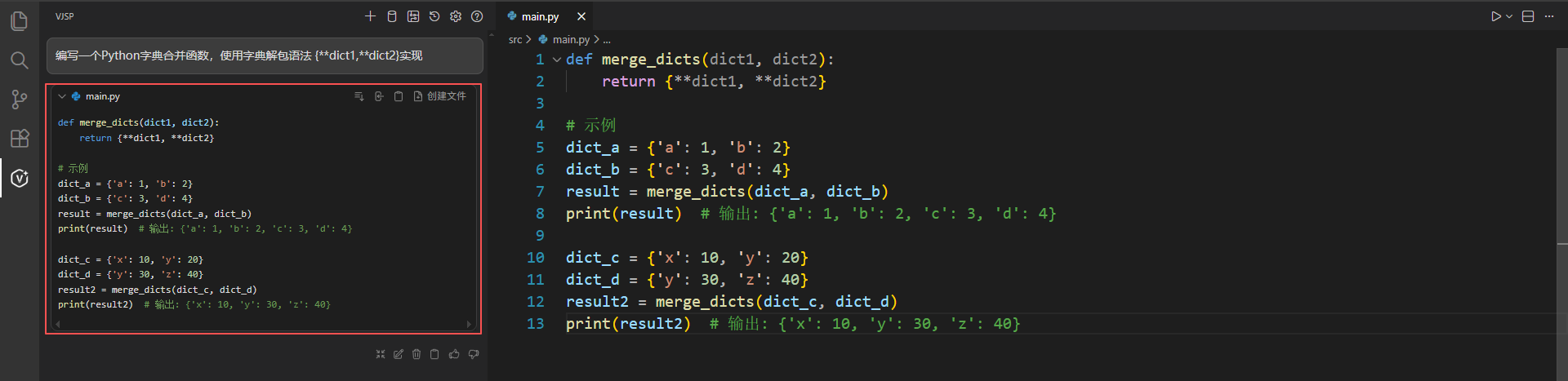
- For the generated code snippet, you can choose from the following actions:
- Click the Quote button to reference the code into the chat box.
- Click the Copy button to copy the code snippet.
- Click the Insert button to insert the code snippet at the desired location.
- Click the Apply button to preview the generated code as a diff in the original file, then choose to accept or reject the changes.
Code Editing
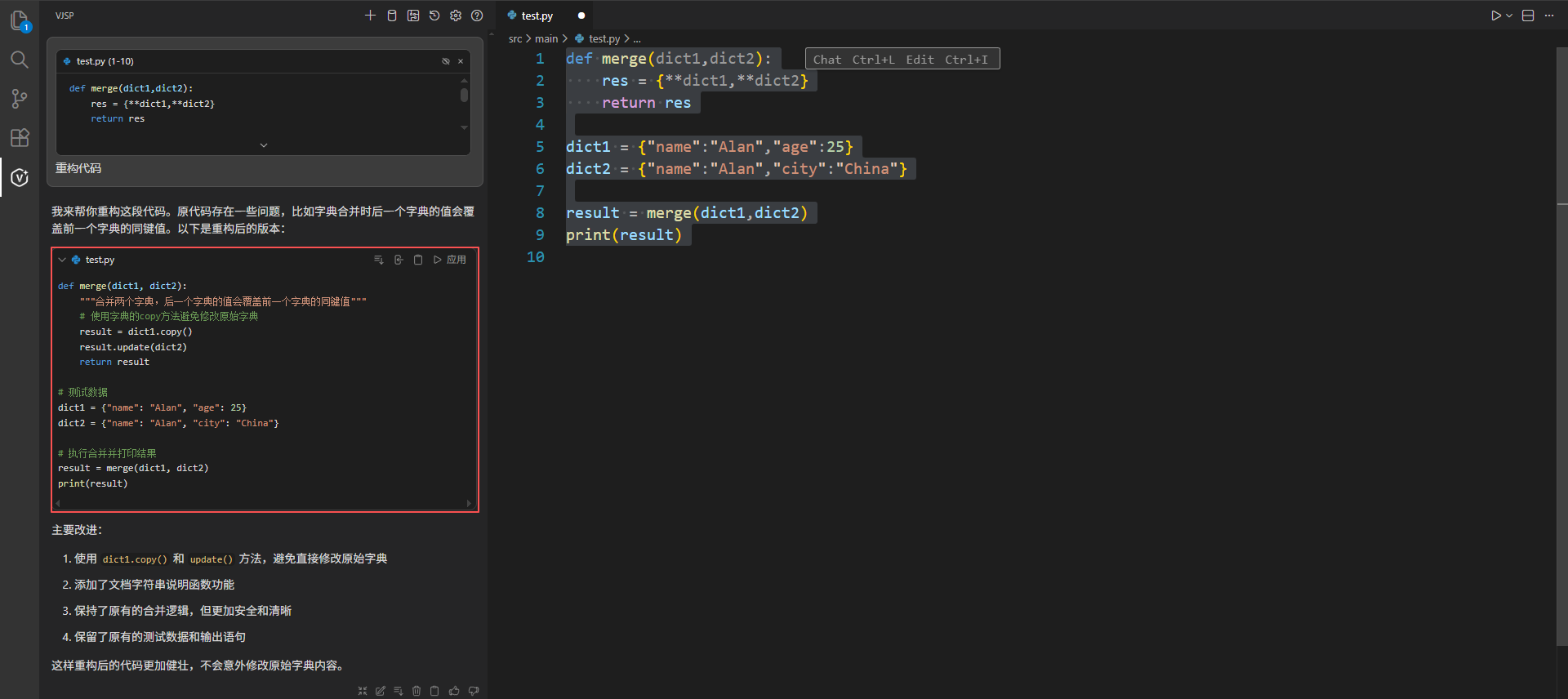
VJSP Assistant can edit selected code—such as refactoring, optimizing, or modifying logic—based on your natural language instructions.
- Select the code segment you want to modify and use the shortcut Ctrl + I or Ctrl + L.
- Enter a natural language description in the dialog box (e.g., “Optimize the selected code snippet”).
- Click the Send button or press Enter.
VJSP Assistant will process your request and generate the revised code.
Unit Test Generation
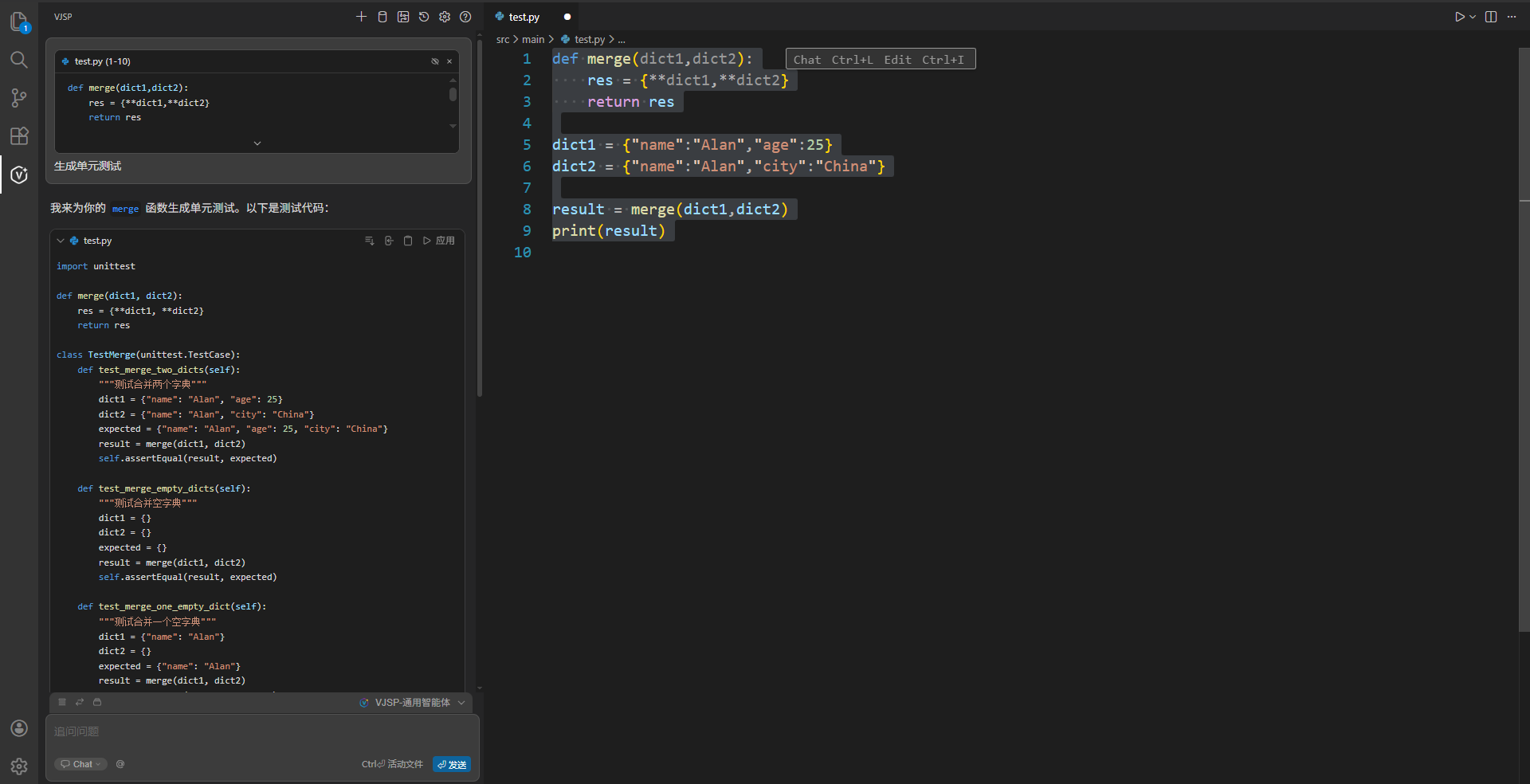
After selecting a code snippet, send a unit test generation command to VJSP Assistant. The assistant will generate unit tests for the selected code. You can issue the command as follows:
- Type a natural language instruction in the sidebar chat input box, e.g., “Generate unit tests for the selected code snippet.”
- Click the Send button or press Enter.
Code Comment Generation
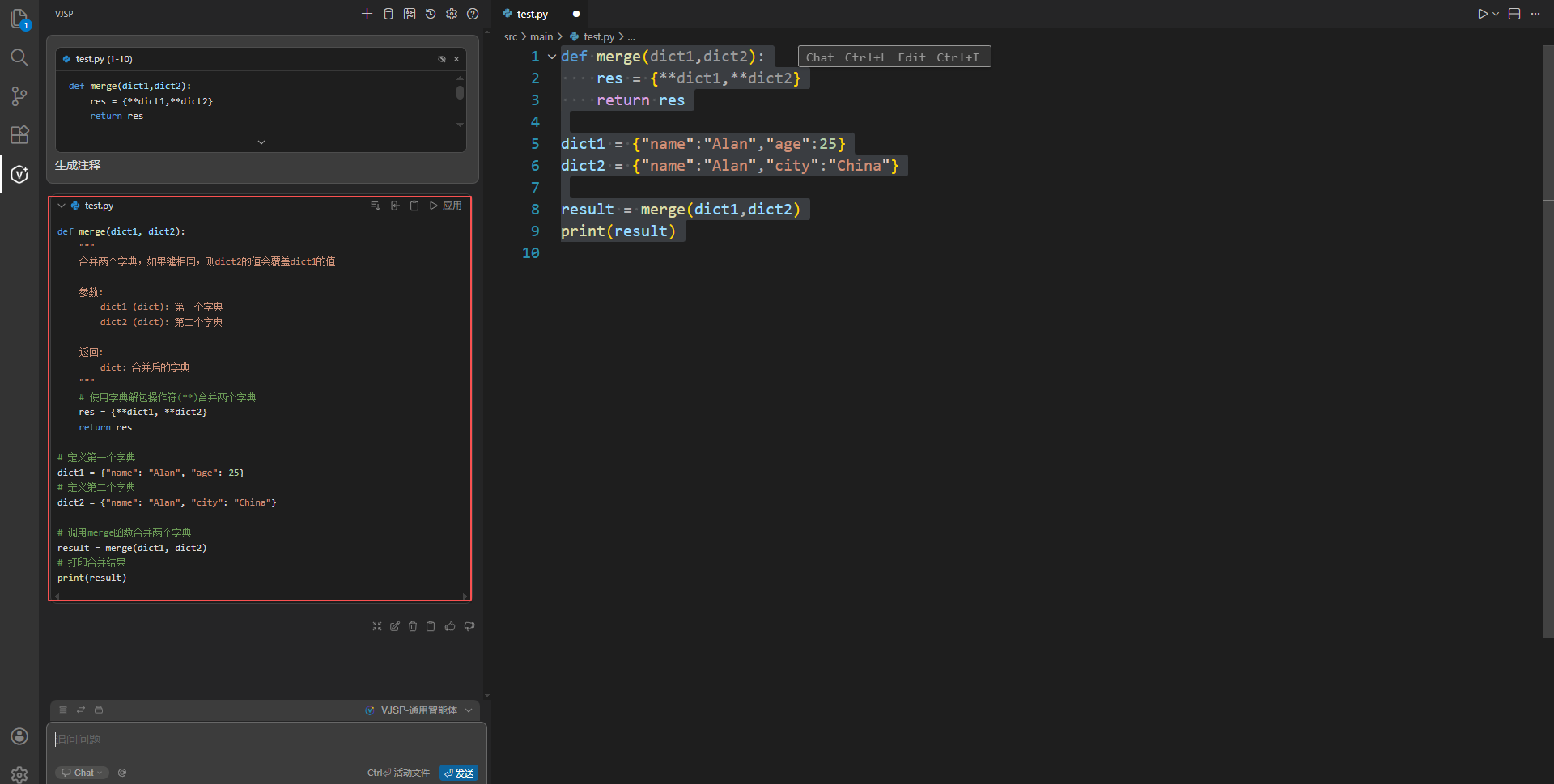
After selecting a code snippet, send a comment generation command to VJSP Assistant. The assistant will generate appropriate comments for the selected code.
Tip
By default, VJSP Assistant generates function-level comments. You can specify in your natural language prompt if you need more detailed inline comments.
To send the instruction:
- Type a natural language description in the sidebar chat input box, e.g., “Generate comments for the selected code snippet.”
- Click the Send button or press Enter.
Intelligent Q&A
Once the chat panel is activated, you can type your question into the input box, then click Send or press Enter. VJSP Assistant will provide an answer. You can engage in multi-turn conversations, adding more details as needed to help the assistant deliver increasingly accurate responses.