Skip to content

🚀 VJSP First-Time User Guide

Welcome to VJSP AI Studio — an AI-powered programming software designed for enterprise application development.
This guide will walk you through the complete workflow from plugin installation → project configuration → code generation → visual fine-tuning in just 5 minutes.

⚠️ Please confirm your computer meets the following requirements first

💡 Important Prerequisite
Before generating code for the first time, ensure you reference official standard agents (e.g., "VJSP-Visio Framework Development Agent") to guarantee output complies with framework specifications and supports subsequent visual editing and execution of forms/databases/workflows.

Step 1: Install the Plugin

Install VJSP with one click in your preferred IDE:

Operation Steps

  1. Open your IDE (IntelliJ IDEA or VS Code).
  2. Visit the VJSP Download Page to download the latest plugin.
  3. Install the plugin (IDEA: Settings → Plugins → Install from Disk; VS Code: Drag and drop the .vsix file).
  4. After installation, restart the IDE.

🔗 Detailed Graphic Guides:

✅ No additional configuration is required for the plugin — it’s ready to use after installation.

Step 2: Log in to Your VJSP Account

  1. After restarting the IDE, click the plugin icon in the sidebar. The VJSP plugin will automatically pop up the login window.
  2. Click "Log In" to redirect to the login page (supports mobile phone number registration).
  3. After successful login, the system will automatically save the API key — no manual input required.

🔗 Detailed Guides:

Step 3: Understand the Three Interaction Modes

VJSP offers three modes to adapt to different tasks:

Mode
Trigger MethodTypical Use Cases
Chat ModeEnter natural language directly in the sidebarQuick Q&A, code explanation, generating small logic snippets or examples
Plan ModeSwitch to Plan in the mode selectorBreak down complex requirements into executable steps (e.g., "Implement user login function" → Analysis → Design → Coding)
Agent ModeSwitch to Agent in the mode selector and select a specific agentExecute professional tasks such as generating complete modules, creating database tables, orchestrating workflows, etc.

New User Recommendations:

  • First explore features with Chat mode.
  • When formally generating code, always use Agent Mode + Official Agent.
  • For complex tasks, use Plan to break them down first, then hand them over to Agent for execution.

Step 4: Create and Configure the Project

⚠️ This is the most critical step! Visual features rely on correct configuration.

4.1 Download Basic Framework Source Code

  1. Visit VJSP Code Hub.
  2. Download a template based on your tech stack (includes standardized directory structure and database initialization scripts):
  3. Extract the file to any local folder (e.g., D:\projects\my-vjsp-project\).
  4. In the project root directory, find the database initialization script *.sql and execute it to initialize the database.
  5. In VS Code or IDEA, open the downloaded project as a workspace via File → Open Folder.

4.2 Open the Project in IDE

  • IDEA: File → Open → Select the extracted folder
  • VS Code: File → Open Folder → Select the folder

✅ After opening, you will see files like pom.xml and src, indicating the project has been loaded successfully.

  1. Wait 10 seconds after opening the project for the first time — VJSP will automatically generate vjspai-link.yml in the project root directory.
  2. Open the file with a text editor and modify the configuration:
yml
vjspai:
  # Data Source Configuration
  datasource:
    # Database Driver: PostgreSQL
    driverClassName: org.postgresql.Driver
    # Database Connection URL - modify according to your actual environment
    url: jdbc:postgresql://127.0.0.1:5432/vjsp_form
    # Database Username - modify according to your actual environment
    username: your_user
    # Database Password - modify according to your actual environment
    password: ${DB_PASSWORD}
  • After saving the file, close and re-open the IDE (to ensure the new configuration takes effect).
  • Open the project again and wait 10–30 seconds until the plugin status bar shows "✅ ready".

❗ If you operate directly without waiting, the visual features will display blank!

🔗 Full Configuration Instructions: VJSPAI-LINK Configuration Guide

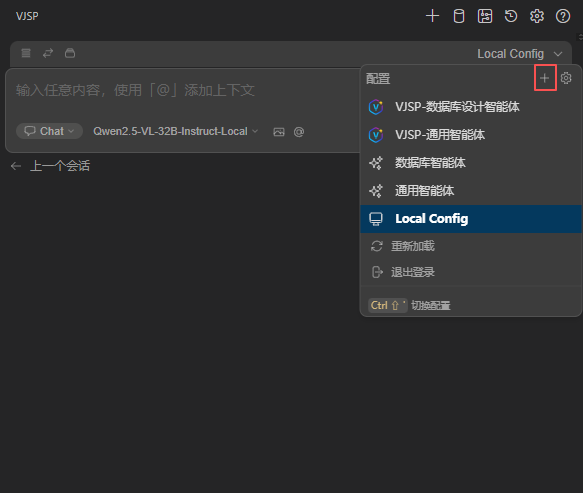
4.4 Configure the Agent (Mandatory!)

  1. Open a browser and visit Agent Hub.
  2. Search for and immediately use the appropriate agent:
    • VJSP Boot Framework Project"VJSP-Visio Framework Development Agent"
    • VJSP Vue3 Frontend ProjectVJSP-VUE-Frontend Agent
    • SpringBoot 2.7 + Vue3 Separation of Frontend and Backend ProjectVJSP-VUE Full-Stack Agent, VJSP-VUE-Backend Agent
  3. Return to the IDE. In the agent dropdown menu at the top of the chat window:
    • Click the 🔄 refresh button.
    • Select the agent you just activated.

✅ You are now ready to generate standard-compliant code!

4.5 Generate Code with AI

  1. Ensure the current mode is Agent.
  2. Enter natural language requirements in the chat box, for example:

    Create a user management module with add, delete, update, query, and pagination query functions.

  3. Click Send. AI will automatically:
    • Analyze the requirements (you need to reply "Yes" to confirm).
    • Generate table creation SQL.
    • Plan the code directory structure.
    • Generate Service / Controller / HTML page code.
    • Automatically bind database tables.

✅ After generation, you will see the code files appear in the project.

4.6 Use Visual Features for Fine-Tuning (WYSIWYG!)

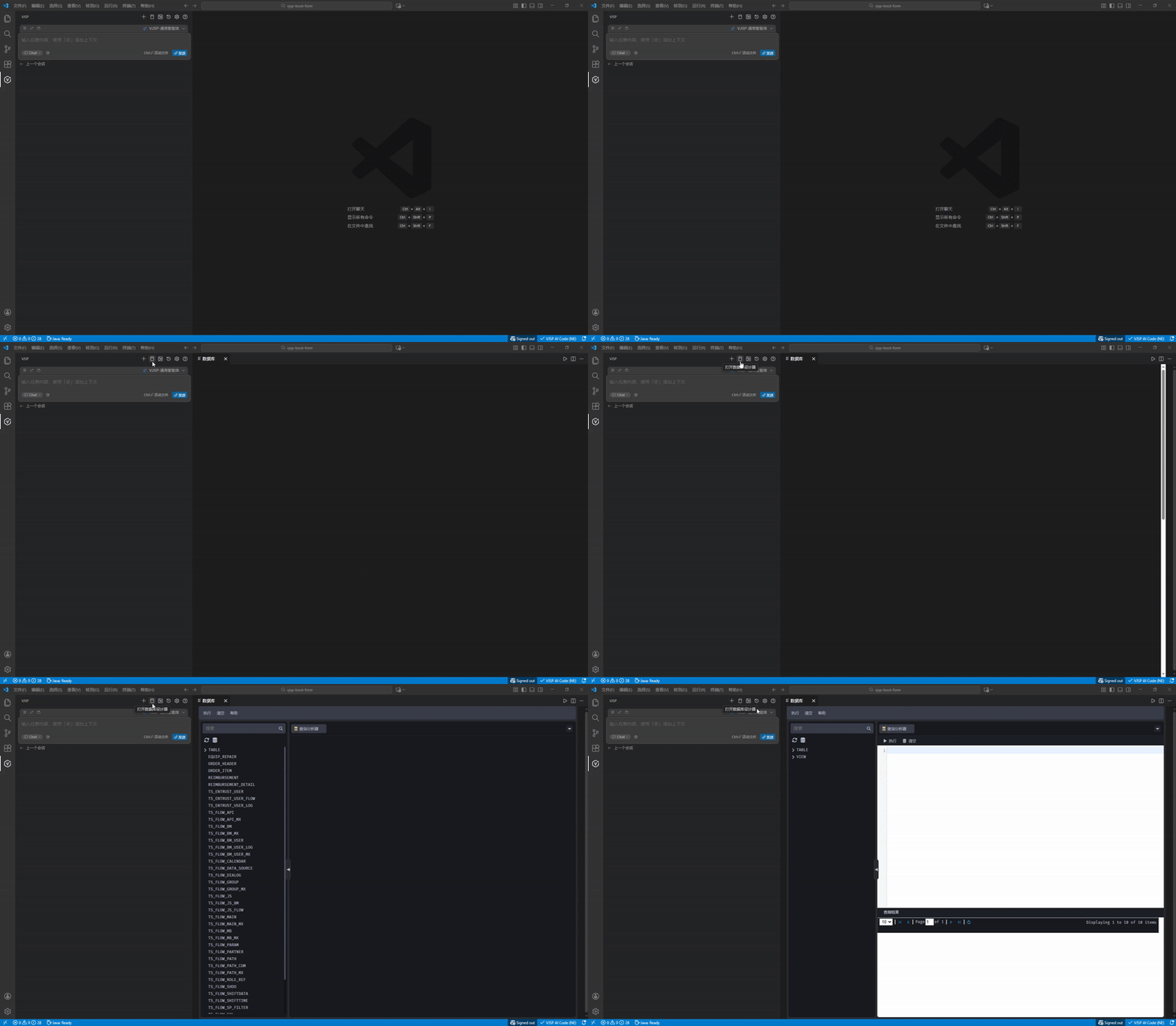
▶ Database Table Management

  • Click the database icon in the upper right corner of the chat window.
  • Visually view/modify table structures, support adding fields, indexes, etc.

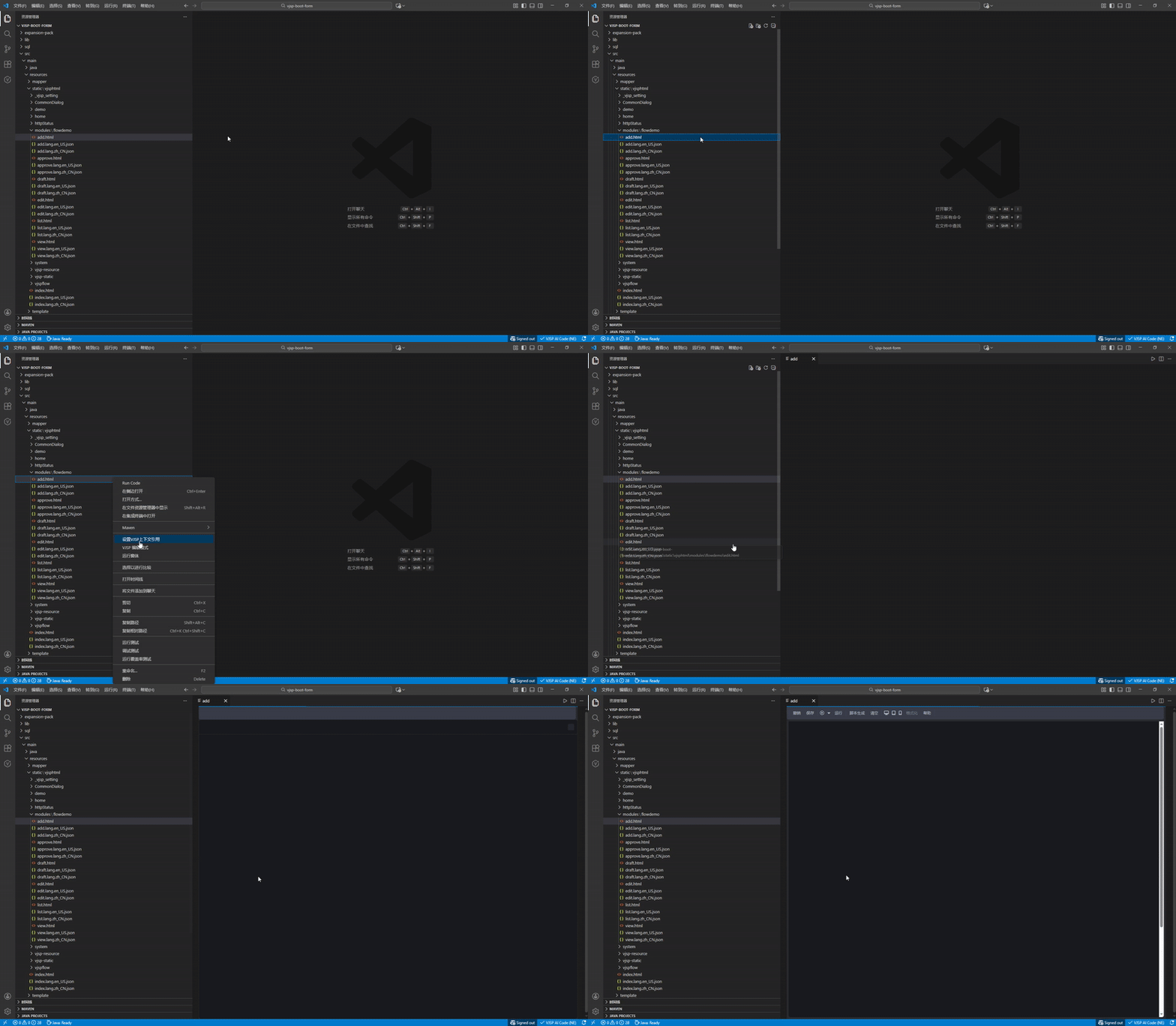
▶ Form Visual Editing

  1. Under /src/main/resources/static/vjsphtml/, find the .html or .xml form files.
  2. Right-click and select "VJSP Edit Mode".
  3. The system will open the visual form designer, where you can:
    • Drag and drop field components onto the canvas.
    • Adjust layout, grouping, and styles.
    • Set fields as required, read-only, validation rules, etc.
  4. All modifications will be previewed in real-time. After confirmation, click "Save" — the system will automatically write the configuration back to the original file, no manual coding or modification required.

💡 Tip: Only VJSP standard form files generated by official agents support this feature.

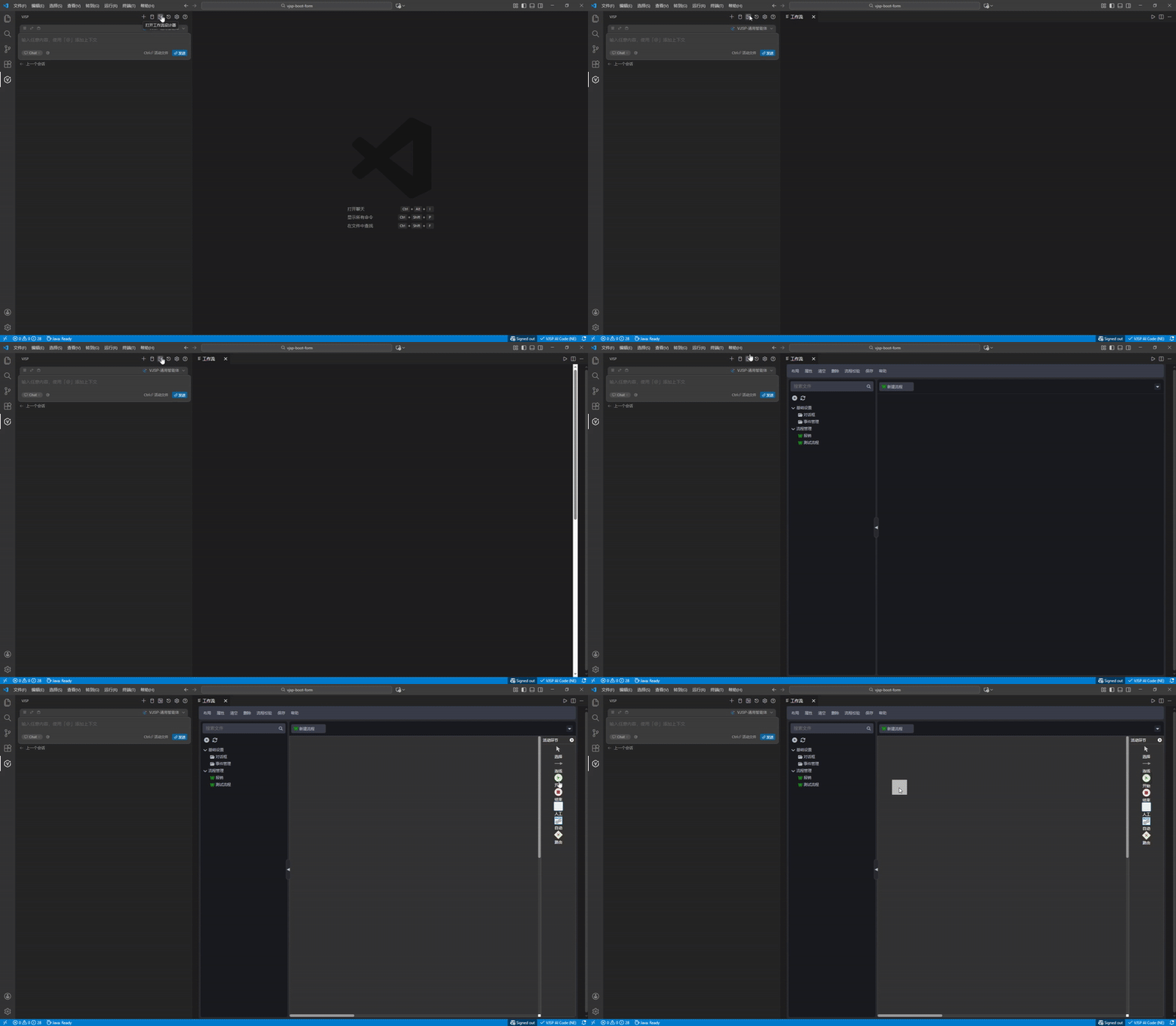
▶ Workflow Editing

  • Click the workflow icon to view existing workflows in the project.
  • Modify existing workflows, create new ones, and drag nodes to configure approvers, conditional branches, etc.

✨ All modifications will be automatically synced back to the code, truly realizing "Graphic Design = Code Generation".

Step 5: Run the Project and View the Result

Scenario 1: Start Frontend Project

  1. Open the terminal in the project root directory and execute:
bash
# Install dependencies
npm install

# Start development server
npm run dev

# Build production version
npm run build

Scenario 2: Start VJSP Project

  1. Open the terminal in the project root directory and execute:
bash
# Clean old build artifacts
mvn clean

# Compile and install dependencies to local repository (optional but recommended)
mvn install

# Start Spring Boot application
mvn spring-boot:run

Ensure JDK and Maven are installed and environment variables are configured correctly. Ensure the database and other necessary service addresses are configured in vjspai-link.yml.

Access the Application

  1. Open a browser and visit: http://localhost:8080
  2. Default account: admin / 888
  3. Enter the system and check if the "User Management" module is displayed normally.

✅ If you can see the function you just generated, congratulations! You have successfully completed the entire workflow.

📌 Next Steps Recommendations:

🎉 Congratulations! You have successfully taken your first step in VJSP intelligent development.