
AI + Database Visualization
VJSP provides integrated database visualization capabilities, supporting table structure browsing, natural language SQL generation, one-click query execution, and data management within the IDE, eliminating the need to switch to external tools (such as DBeaver, Navicat) and significantly improving development efficiency.
⚠️ Prerequisite: Ensure successful connection to the target database.
1. Function Introduction
AI + Database Visualization includes three core capabilities:
🗣️ AI-Driven SQL Generation: Automatically generates standard SQL statements for table creation, queries, updates, etc., through natural language descriptions of requirements.
▶️ Built-in Query Analyzer: Directly executes SQL and views results in real-time, supporting operations like table creation, data insertion, complex queries, etc.
🧰 Table-Level Quick Operations: Right-click menu provides one-stop functions such as structure management, data operations, and export, without manual coding.
2. Operation Steps
Step 1: Open the Database Visualization Interface
Enter through any of the following methods:
Click the Database Icon in the top toolbar
Click the "Run" button above the generated SQL in the AI dialog
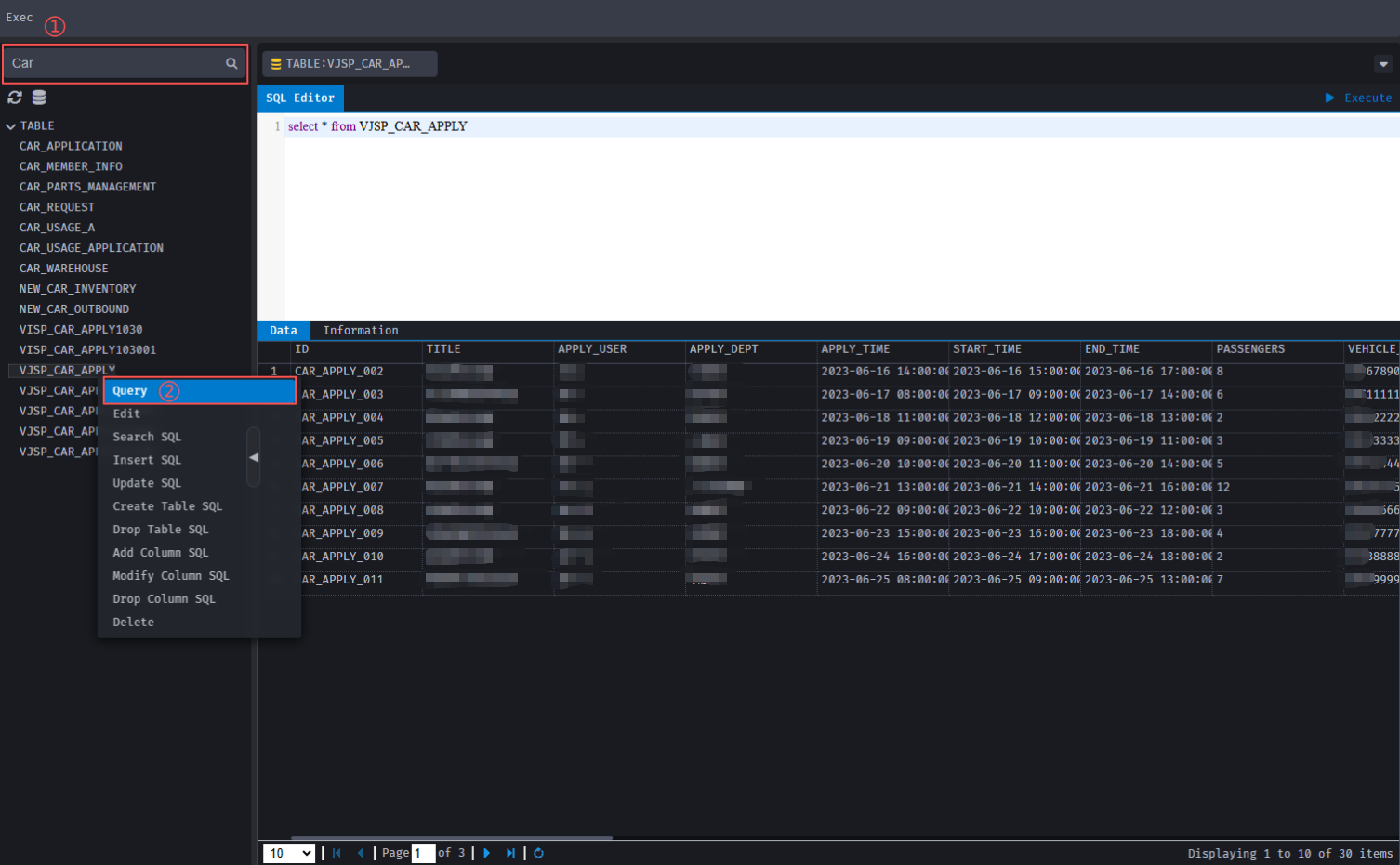
Step 2: Operate Data Tables (Right-click Context Menu)
In the database panel:
Select any data table
Right-click the table name to open the operation menu
Supports the following operations:
Query: Generate
SELECT * FROM tableand open the analyzerEdit: Enter table field editing mode
SQL Generation (Query, Insert, Update, Create Table, Delete Table)
Field Operations (Add Field, Modify Field, Delete Field)
Delete: Delete the entire table
⚠️ Security Tip: Operations involving structural changes or data deletion are irreversible; please execute with caution
Refresh: Reload table structure or data
Export: Export table data
Step 3: Generate SQL Statements via AI
Using AI capabilities, you can describe database-related requirements in natural language, and the system will automatically generate standard SQL statements and support one-click execution.
Operation Process:
- Describe Requirements
In the input box of the plugin sidebar, describe your SQL requirements in natural language, for example:
Design a customer information management table- Get Generation Results
After sending the request, AI will intelligently reply with the SQL file for creating the table.
- Execute SQL
- Click the Run button above the SQL → Automatically jump to the query analyzer and load the statement
- Or click Copy to manually paste into the query analyzer
- View Results
Click Execute in the query analyzer, and the system will return operation results or query data.
3. AI Context Awareness: Making Generation More Accurate
VJSP's unique advantage lies in: Injecting real database table structures into the AI conversation context.
When you select a table, the system automatically synchronizes its complete schema (field names, types, constraints, etc.). Thereafter, AI can accurately understand requests like:
"Query users with empty phone numbers in the customer table"
"Add a 'payment status' field to the orders table with a default value of 'pending'"
Thereby generating SQL or business code with matched fields, correct syntax, and rigorous logic.
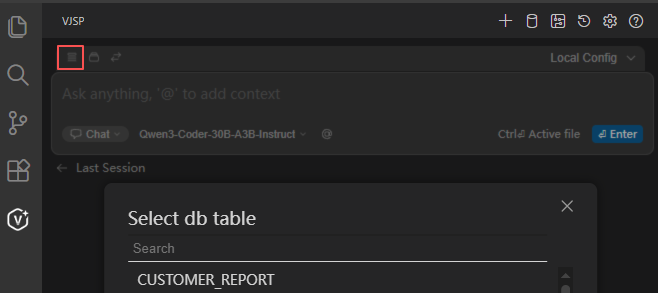
How to Enable?
Click 【Select Database Table】 in the top toolbar
Click the target Data Table Name in the list
The plugin automatically completes structure synchronization, and subsequent conversations reason based on this context
💡 Tip: When table structures are not synchronized, AI can only generate generic SQL; after synchronization, generation accuracy significantly improves. It is recommended to select the corresponding table before operations.