AI + Visual Form Editing
Visual Editing is one of the core capabilities of VJSP, supporting WYSIWYG (What You See Is What You Get) interactive design for *.html form files. Developers can adjust form structure, style, and behavior in real-time within the IDE without writing or modifying HTML code.
1. Function Introduction
Visual Editing is one of the core capabilities of VJSP, including:
🖱️ Drag-and-drop layout: Freely adjust field positions and order
⚙️ Quick attribute configuration: Set control name, placeholder, default value, required validation, and other rules
🔗 Event and logic binding: Configure interactive behaviors such as click, input, value change, etc.
🎨 Multiple layout modes: Support for responsive, table, free layout, and other typesetting methods
🔁 Auto-sync: All visual changes are converted into standard HTML in real-time and written back to the source file
Applicable to all *.html form files in the directory src/main/resources/static/vjsphtml/, especially suitable for business scenarios that require frequent iterations.
2. Operation Steps
Step 1: Prepare the Form File (Optional)
For new feature development: Use AI to generate an initial form that complies with VJSP specifications (e.g., input "Generate a customer approval form")
For existing form optimization: Proceed directly to the next step without additional operations
Step 2: Locate the Target Form File
In the IDE's resource explorer, find the target HTML form file (e.g., approve.html) in the project and click to select it.
✅ Example path:
src/main/resources/static/vjsphtml/modules/customer/approve.html
Step 3: Launch Visual Editing
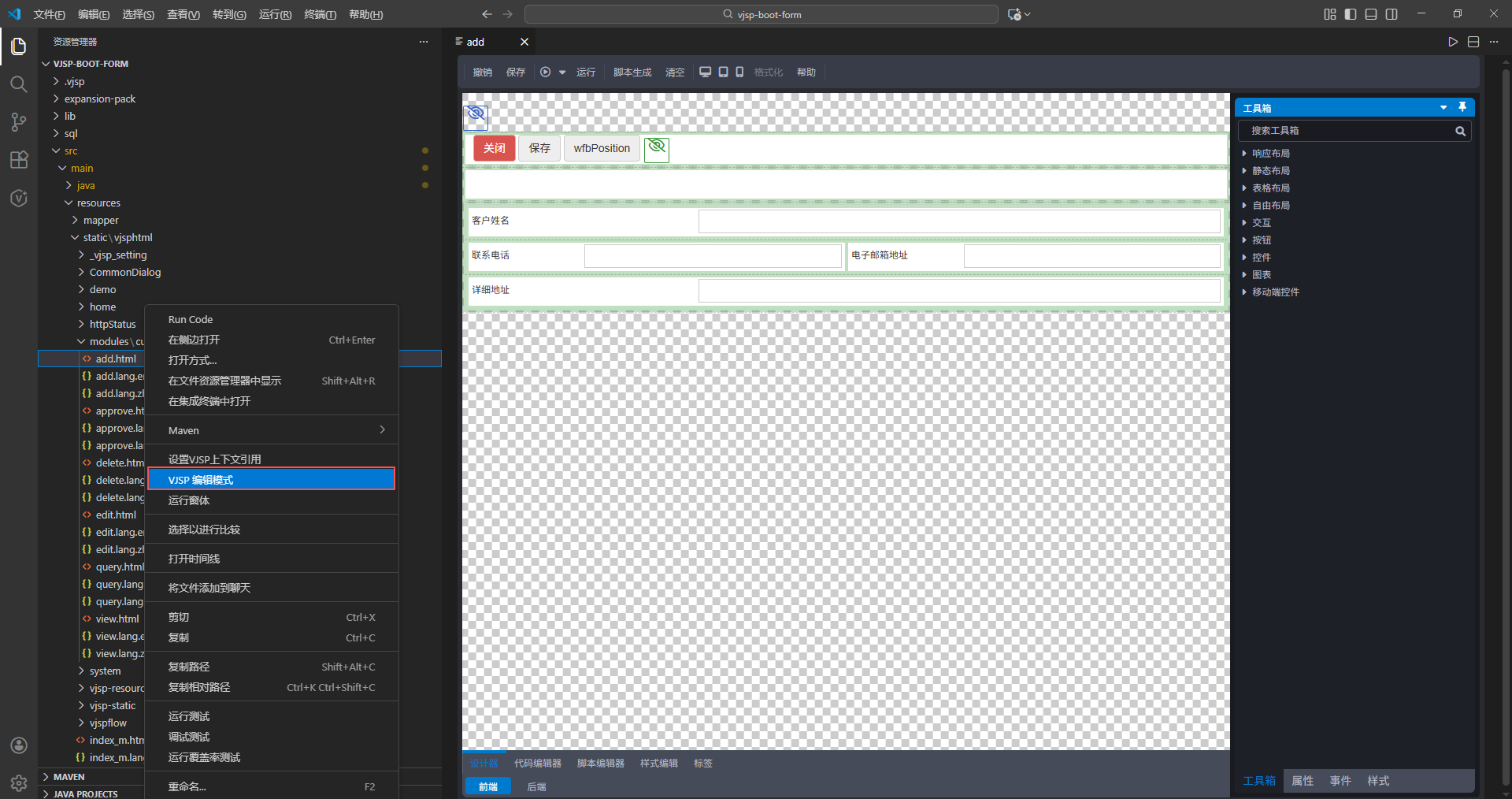
Right-click the file and select the "Edit Form" option from the context menu.
The system will automatically load the form content and open the built-in visual editing panel.
Step 4: Adjust Form Structure and Style
After entering the editing interface, you can use the following functional areas:
| Area | Description |
|---|---|
| Design Area | Real-time display of form rendering effects, supports zoom, scroll, and element selection |
| Component Library | Provides common UI elements such as input boxes, dropdown selections, date controls, buttons, etc. |
| Properties Panel | Configure the selected control's properties such as name, placeholder, default value, required, etc. |
| Events Panel | Bind interactive behaviors such as click, input, change, etc. |
| Style Settings | Adjust basic styles such as width, alignment, margins, etc. |
You can:
Click any field to modify its properties
Drag controls to rearrange the layout
Add new elements from the component library
Step 5: Save and Synchronize Code
After editing, click the "Save" button in the top toolbar. The system will automatically convert all visual adjustments into standard HTML structure and write them back to the original file, ensuring the code and design are completely consistent.
Visual Tool - Form Preview/Run Operation
In the project file list, find the HTML form file that needs previewing, right-click the file, and select the Edit Form option from the pop-up menu. The system will automatically open the form preview window, displaying the form's page style, interaction effects, and field layout in real-time, making it easy for developers to quickly adjust the form design.
Quick Call in the Editor
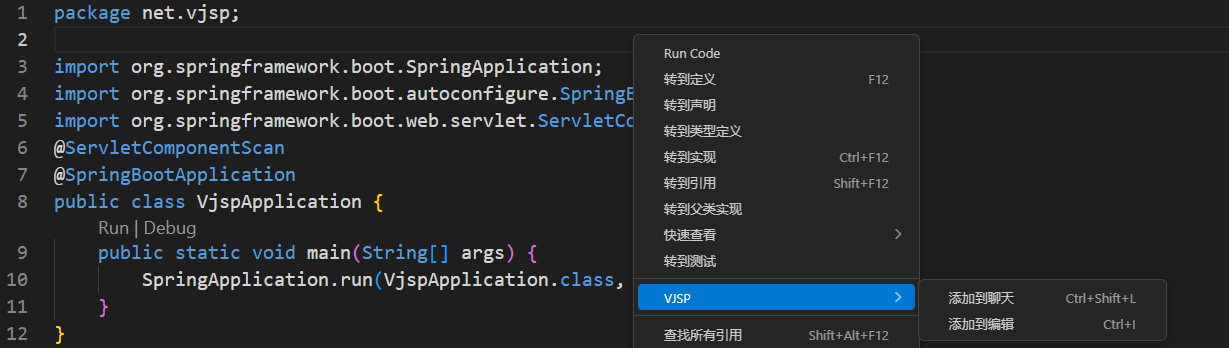
In the IDE code editor, after selecting the target code segment, right-click and select the "VJSP" menu to quickly invoke the plugin's core functions. After triggering the operation, AI will respond in real-time based on the selected code context, popping up the processing result directly next to the editor, reducing the cost of interface switching.