AI Workflow Visualization
One-Click Insight into Project Process Logic
AI Workflow Visualization is one of the core features provided by VJSP, enabling complete graphical presentation of project business process structures within the IDE. It helps developers intuitively understand node types, transition conditions, and execution sequences, significantly improving the transparency and maintainability of process design.
Without switching tools or writing additional code, you can intelligently generate VJSP workflows and modify workflow nodes and configurations through drag-and-drop operations.
1. Function Introduction
AI Workflow Visualization includes the following core capabilities:
🧩 AI intelligent design and generation of VJSP workflows Intelligently designs workflows and generates workflow code after confirmation
🖼️ Graphical node display Clearly presents standard node types such as "Start," "Approval," "Branch," "End," and their connection relationships
🔍 Deep Interaction and Traceability
Click nodes to view detailed configurations (approver, actions, forms, etc.)
Right-click connections to view transition conditions
🔄 Real-time Synchronization
After modifying and saving the workflow, the view interface automatically refreshes
2. Operation Steps
Step 1: Open the AI Dialog Panel
After opening any project file in the IDE, ensure VJSP is logged in and the AI dialog is displayed.
Step 2: Enter the Workflow Designer
Click the "Open Workflow Designer" button at the top of the AI dialog, and the system will open the Workflow Visualization Interface.
Step 3: Load Workflow View
In the workflow visualization interface, click the "Workflow" option in the left navigation bar to view dialogs, events, and workflow lists. Select any workflow.
The system will load the complete flowchart.
Step 4: Browse and Interact
In the workflow view, you can:
Click nodes: Click any process node, right-click Detailed Configuration, and the property panel will display basic information, approval settings, approvers, action attributes, etc.
Right-click connections: Right-click a connection and select "Detailed Configuration" to display detailed configuration
3. AI Collaboration: Generate Code Based on Workflow Context
When conversing with AI, you can actively select workflows defined in the project as context. The system automatically injects metadata such as the node structure, approval rules, and field definitions of the process into the AI reasoning environment, thereby generating workflow form code that highly matches the business logic, significantly improving development accuracy and efficiency.
Operation method:
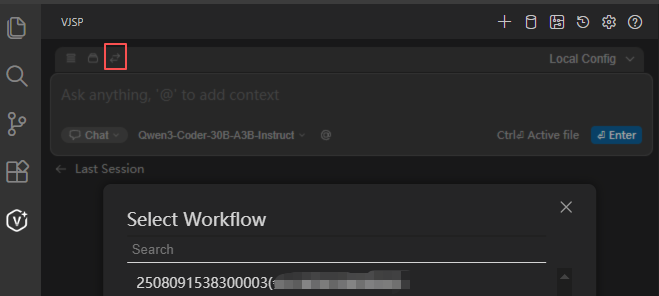
At the top of the AI dialog, click the "Select Workflow" icon
From the pop-up list, select a workflow that has been created in the current project
The conversation will perform intelligent generation based on the selected workflow context