
Form Visualization
Overview
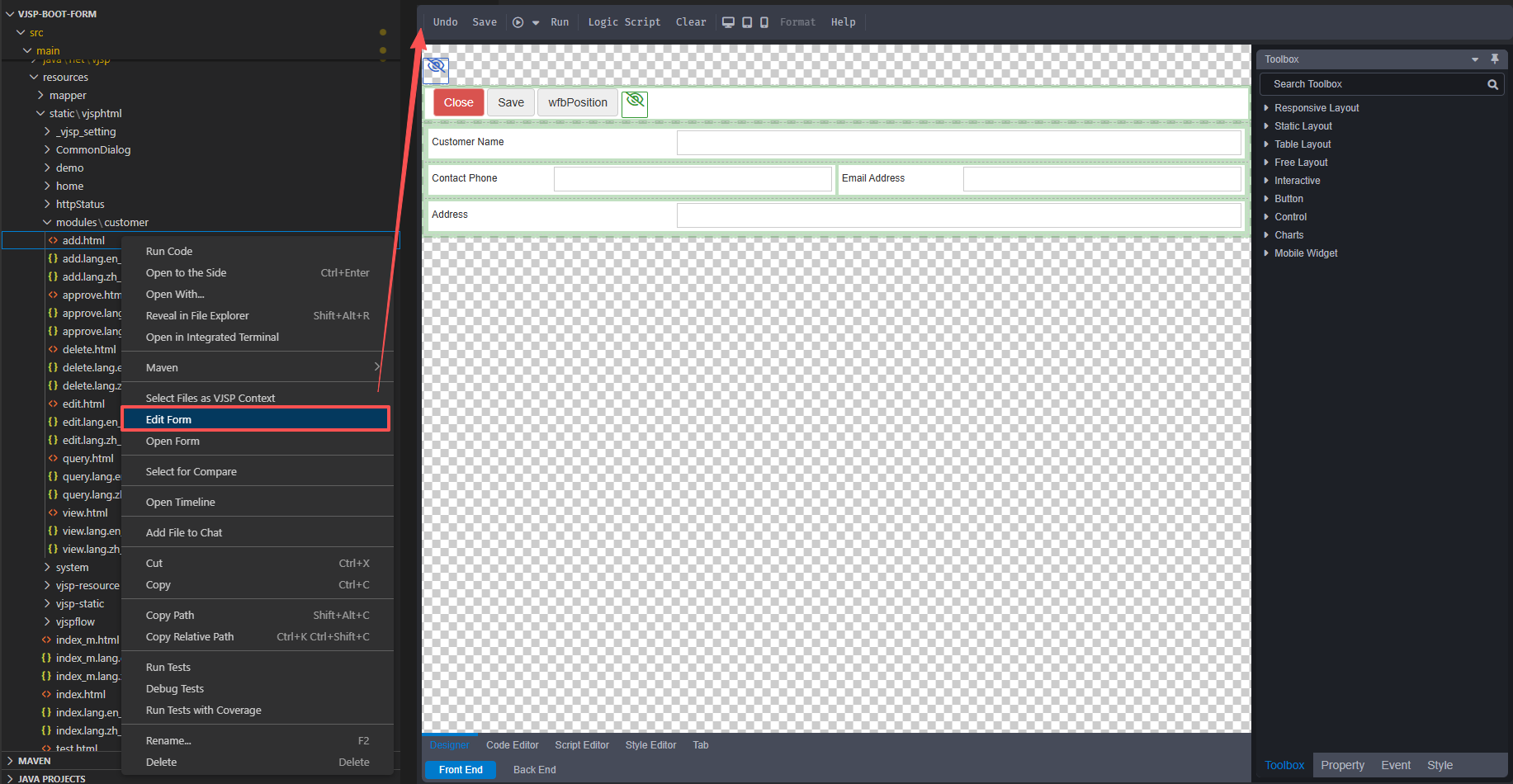
In the project file list, under the VJSP Framework project /src/main/static/ folder, locate the HTML form file that needs to be previewed. Right-click on the file, select the 【VJSP Edit Mode】 option from the pop-up menu. The system will automatically open the form front-end preview window, displaying the form's page style, interaction effects, and field layout in real time, facilitating developers to quickly adjust the form design.
Top Functional Area
- Undo: Click to undo the previous operation.
- Save: Click to save the current form settings.
- Project: Click to open the project.
- Form: Click to open the form.
- Run: Click to automatically save the current page settings and view the effect of the current settings.
- Script Generation: Click to enter the script generation page, where script settings can be configured.
- Clear: Click to clear all layout settings on the current page.
- Format: Formats the code in the "Code Editor", "Script Editor", and "Style Editor".
- Help: Click to access the help documentation.
Right Functional Area
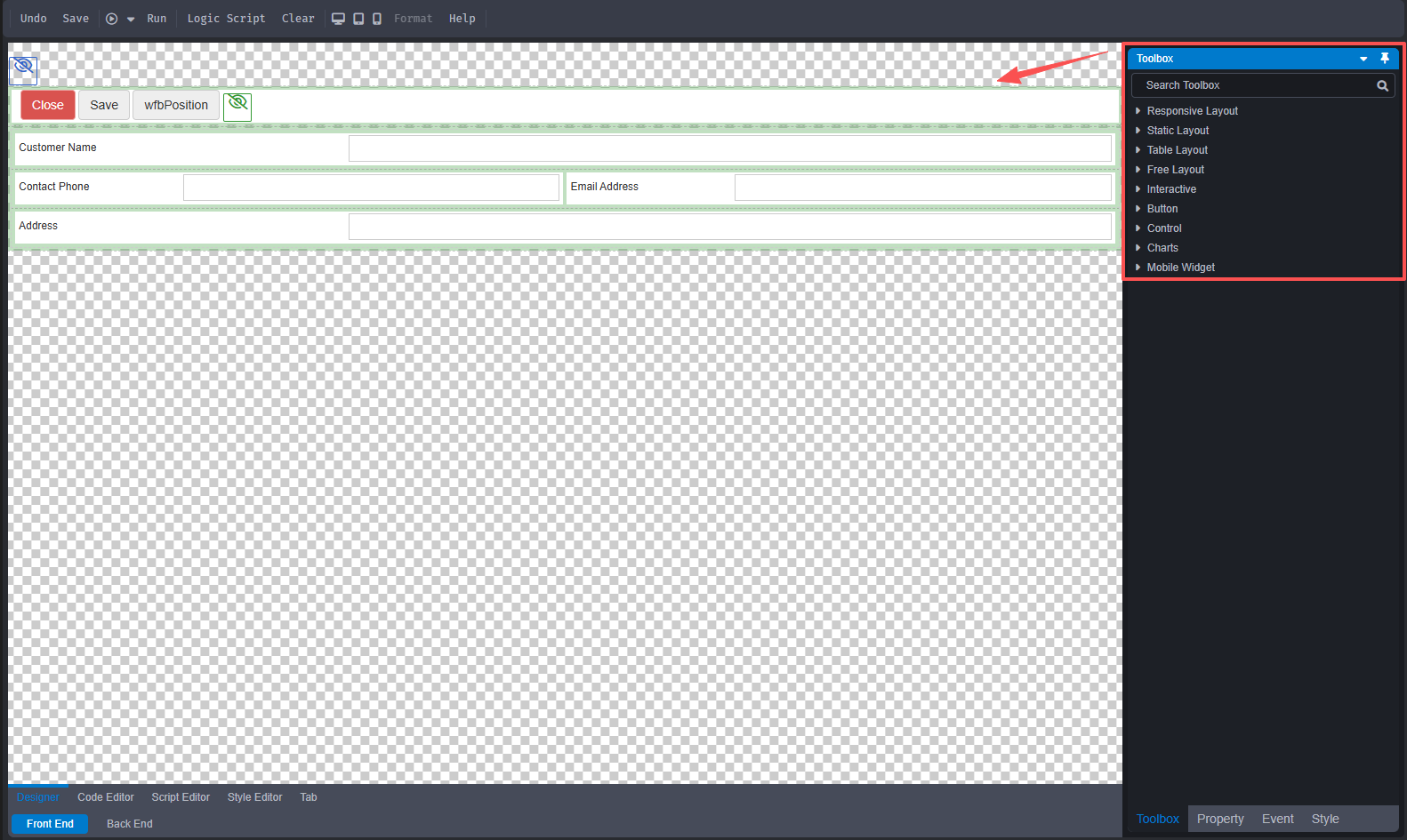
1. Toolbox
Select tools from the toolbox and drag them into the designer to edit the form page style.
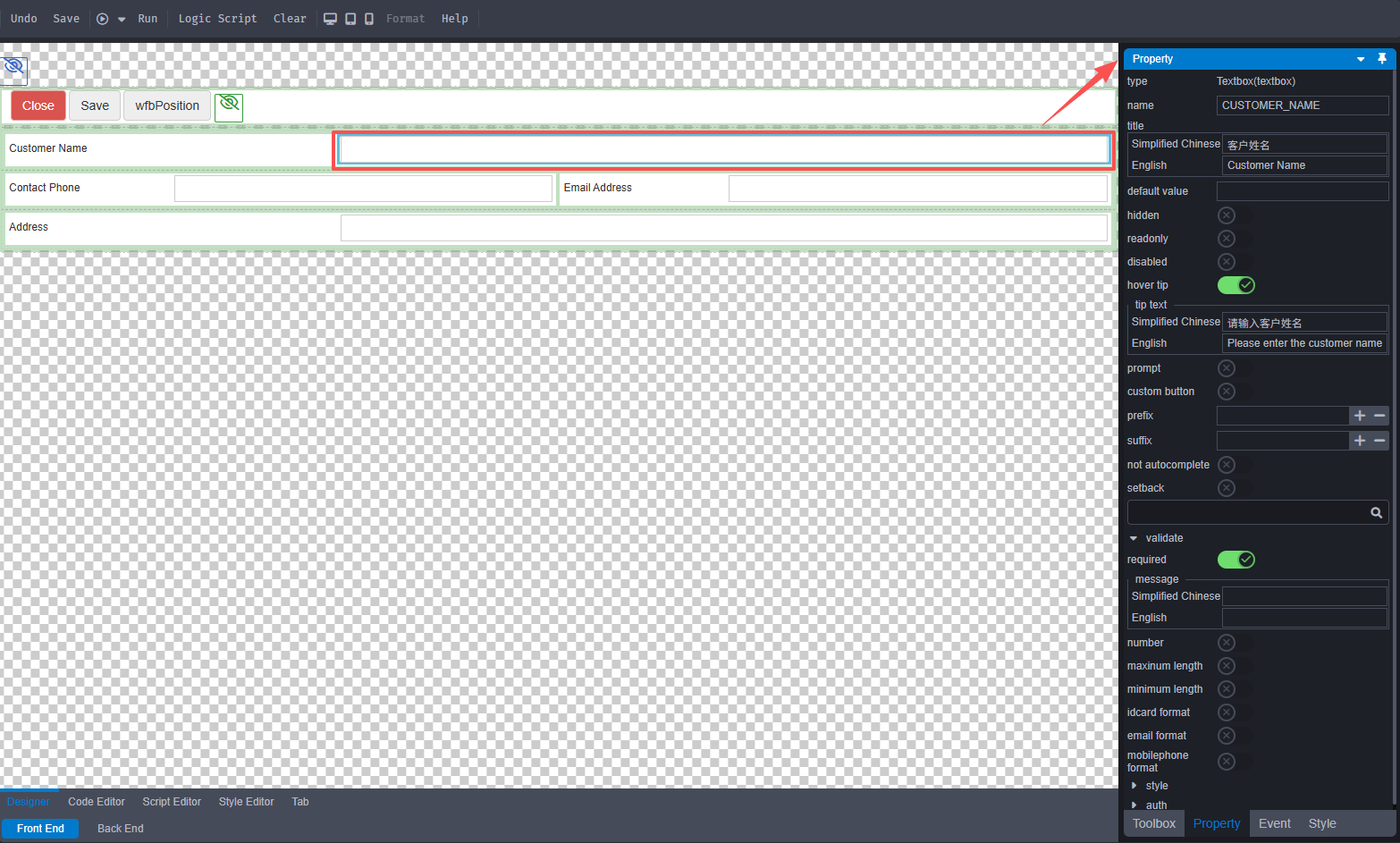
2. Property Settings
Click on a component within the designer, and the properties page will open on the right side, allowing you to set the component's properties.
3. Events
Click the [Events] tab at the bottom of the right-side toolbox to set control events.
4. Styles
Click the [Styles] tab at the bottom of the right-side toolbox to set control styles.
Bottom Functional Area
- Designer: Displays the form page style in real-time and allows for modifications.
- Code Editor: Click to open the form code editor.
- Script Editor: Click to open the form script editor.
- Style Editor: Click to open the form style editor.
- Tags: Click to view form tags. You can view the form's tags and perform modification or deletion operations.
