Basic Functions
The VJSP framework comes with a comprehensive set of enterprise-grade basic function modules, covering core capabilities such as user management, organizational structure, access control, data dictionaries, and system logs. When developers build applications based on this framework, they do not need to redevelop common functions, but can focus on designing and implementing their own business logic and data models, significantly improving development efficiency and system consistency.
All basic functions are subject to unified permission control, support multilingual and theme customization, and seamlessly integrate with advanced modules like workflow and form engines, providing solid support for complex enterprise application scenarios.
1. User Management
Function Description
The User Management module is used to uniformly maintain the personnel information and system accounts of system operators. It employs a "separate binding" design:
- Personnel Information: Describes the organizational attributes of an employee or operator (such as name, department, etc.) and is independent of login behavior.
- System Account: Used for identity authentication and access control, containing login credentials and role authorization.
Personnel information can be changed independently (e.g., job transfer, name change) without affecting its bound login account. Conversely, the account status (enabled/disabled) only affects login ability and does not delete personnel records.
Personnel Information Management
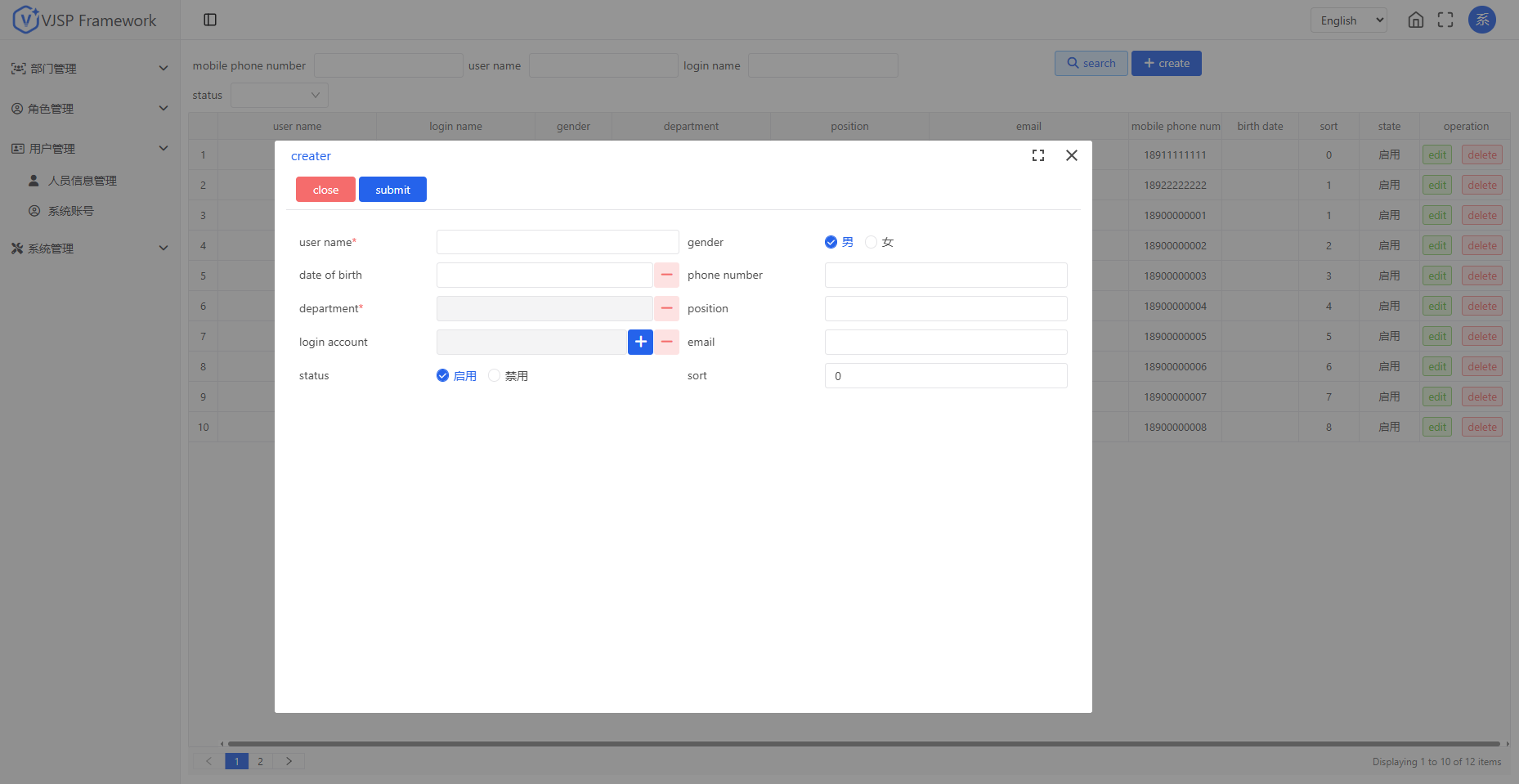
Add Personnel Information Navigate to the [User Management - Personnel Information Management] page and click "Add". Fill in the information and save to generate a unique personnel record.
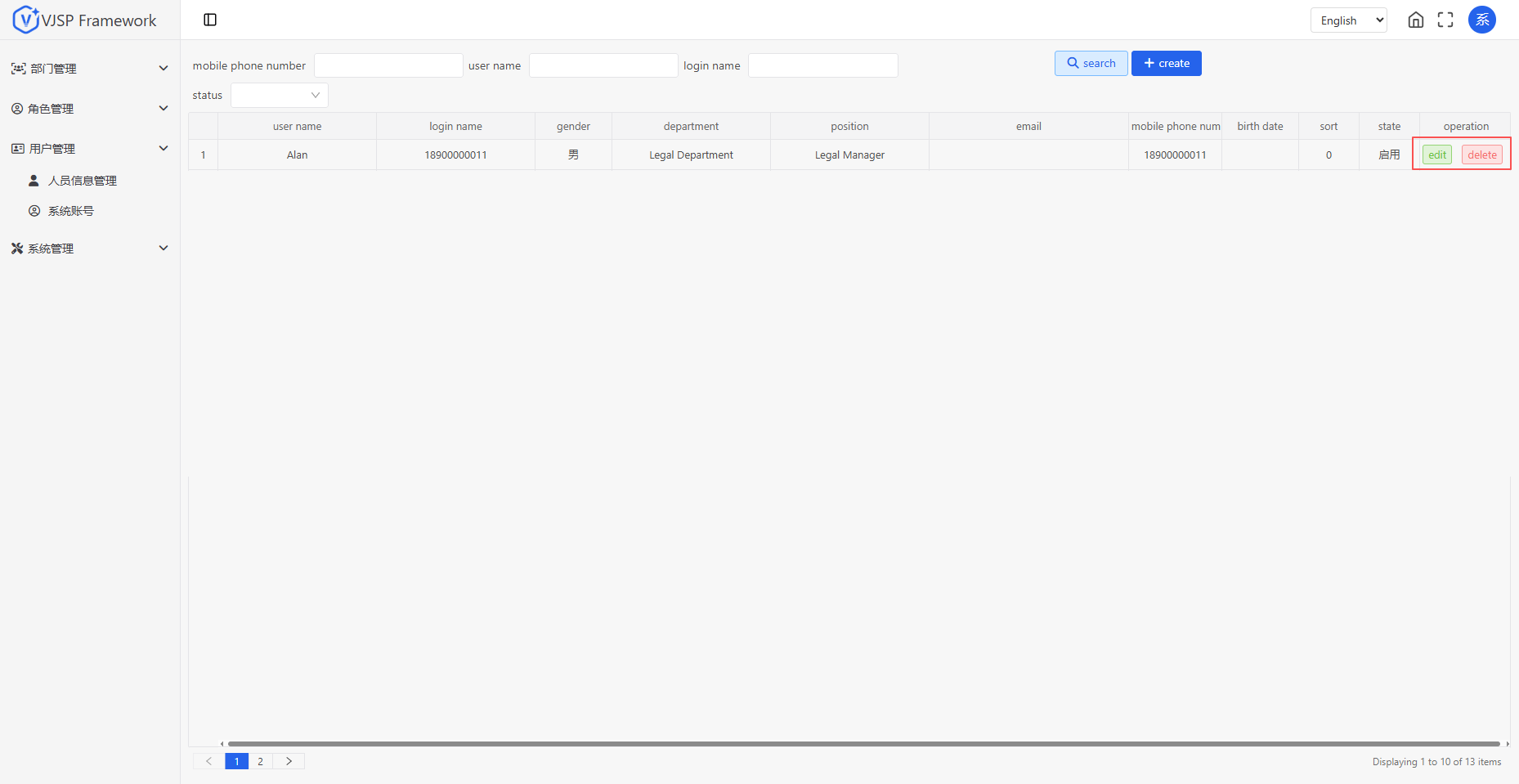
Edit/Delete Personnel Information Modify basic personnel information; delete personnel information. Confirmation is required before deletion to ensure no active accounts are bound.
Personnel Status Management Mainly used for organizational structure display and data permission filtering; does not affect account login (unless the account itself is disabled).
System Accounts
Add System Account Navigate to the [User Management - System Accounts] page and click "Add". Set the login account (unique), account name, initial password, and assign at least one role.
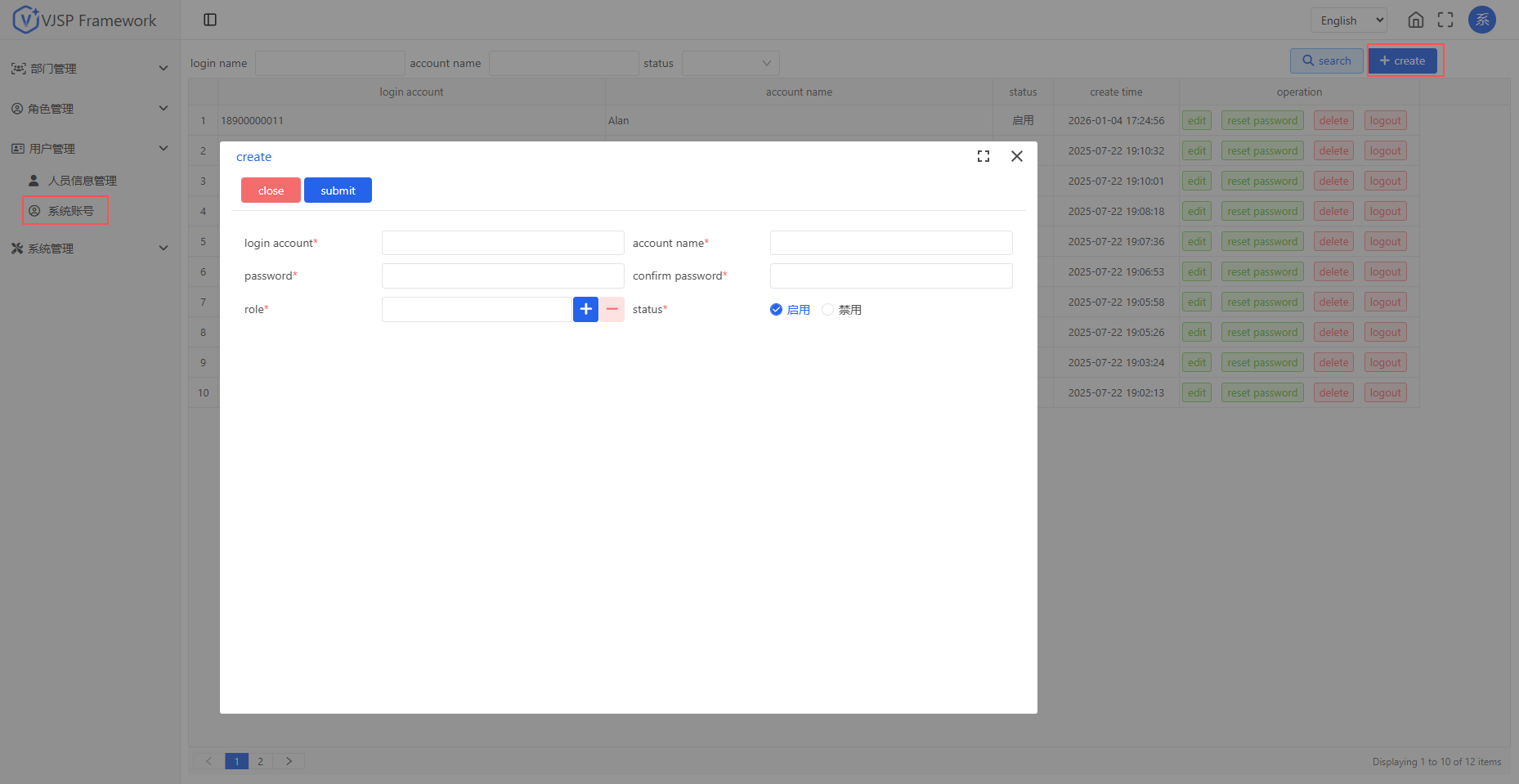
Assign Roles In the account creation or editing interface, check one or more roles from the role list, then click [Confirm]. The account will inherit the menu permissions, operation permissions, and data permission scope of the selected roles.
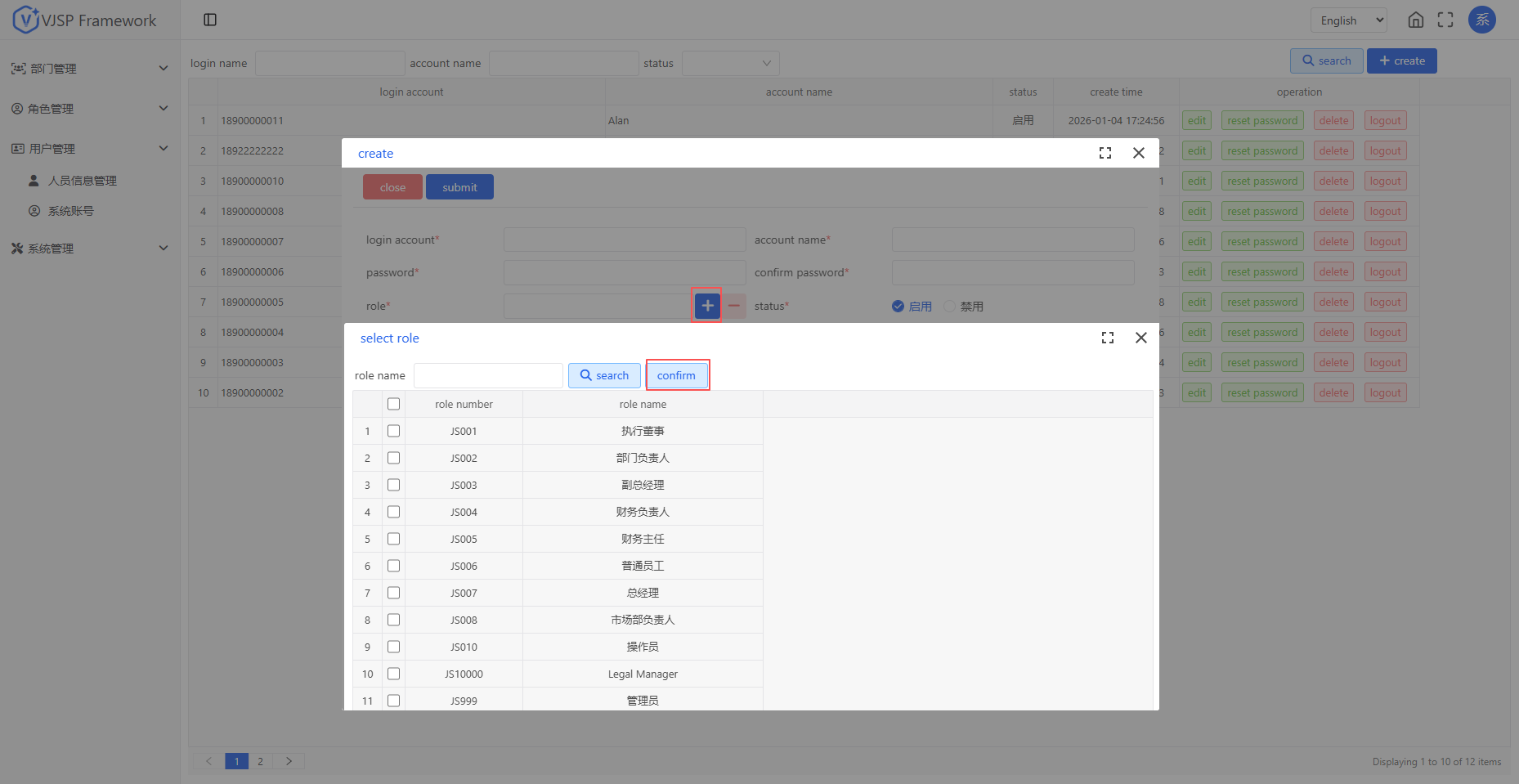
Account Status Management Supports "Enabled" or "Disabled". Once disabled, the account cannot log into the system, but historical operation records are retained.
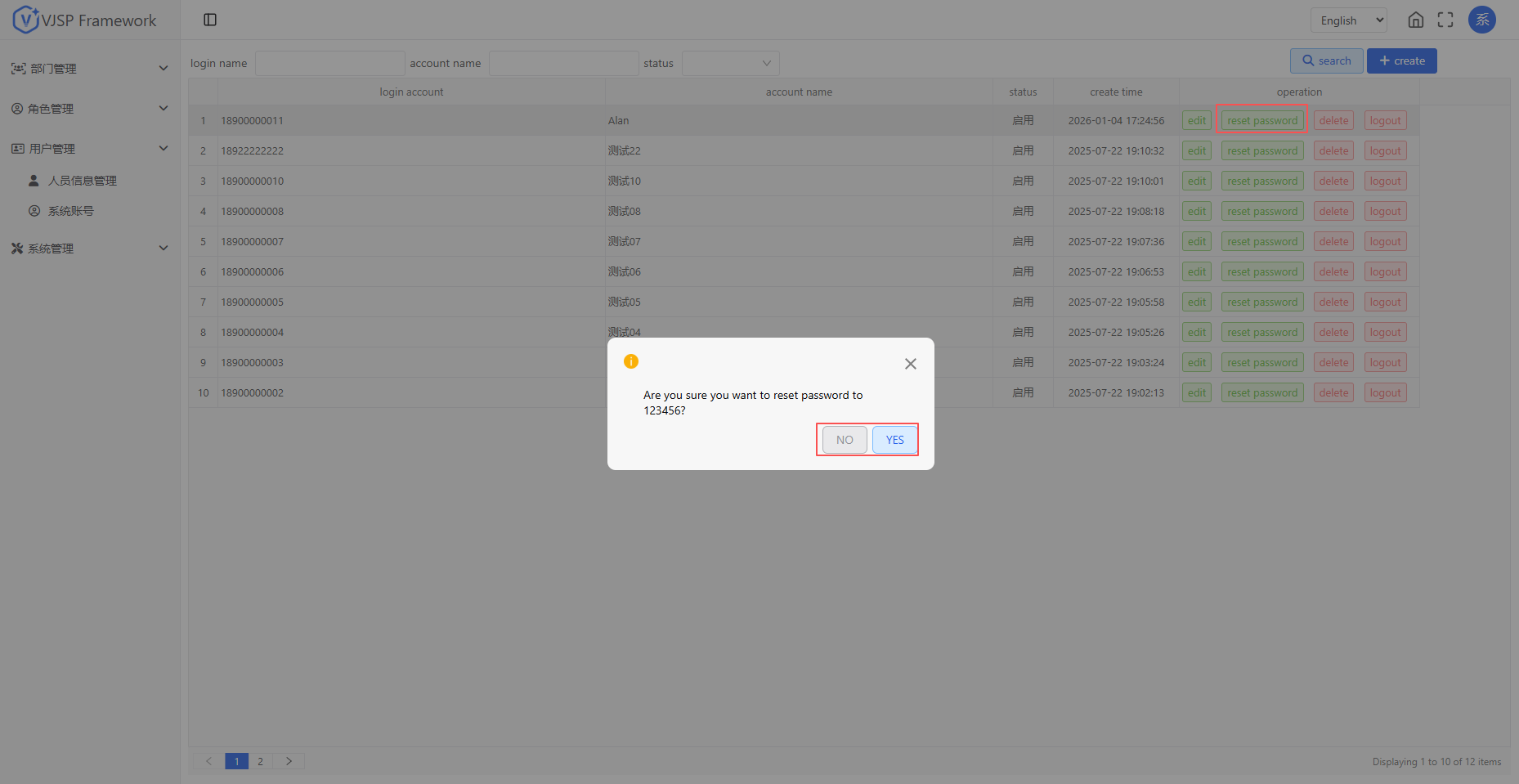
Reset Password An administrator can forcibly "Reset Password" for any account. Click [Reset Password], select [Yes] in the pop-up prompt window to reset the account password.
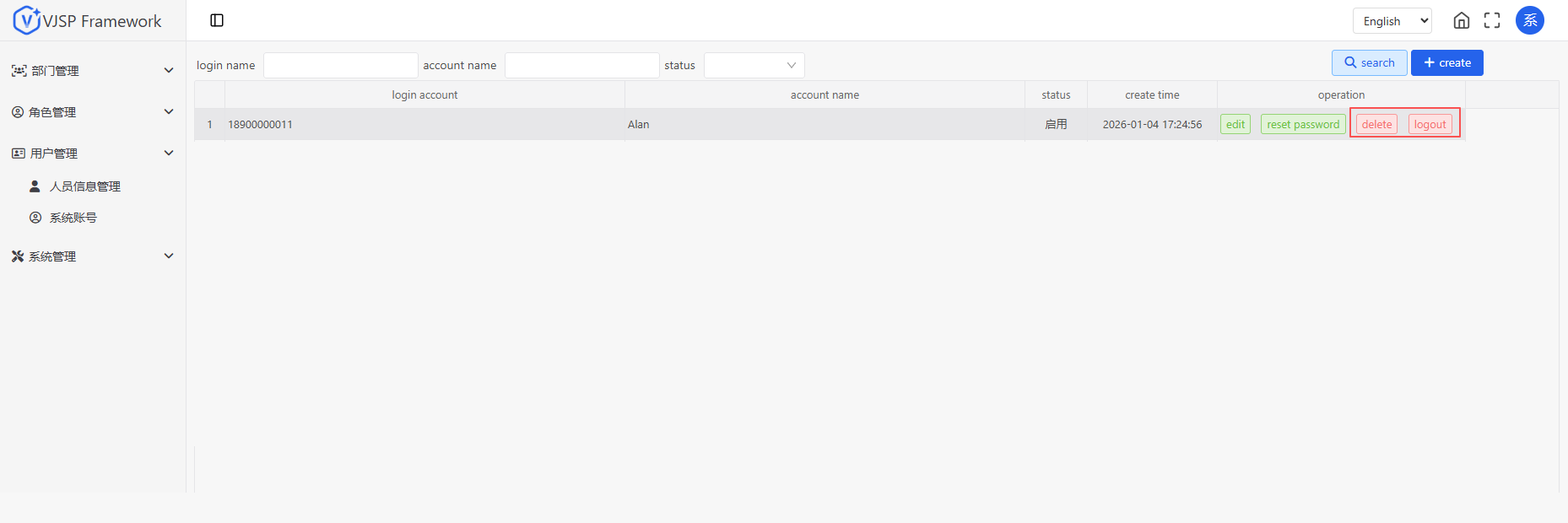
Delete Account System accounts no longer in use can be deleted. Deleting an account does not automatically delete associated personnel information, ensuring organizational integrity.
Force Logout An administrator can perform a "Force Logout" operation on an account. Click [Force Logout], select [Yes] in the pop-up prompt window to log the account out.
2. Department Management
Function Description
Maintains the enterprise's multi-level organizational structure (e.g., Company → Business Unit → Department), visually displayed in a tree structure, and serves as the basic unit for data permission isolation.
Department Management
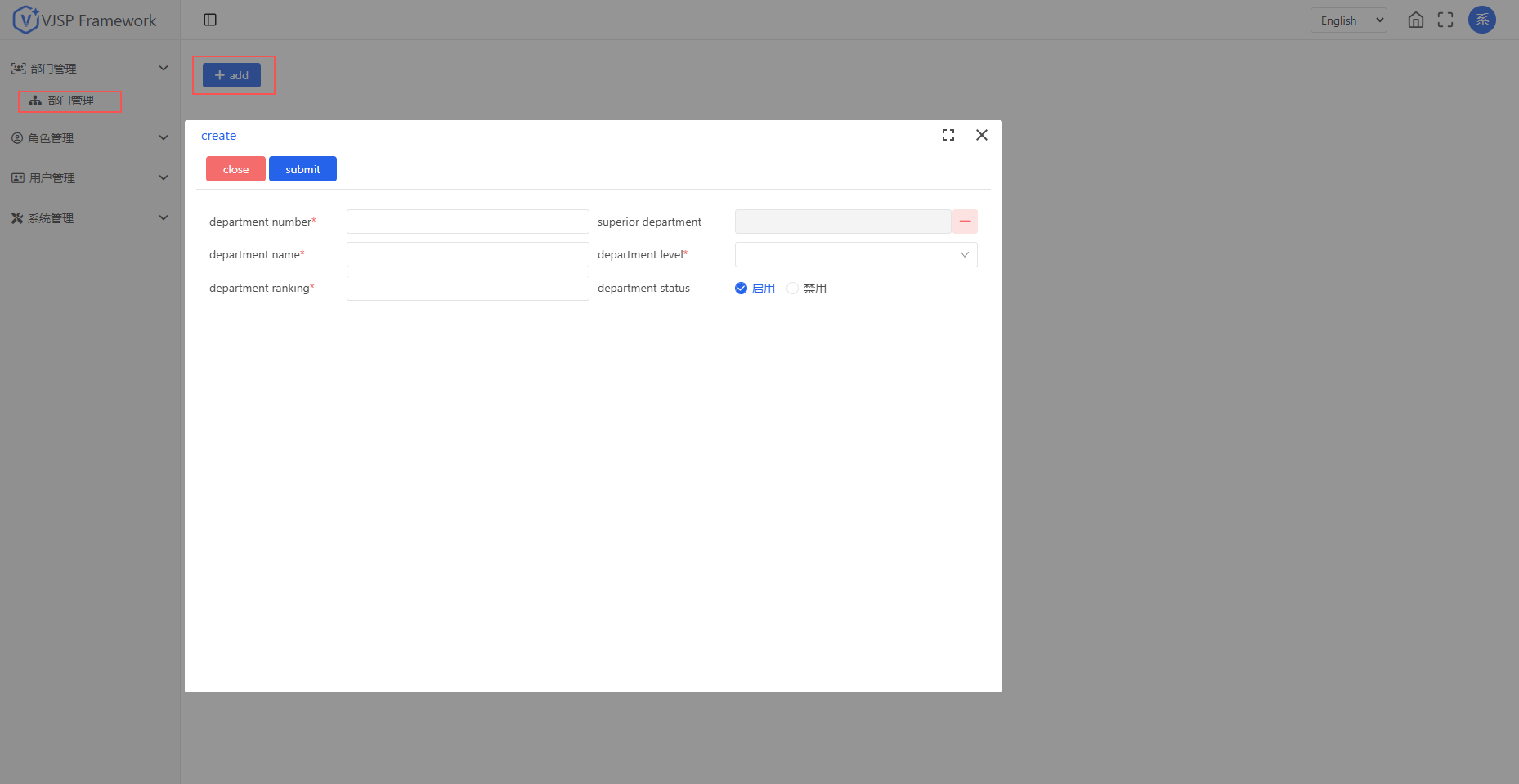
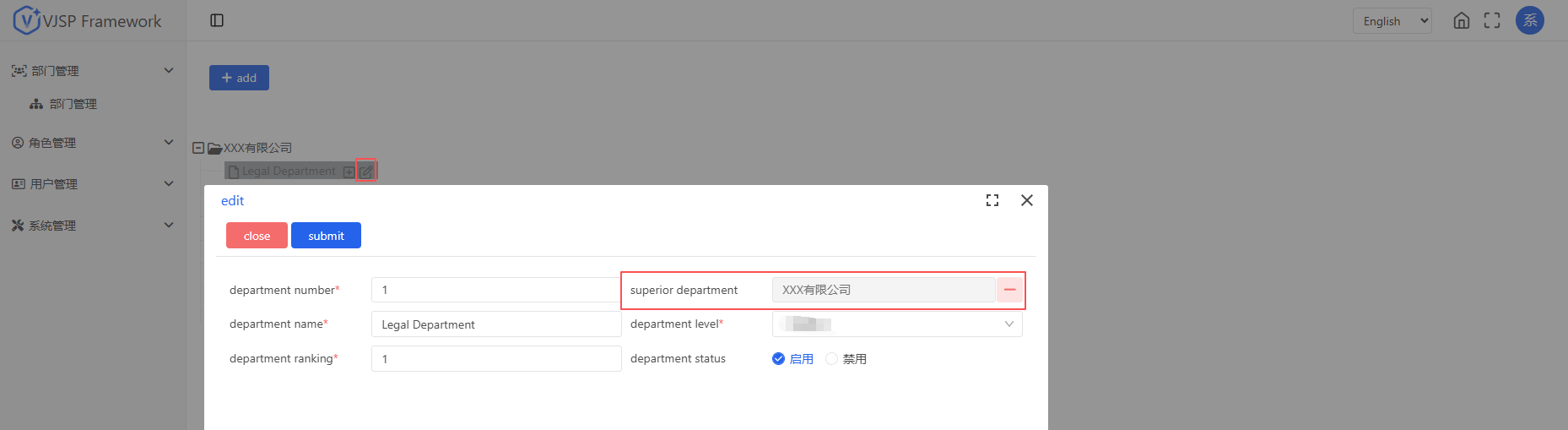
Navigate to the [Department Management] page and click [Add]. Set the department code, name, parent department, department level, department sorting, and status.
Adjust Organizational Hierarchy
Click the [Edit] button to enter the edit page, and flexibly adjust department affiliation by changing the parent department.
⚠️ Note: Ensure there are no users or sub-departments under a department before deleting it.
3. Menu Management
Function Description
Configures the structure of the system's left-side navigation menu and defines the operation permission identifier (Permission Code) for each menu item and button, enabling linked control between front-end routing and back-end permissions.
Add Menu Item
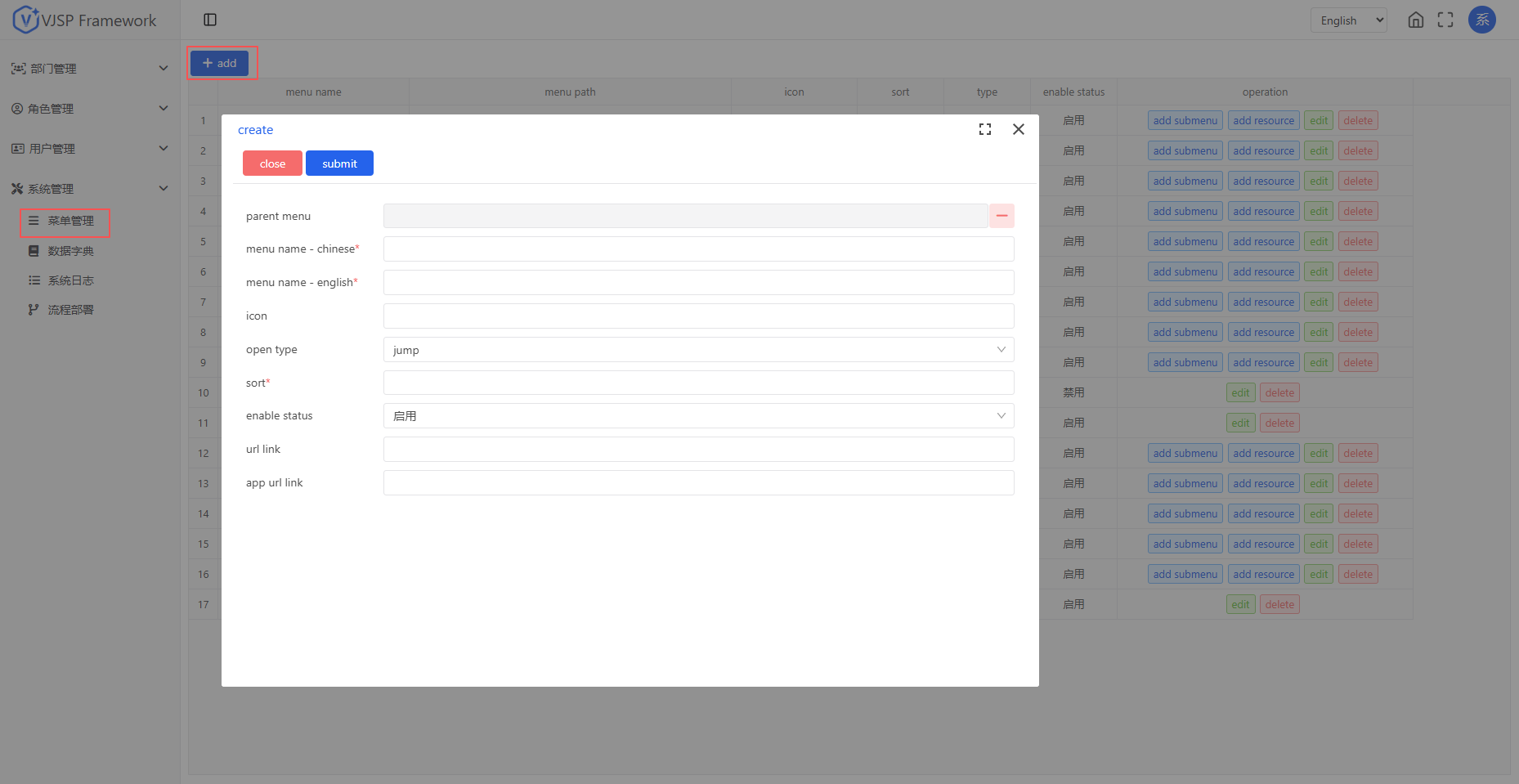
Navigate to the [System Management - Menu Management] page. Click the [Add] button, and set the menu name, parent menu, icon, opening method, sorting, status, and URL link.
Permission Configuration
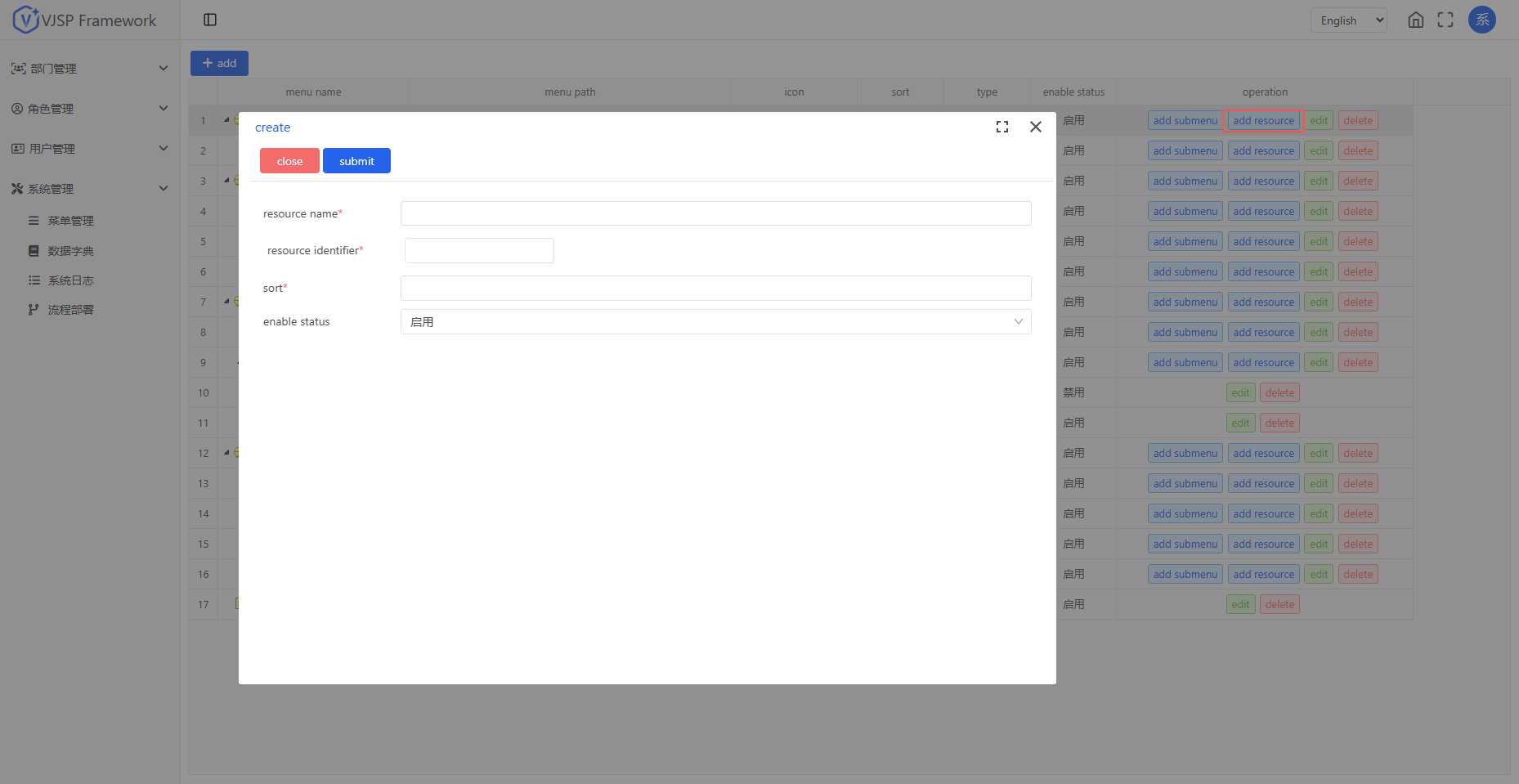
Click [Add Resource] to set create, read, update, and delete (CRUD) permissions for the page.
🔒 Permission Logic: Users can only access menus and buttons authorized by their roles. Unauthorized items will be automatically hidden or disabled.
4. Role Management
Function Description
Role Management: Groups users through roles and uniformly configures their accessible menus, operation permissions, and data permission scopes.
Process Role: Defines the role department in workflow approvals by setting process roles.
Process Role Configuration: Defines personnel in workflow approvals by configuring process roles.
Role Management
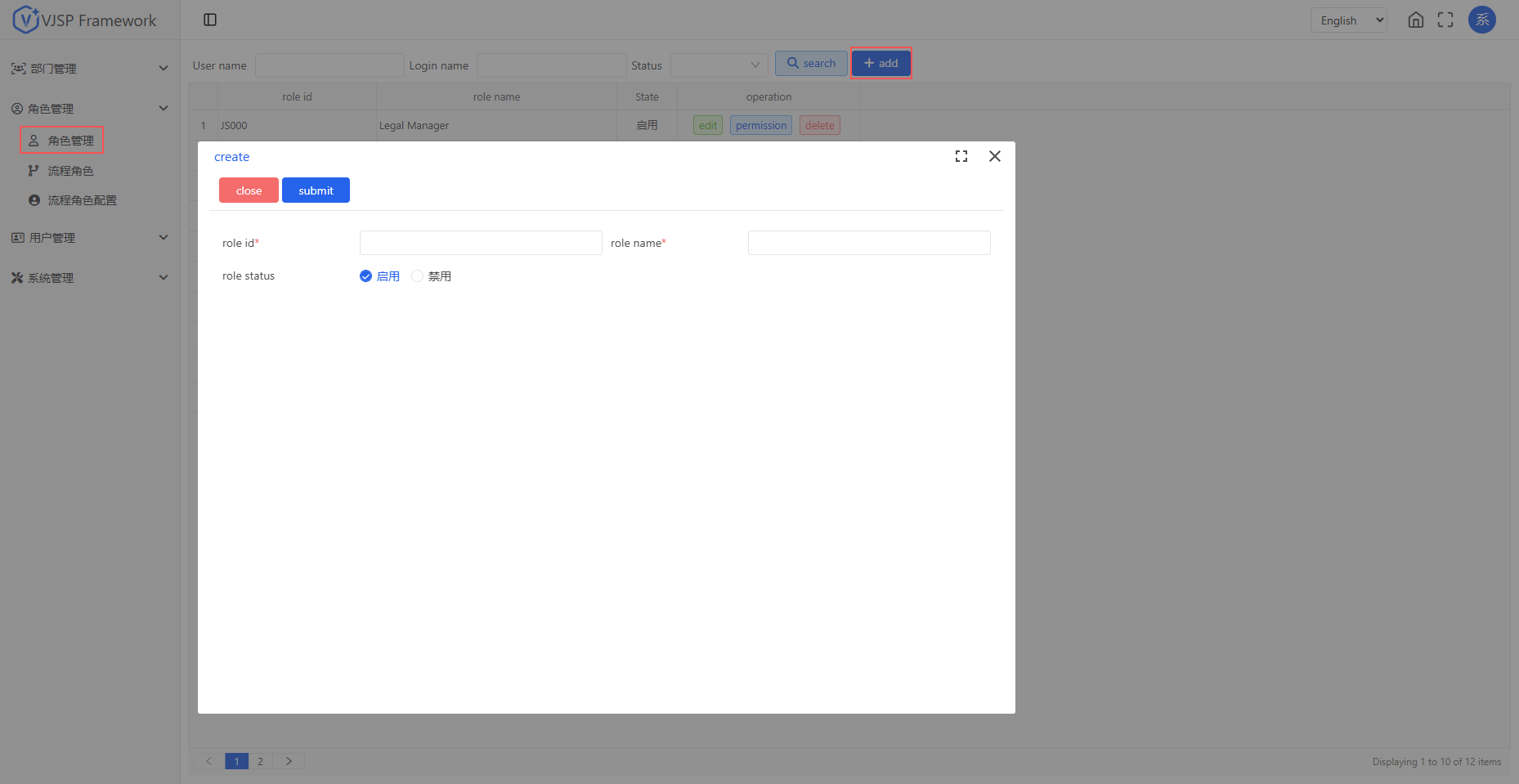
Add Role Management Navigate to the [Role Management - Role Management] page, click the [Add] button, enter the role code and name, and select the status.
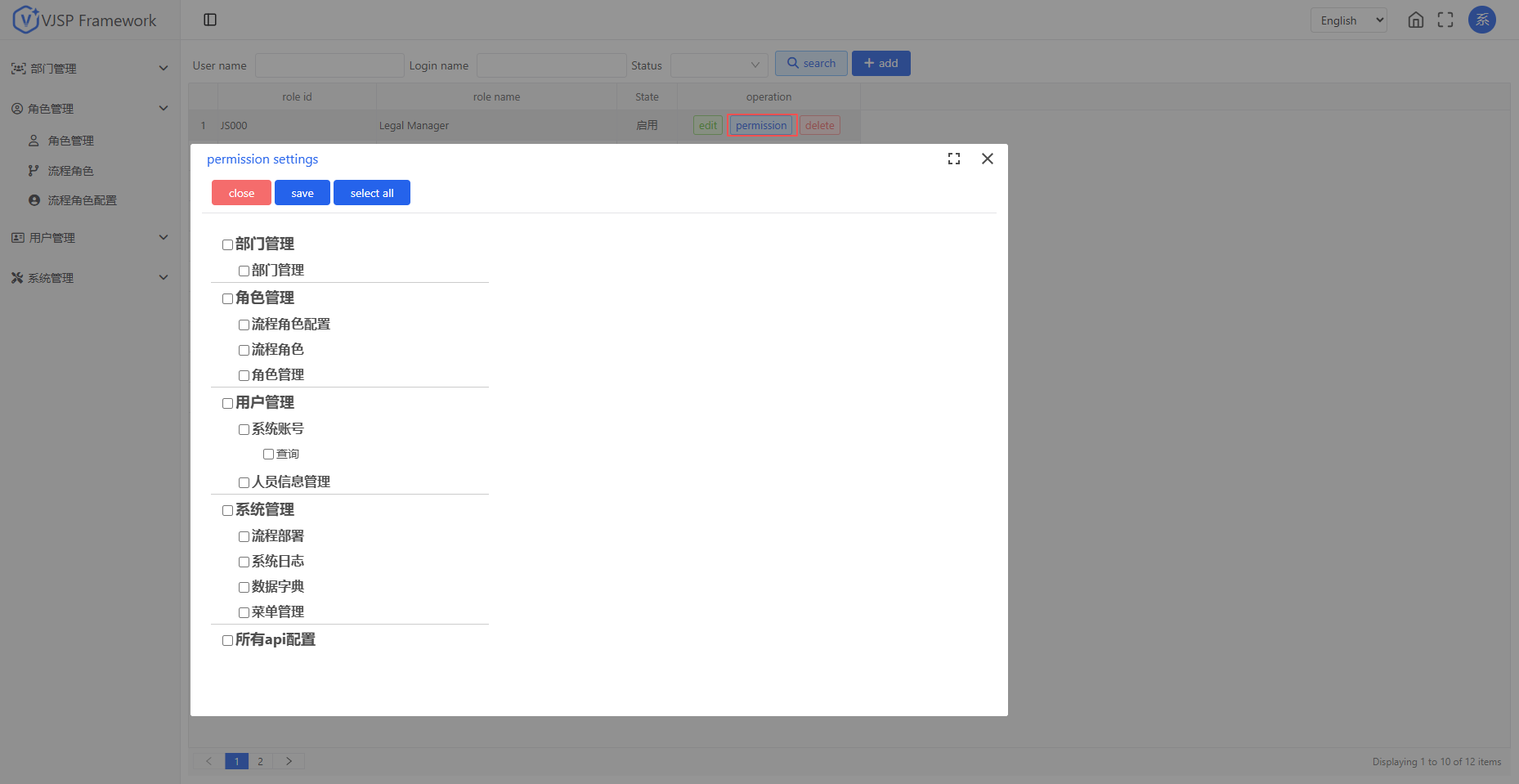
Role Permission Allocation Click [Permission Allocation] to select the menus and button permissions the role is allowed to access.
Process Role
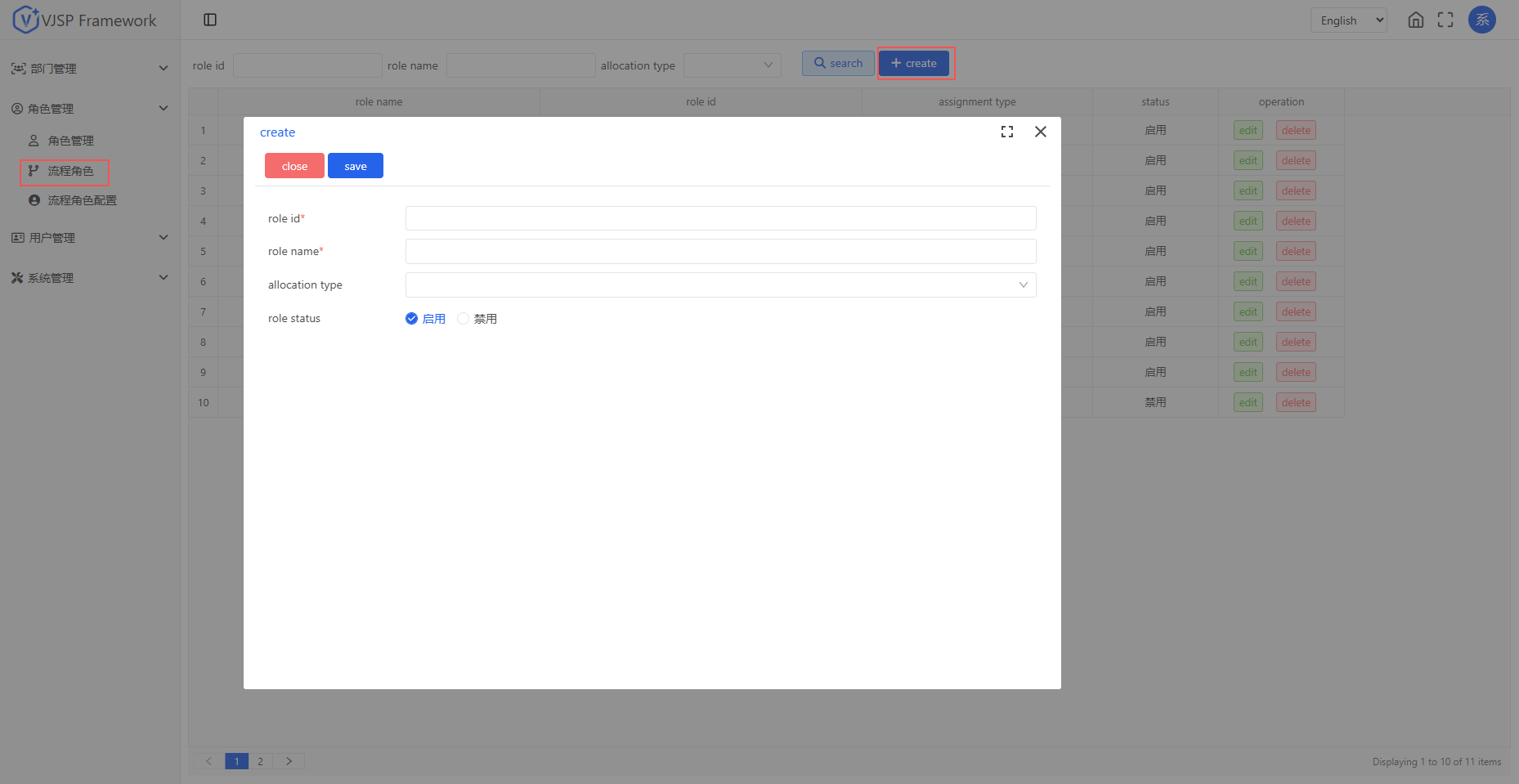
Add Process Role Navigate to the [Role Management - Process Role] page and click the [Add] button to create a process role.
Process Role Configuration
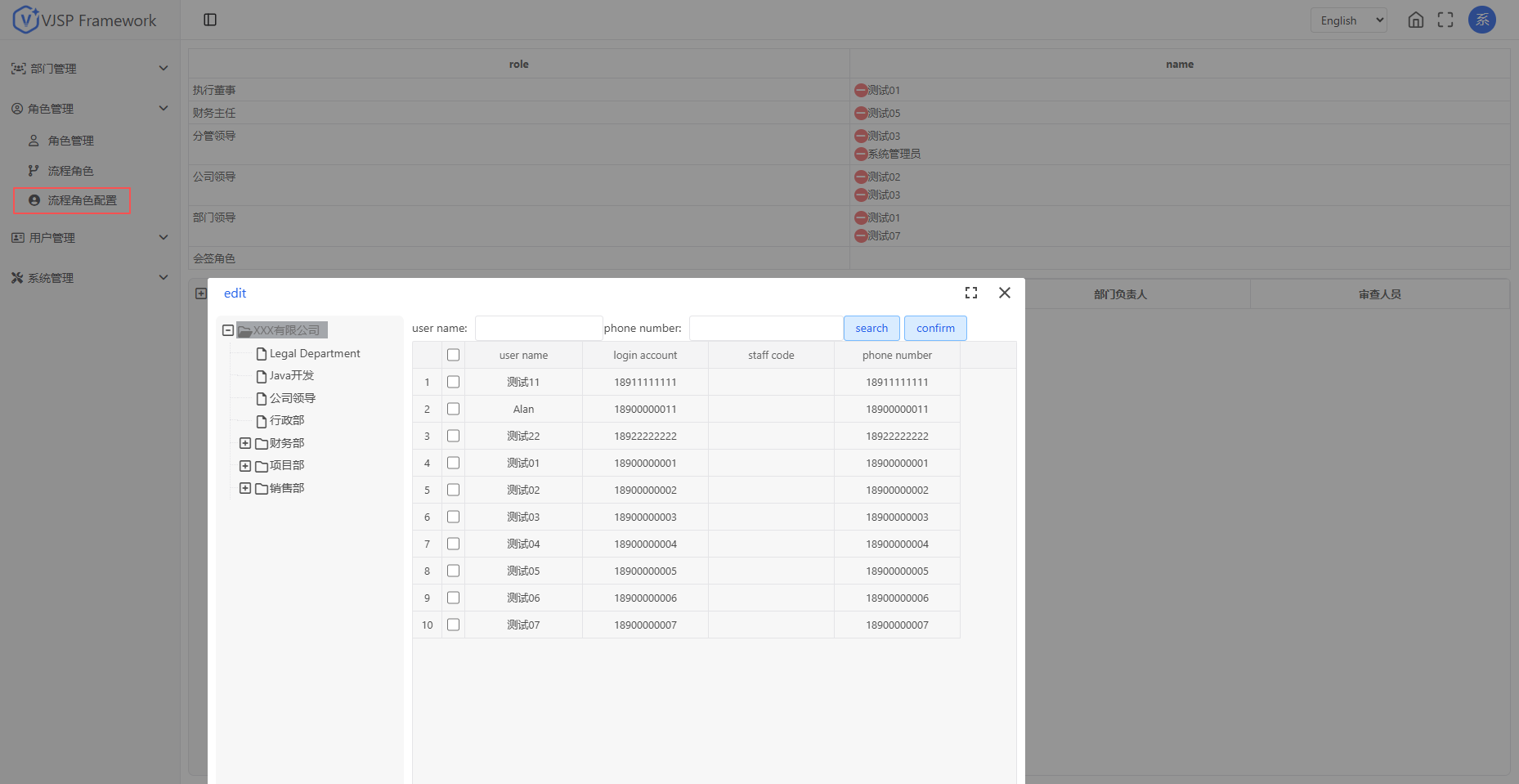
Navigate to the [Role Management - Process Role Configuration] page, double-click the "Name" input box after the role name to open the personnel selector and set the personnel for the workflow role.
5. Data Dictionary
Function Description
The Data Dictionary is used to centrally manage high-frequency, relatively fixed enumeration-based data in business systems (such as user status, gender, approval type, document status, etc.). By uniformly maintaining dictionary categories and items, it ensures data consistency between front-end and back-end, improves configuration flexibility, and supports multilingual label extensions.
✅ Typical application scenarios: Dropdown options, status label display, report classification dimensions, etc.
Core Concepts
| Term | Description |
|---|---|
| Dictionary Type | The classification identifier for the dictionary, referenced in code (e.g., user_status, gender). It is recommended to use lowercase English with underscores for naming. |
| Dictionary Name | The Chinese description of the dictionary category, used only for interface display (e.g., "User Status", "Gender"). |
| Dictionary Item | A specific value item under a dictionary category, containing attributes like key, label, sorting, etc. |
Main Operations
Add Dictionary Category
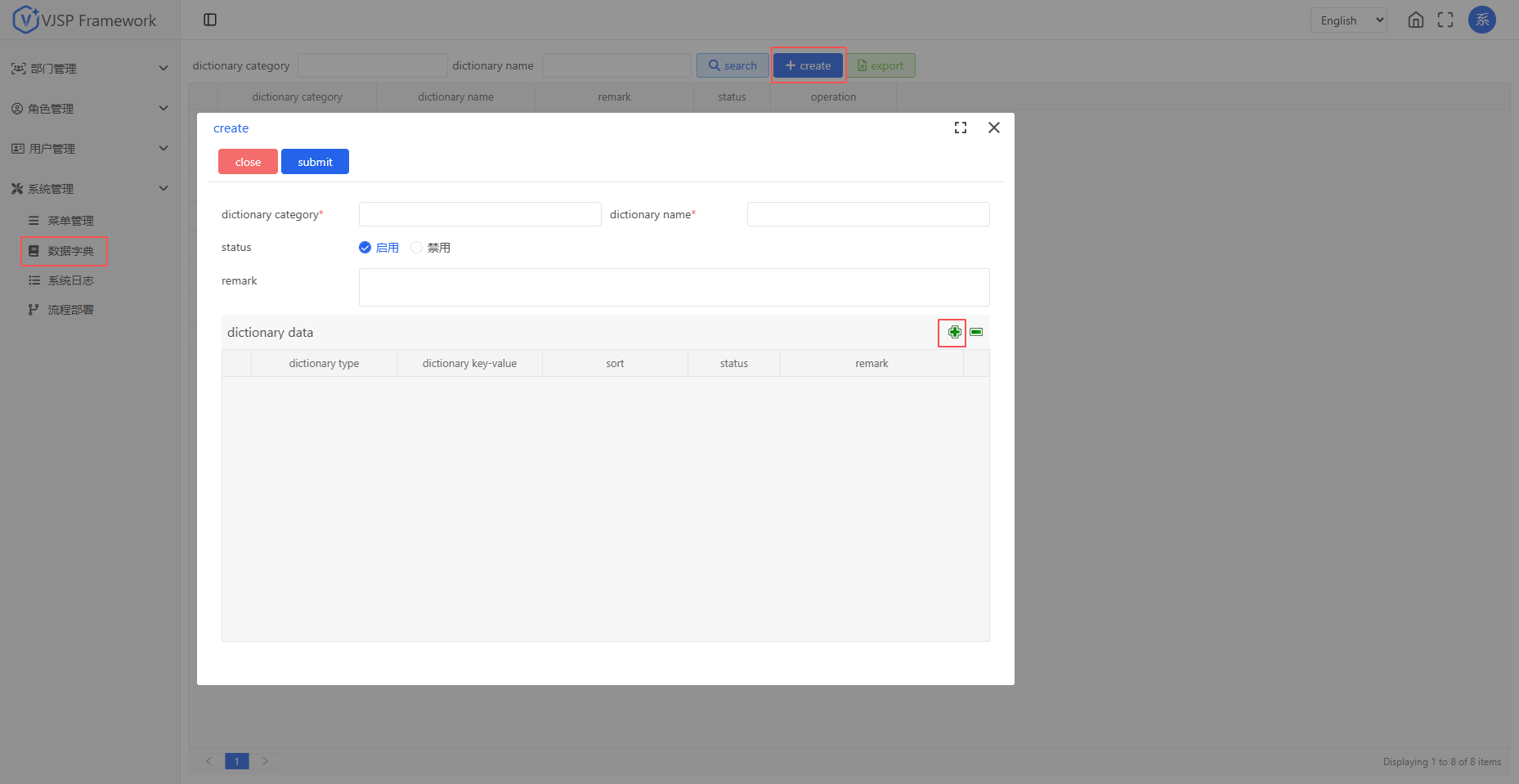
Navigate to the [System Management - Data Dictionary] management page and click "Add".
Fill in the following information:
- Dictionary Type: A unique identifier within the system (e.g.,
approval_type). Cannot be duplicated, English is recommended. - Dictionary Name: The display name shown to users (e.g., "Approval Type").
- Status: After enabling, the category and its items can be used in business.
- Remarks (Optional): Explain the purpose or scope of use.
- After saving, dictionary items can be added for this category.
- Dictionary Type: A unique identifier within the system (e.g.,
Maintain Dictionary Items:
- Add Dictionary Item: Fill in:
- Dictionary Label: The text displayed on the front-end (e.g., "Approved").
- Dictionary Key Value: The value actually used in the program (e.g.,
01). - Sort Number: Controls the display order in dropdowns or lists (smaller numbers appear first).
- Status: Enable/Disable this option.
- Remarks: Supplementary description (e.g., applicable scenarios).
- Edit/Delete Dictionary Item: Supports modifying content or removing options no longer in use (confirm no business data references it before deletion).
- Add Dictionary Item: Fill in:
🔒 Naming Convention Suggestion: Avoid using Chinese characters, spaces, or special characters; recommended format:
module_purpose(e.g.,order_status,doc_category).
Enable/Disable Dictionary Items or Categories
- Disable a Dictionary Category: All items under this category will not be available for selection in new business forms, but historical data can still display normally.
- Disable a Dictionary Item: The option will be hidden from dropdown lists and cannot be selected by users, but existing historical selections are unaffected.
⚠️ Note: It is recommended not to delete dictionary categories to avoid abnormal data display for (dictionary items already referenced by business data).
6. System Log
Function Description
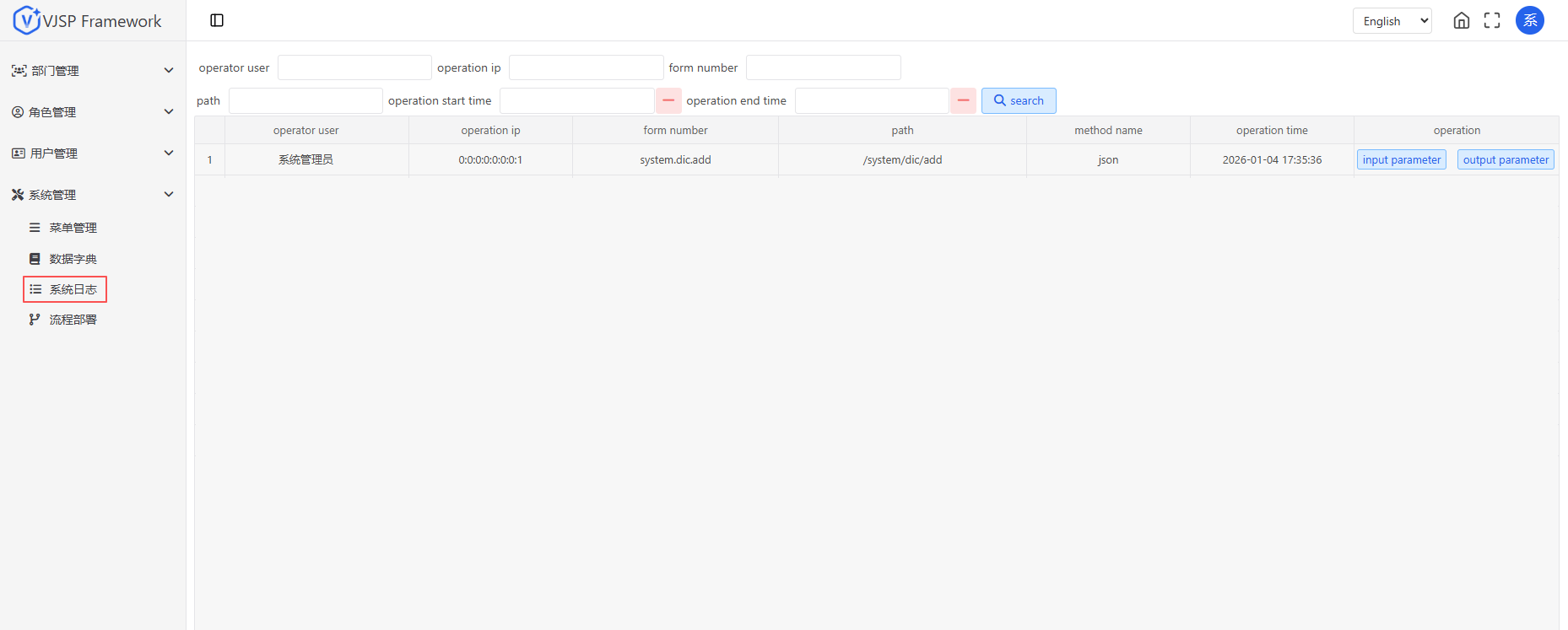
Automatically records users' critical operation behaviors and system exception events. Supports querying by time, user, operation type, etc., facilitating audit trails and issue troubleshooting.
- Operation Log: Records user login, data operations, and other behaviors.
Query and Export
- Supports filtering logs by date range, operator, etc.
🔍 Security Tip: Log content is only accessible to roles with "View System Log" permission, ensuring sensitive information remains controlled.