Object Management
Right-click on database objects to query, edit, or delete them; also supports querying and editing SQL statements. Taking a table as an example, as shown in the image below: 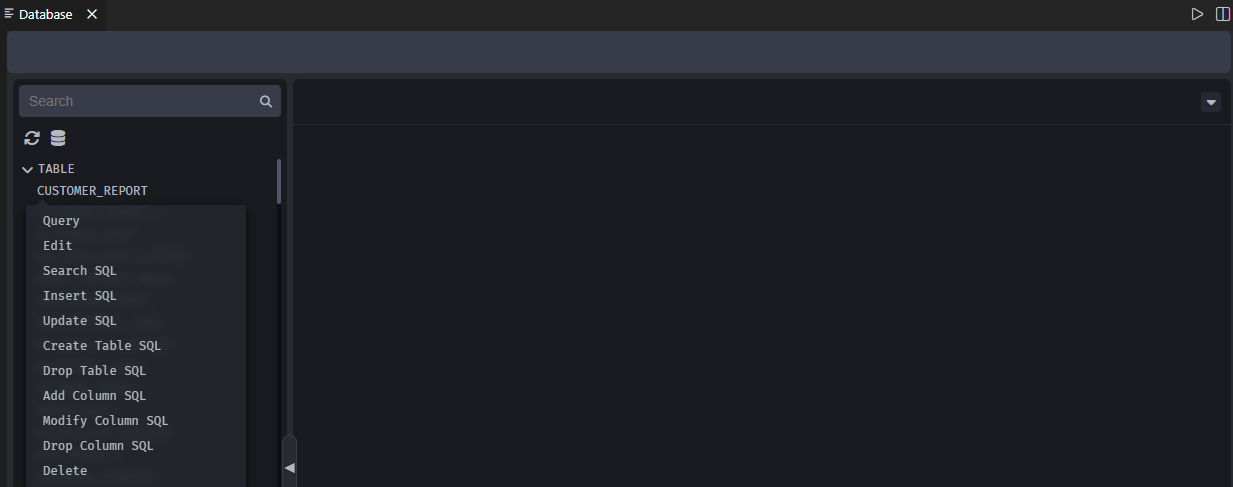
Querying Objects
Clicking【Query】will allow you to view table data, information, and historical records, as shown in the image below: 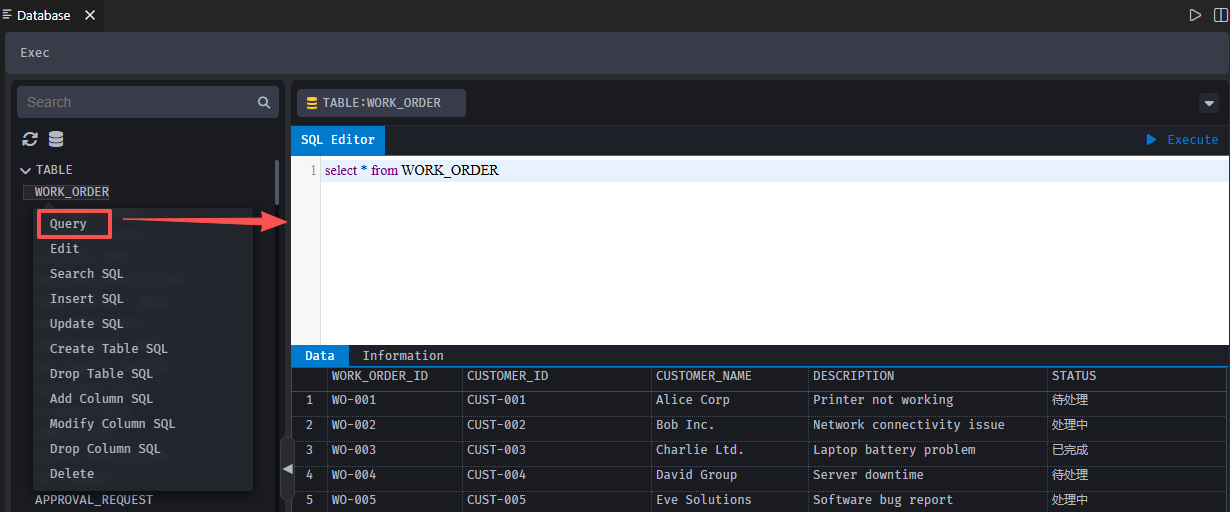
Click【Info】to view table information, as shown in the image below: 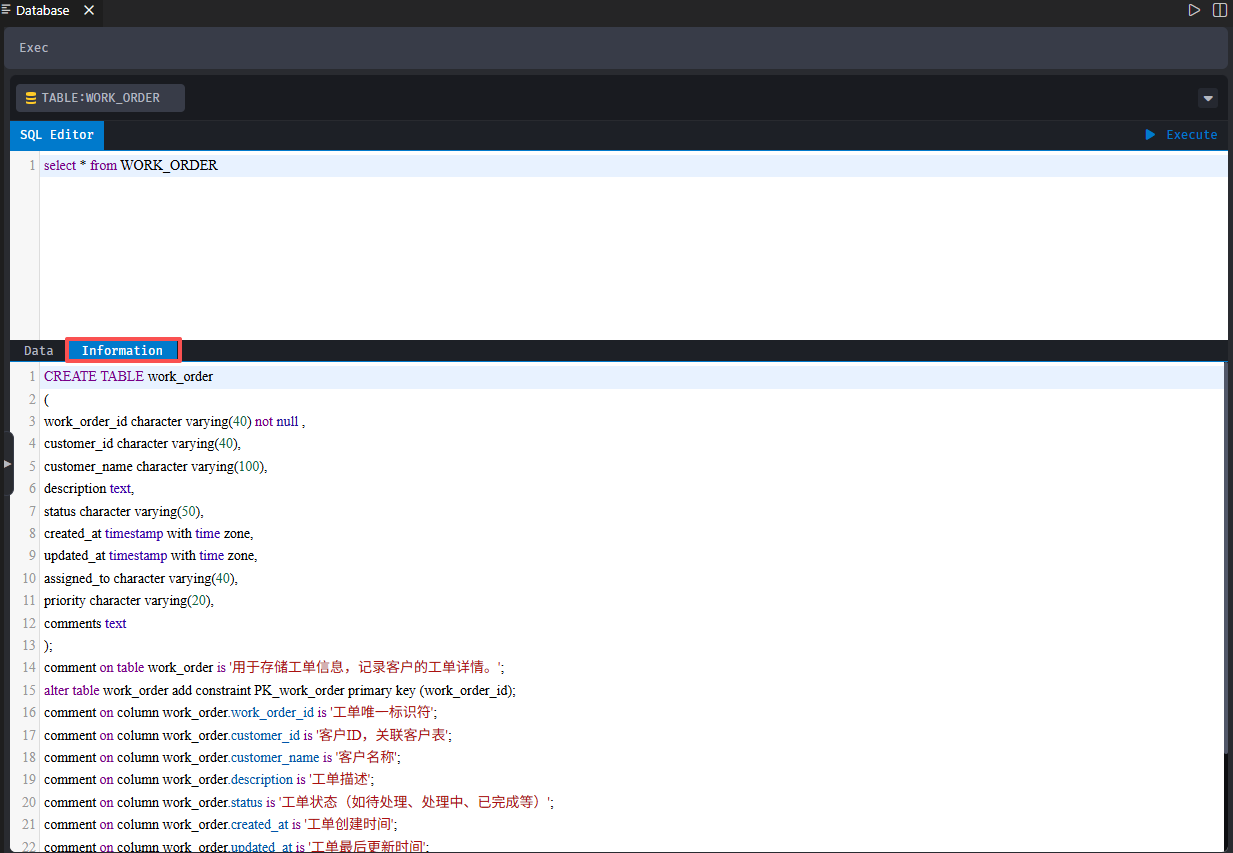
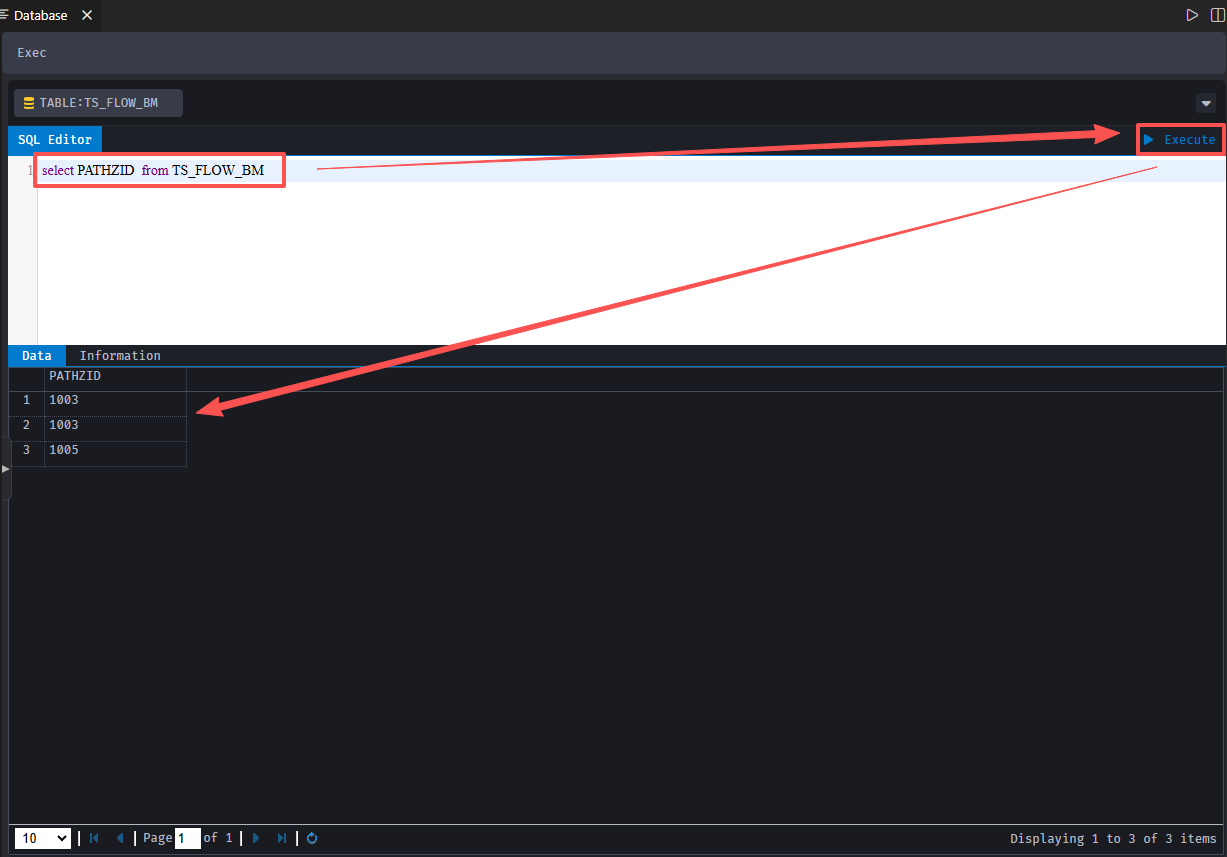
** Editing table operations are performed as follows:** Enter SQL statements within the [SQL Editor], in order to perform CRUD operations such as insert, delete, update, and query on a table.
** For example,**: To retrieve data from a specific column within a table, enter the corresponding SQL statement, click【Execute】and the results will appear as shown in the figure below:
Editing Objects
Click【Edit】to enter the table editing interface, as demonstrated in the image below: 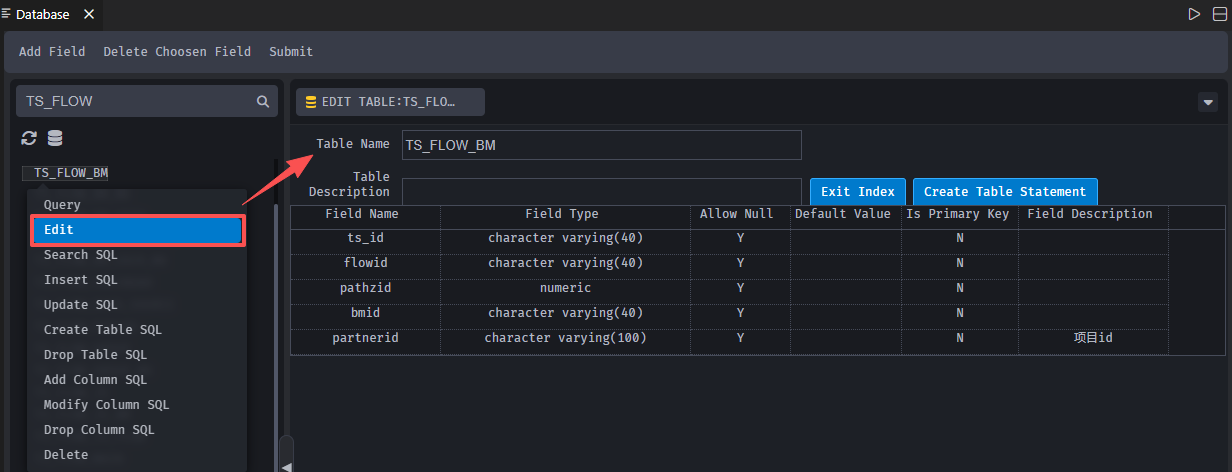
If [Edit] and [Delete] options are missing after right-clicking, it usually indicates that the current user does not have permission settings.
Deleting Objects
Clicking [Delete] brings up a confirmation dialog; click [Yes] to proceed with deletion and [No] to return to the previous page, as shown in the image below: 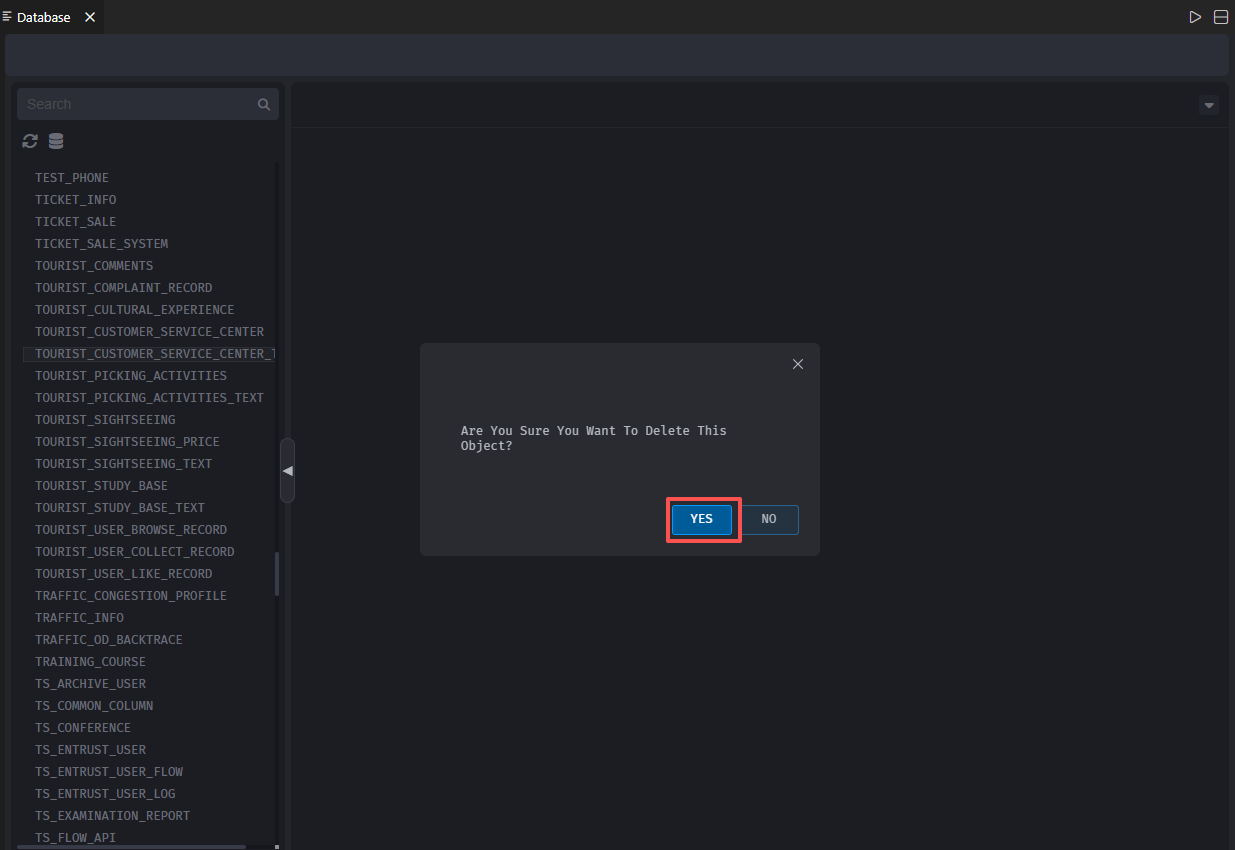
Querying SQL
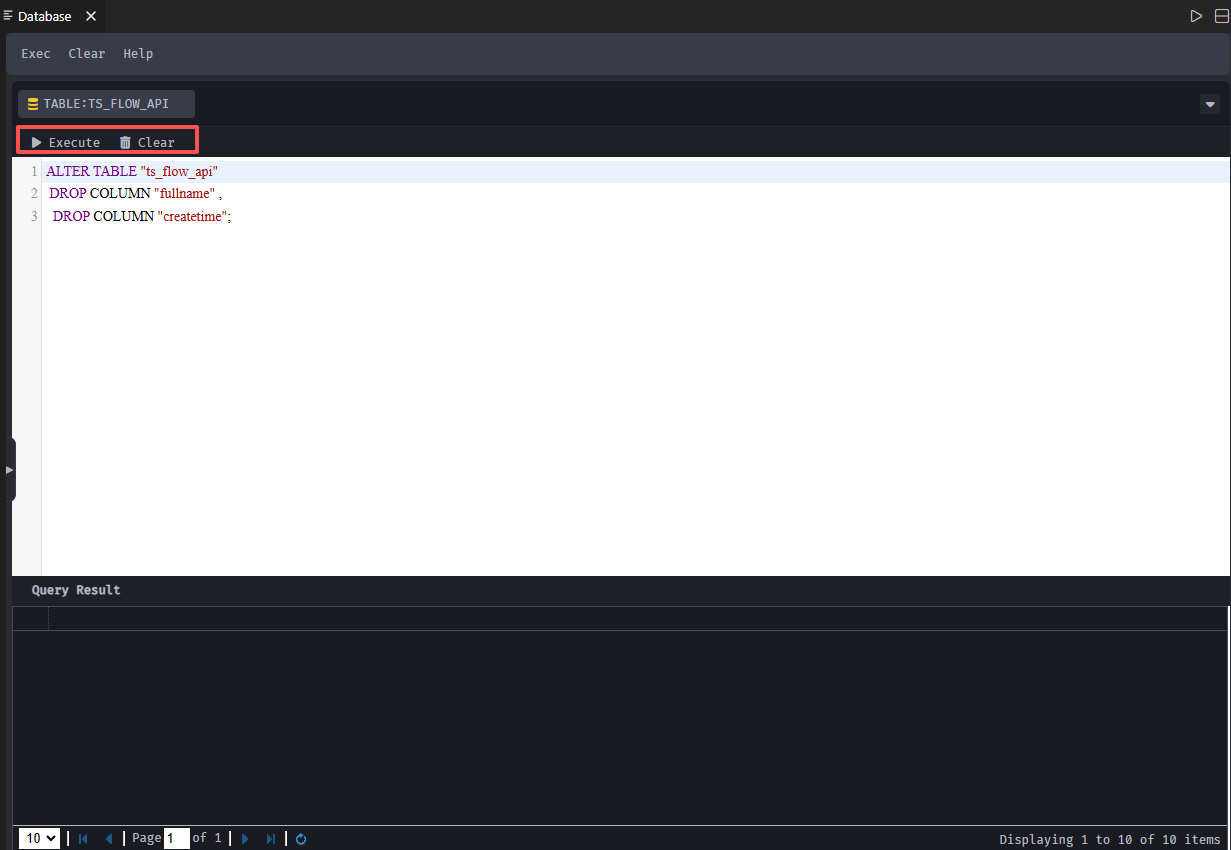
Clicking【Query SQL】opens a new window where you can input your SQL statement and click【Execute】to perform queries on the table. Click【Clear】to erase the pre-entered SQL content, as shown in the image below: 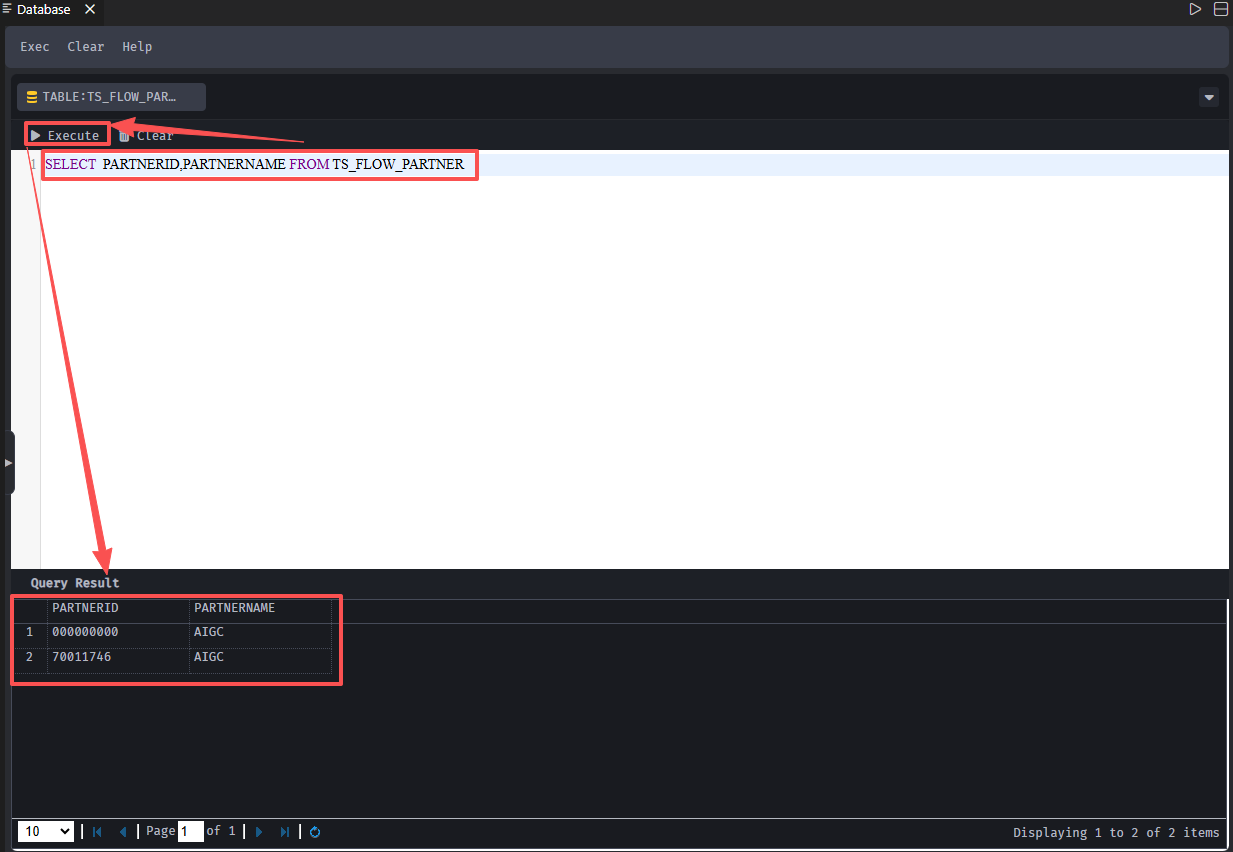
Note: Only tables and views support the [Query SQL] function.
Inserting/Updating SQL
Clicking [Insert SQL] or [Update SQL] opens a new page where you can write SQL code. After writing, pressing [Execute] initiates insertion or updating operations for the table. Pressing Clear clears the SQL code in the editor.
Note: Only tables are allowed for Insert SQL and Update SQL functions.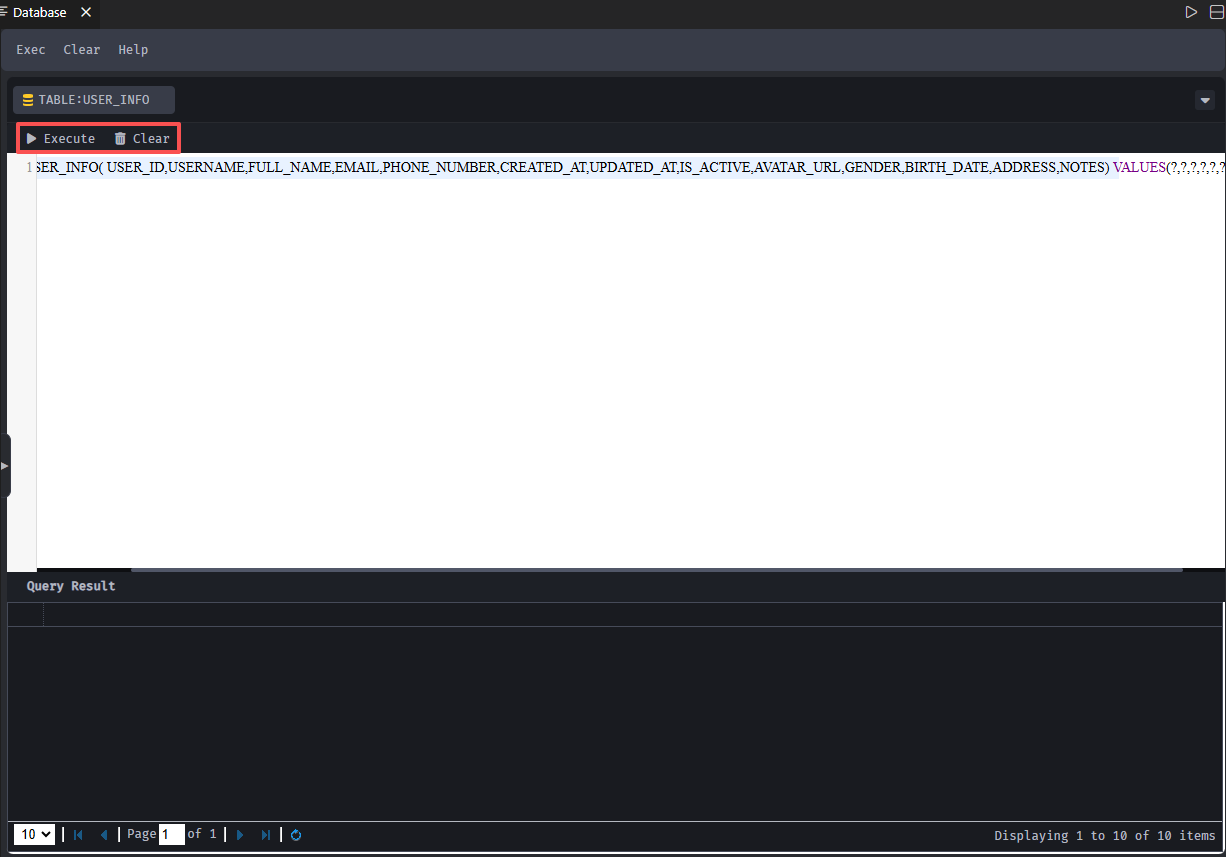
Creating Table SQL
Press【Create Table SQL】to open a new page. Please type in the appropriate SQL statements and click【Execute】to build the table structure. Press【Clear】to remove any pre-loaded SQL code within the text area. 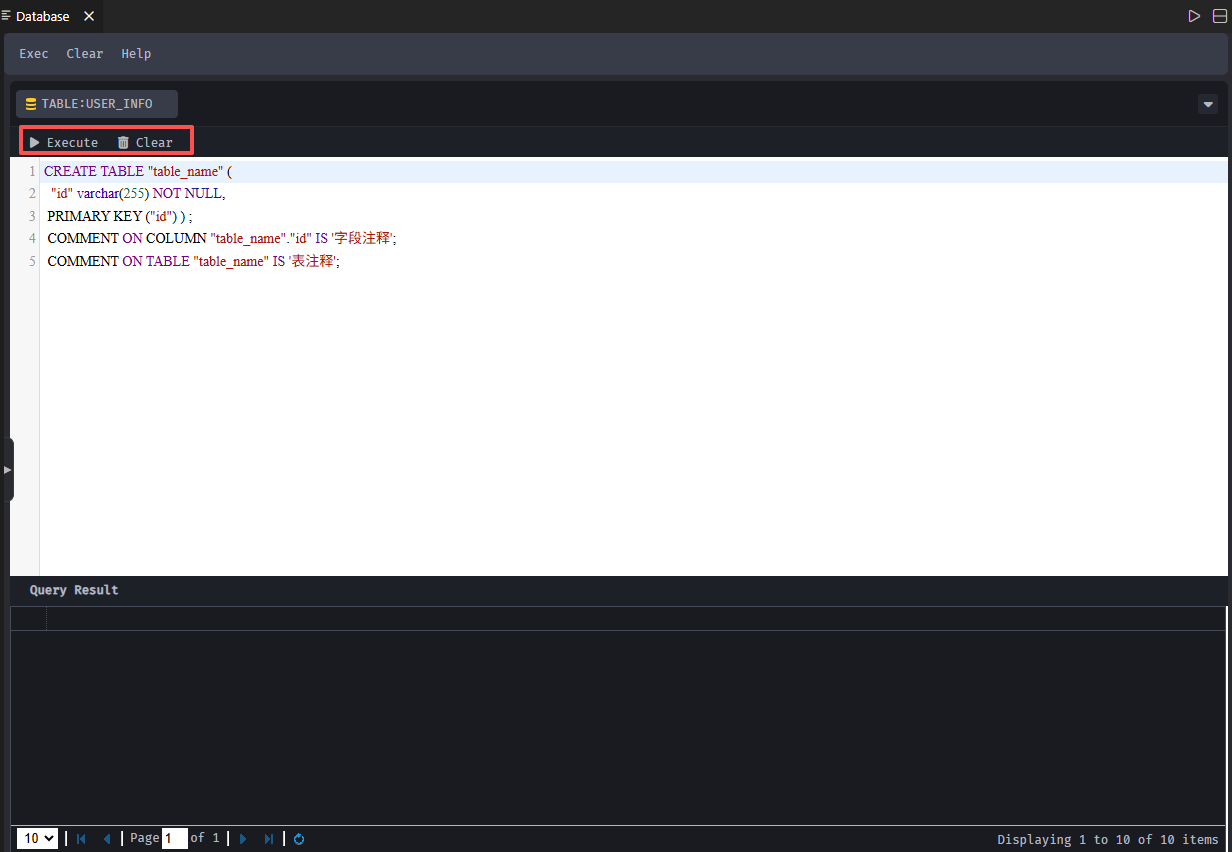
Deleting Table SQL
If you click【Delete Table SQL】 :Confirming with [Execute] can accomplish the task of deleting a table from the database. Clicking [Clear] clears pre-loaded SQL strings in the editor. 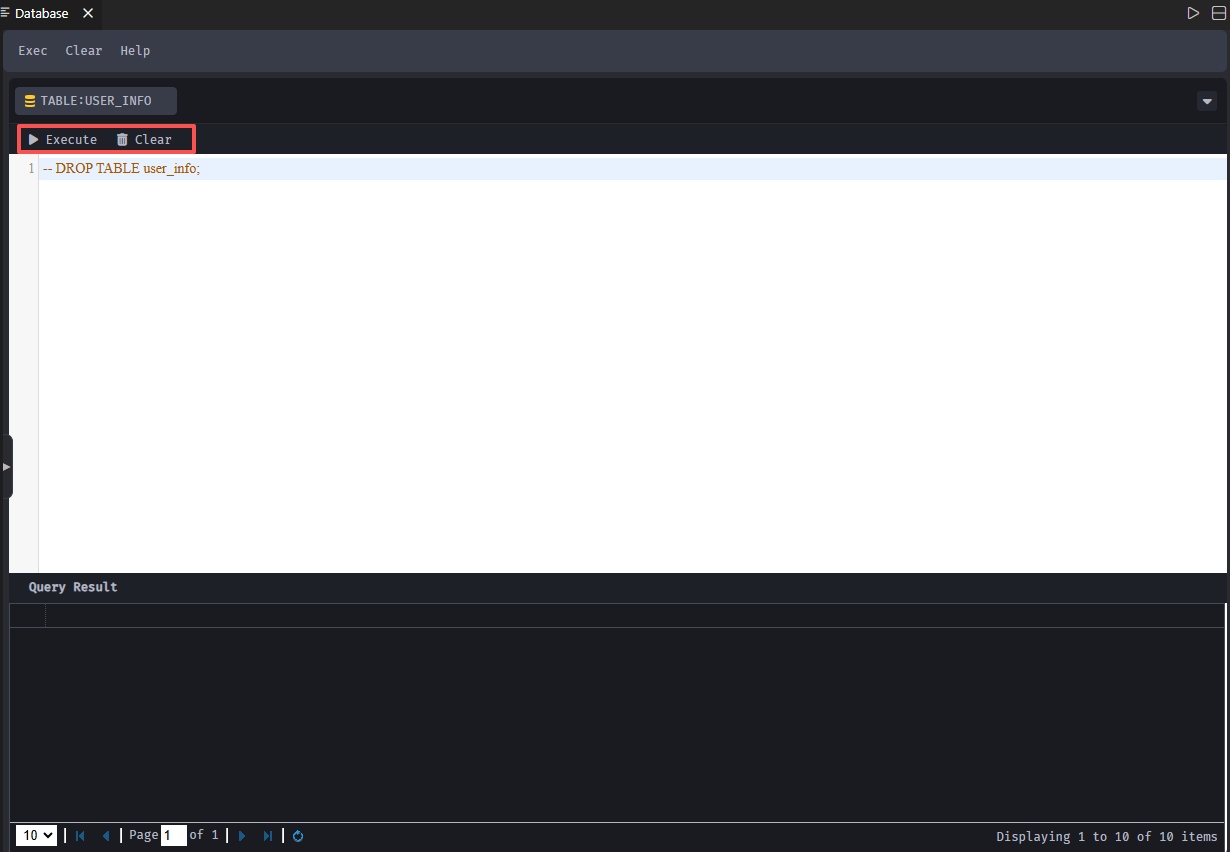
Adding Column Operations Using SQL
Use【Add Column SQL】to open a new window. Once entering SQL commands, clicking【Execute】will promote adding new columns to a table. “Clear” function resets the code editor. 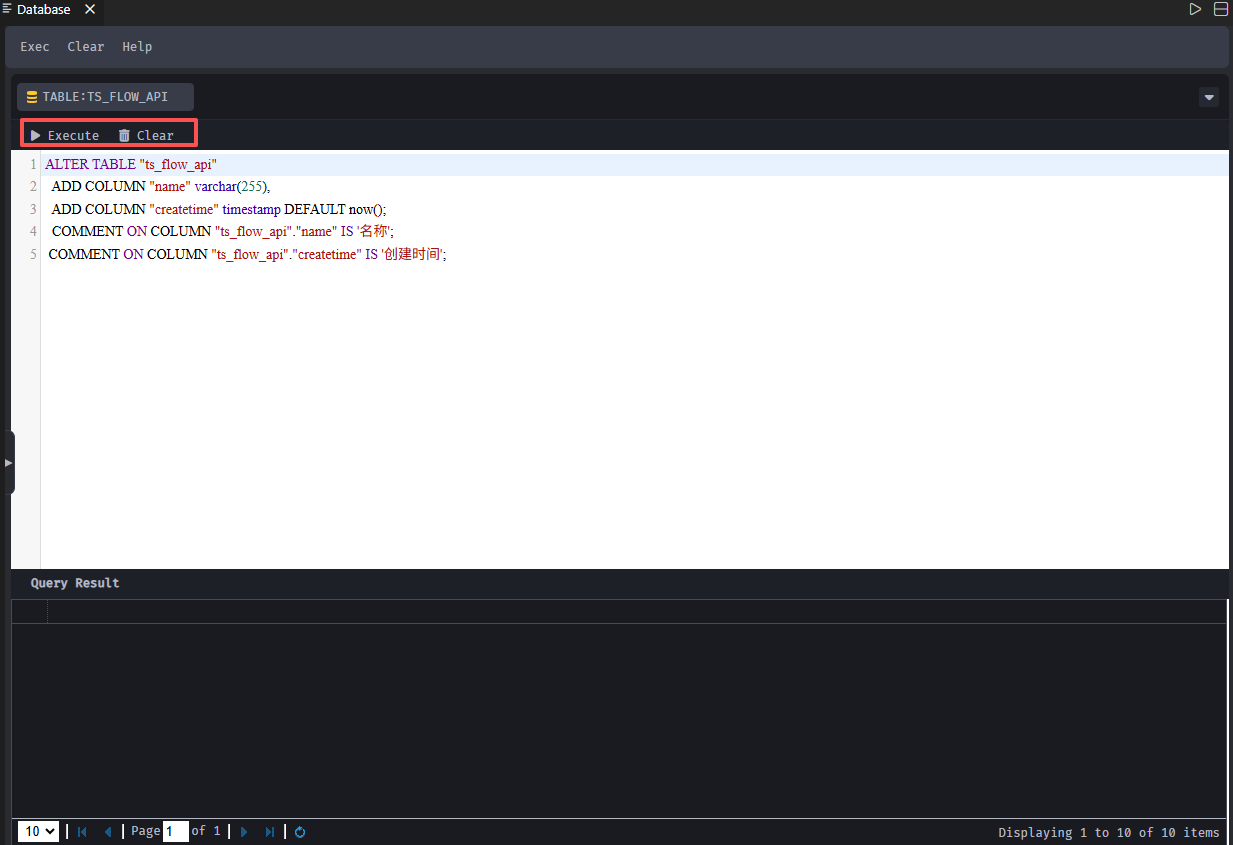
Altering Column Using SQL
Upon selecting【Modify Column SQL】, a window appears where you must enter your own SQL script. Then by clicking【Execute】, a field modification within the table can be carried out. Alternatively, pressing【Clear】clears all previous codes within the text input. 
Removing Column Using Custom SQL
Selecting【Drop Column SQL】brings up a new window and the code example demonstrates how to drop a column from a table — this can be achieved through executing appropriate SQL. The【Clear】button eliminates previously written SQL code.