
Custom Modes
VJSP supports creating custom modes, allowing you to tailor VJSP's behavior for specific tasks or workflows. Custom modes fall into two categories: global modes (available across all projects) and project-specific modes (effective only within the current project).
Sticky Models: Optimizing Workflow Efficiency
All modes—including custom modes—include the sticky model feature. This means VJSP automatically remembers and selects the last model you used in a given mode. You can assign preferred models to different tasks, and VJSP will automatically switch to the appropriate model when you change modes, eliminating the need for repeated reconfiguration.
Core Value of Custom Modes
Specialized Customization: Create optimized modes for specific tasks, such as "Documentation Writer," "Test Engineer," or "Refactoring Expert."
Security Control: Restrict a mode’s access to sensitive files or commands. For example, a "Code Review Mode" can be configured as read-only to prevent accidental modifications.
Experimental Validation: Safely test different prompt and configuration combinations without affecting other modes.
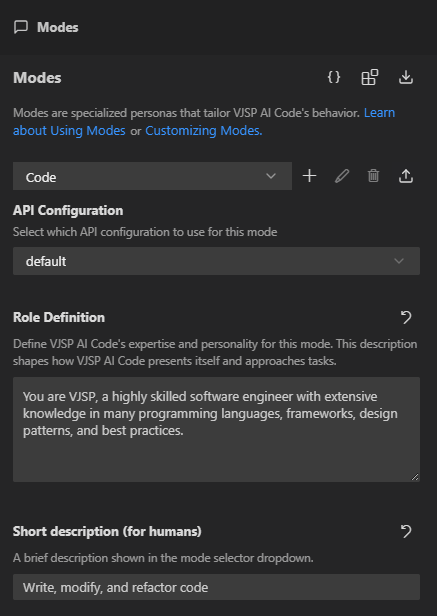
The following sections describe the VJSP interface for creating and managing custom modes.
Core Configuration Options for Custom Modes
Custom modes are defined by several core attributes. Understanding these concepts enables precise customization of VJSP’s behavior.
| UI Field / YAML Config Key | Functional Description |
|---|---|
Slug (slug) | The unique internal identifier for the mode. VJSP uses this field to recognize the mode, especially for associating mode-specific instruction files. |
Name (name) | The display name shown in VJSP’s user interface. Should be readable and clearly descriptive. |
Description (description) | A user-friendly summary of the mode’s purpose, displayed in the mode selector. Keep it concise and highlight the mode’s core functionality. |
Role Definition (roleDefinition) | Defines the mode’s core identity and expertise. This text is inserted at the beginning of the system prompt and determines VJSP’s behavioral style and capabilities in this mode. |
Tool Groups (groups) | Specifies which tool groups and file access permissions the mode is allowed to use, corresponding to checked tool categories. |
When to Use (whenToUse) | (Optional) Provides guidance for VJSP’s automated decision-making, particularly useful for automatic mode selection and task orchestration by coordinator modes. |
Custom Instructions (customInstructions) | (Optional) Additional behavioral guidelines specific to the mode, appended to the end of the system prompt to further refine VJSP’s logic. |
Importing and Exporting Modes
Custom modes can be shared, backed up, and managed as templates. Any mode and its associated rules can be exported as a standalone, portable YAML file and imported into any project.
Key Features
Configuration Sharing: Bundle a mode and its rules into a single file for easy team-wide sharing.
Convenient Backup: Preserve custom mode configurations to avoid loss.
Project Templates: Create standardized mode templates for different project types.
Flexible Migration: Easily move modes between global and project-level configurations.
Flexible Slug Modification: When modifying a mode’s slug in an exported file, there’s no need to manually update file paths.
Workflow
Exporting a Mode
- Open the Mode Configuration panel.
- Select the target mode to export.
- Click the Export Mode button.
- Choose a save location.
- VJSP packages the mode’s configuration and associated rules into a YAML file.
Importing a Mode
- In the Mode Configuration panel, click Import Mode.
- Select the YAML file to import.
- Choose the import scope:
- Project Level: Effective only in the current workspace (saved to
.vjspmodes). - Global Level: Effective in all projects (saved to global settings).
- Project Level: Effective only in the current workspace (saved to
Modifying the Slug During Import
After exporting a mode, you can edit its slug in the YAML file before reimporting:
- Export a mode with
slug: original-mode. - Edit the YAML file and change
slugtonew-mode. - Import the file—the system will automatically update rule file paths to match the new slug.
Creating and Configuring Custom Modes
There are three methods to create and configure custom modes:
Method 1: AI-Assisted Generation (Recommended)
You can directly instruct VJSP to create a basic custom mode. Example command:
Create a new mode named "DocumentationWriter" with read-only access and write permissions limited to Markdown files.VJSP will guide you through providing necessary details and generate a YAML-based mode configuration.
Method 2: Prompt Tab Configuration
- Open the Mode Configuration tab: Click the settings button and navigate to the “Mode Configuration” tab.
- Create a new mode: Click the “New” button next to the mode title.
- Fill in configuration fields: The interface includes fields for name, slug, save location, description, role definition, usage scenario (optional), tool groups, and custom instructions. After completing the form, click Create Mode—the system saves the configuration in YAML format automatically.
Method 3: Manual Configuration (YAML or JSON)
Directly edit configuration files to create or modify custom modes, enabling maximum customization. Both YAML (recommended) and JSON formats are supported.
- Global Modes: Edit
custom_modes.yaml(recommended) orcustom_modes.json. - Project Modes: Edit the
.vjspmodesfile in the project root (supports YAML or JSON).
Both file types define multiple custom modes using an array/list structure.
YAML Configuration Format (Recommended)
YAML is the recommended format for defining custom modes due to its readability, comment support, and clean multi-line syntax.
YAML Example
customModes:
  - slug: docs-writer
    name: docs-writer
    description: A specialized mode for writing and editing technical documentation
    roleDefinition: You are a professional technical writer skilled at producing clear and well-structured documentation
    whenToUse: Ideal for writing and editing technical documentation
    customInstructions: Prioritize clarity and completeness when writing documentation
    groups:
      - read
      - - edit  # First element: tool type
        - fileRegex: \.(md|mdx)$  # Second element: config object
          description: Only Markdown files allowed
      - browser
  - slug: another-mode
    name: Another Mode
# ... other config optionsJSON Alternative Format
{
  "customModes": [
    {
      "slug": "docs-writer",
      "name": "docs-writer",
      "description": "A specialized mode for writing and editing technical documentation",
      "roleDefinition": "You are a professional technical writer skilled at producing clear and well-structured documentation",
      "whenToUse": "Ideal for writing and editing technical documentation",
      "customInstructions": "Prioritize clarity and completeness when writing documentation",
      "groups": [
        "read",
        ["edit", {"fileRegex": "\\.(md|mdx)$", "description": "Only Markdown files allowed"}],
        "browser"
      ]
    }
  ]
}Detailed YAML/JSON Configuration Options
slug (Unique Identifier)
- Purpose: Unique internal identifier for the mode.
- Format Requirement: Must match the regex
/^[a-zA-Z0-9-]+$/(letters, digits, hyphens only). - Usage: Used internally to name mode-specific rule files/directories (e.g.,
.vjsp/rules-{slug}/). - Recommendation: Keep it concise and meaningful.
Example: YAML → slug: docs-writer; JSON → "slug": "docs-writer"
name (Display Name)
- Purpose: Name shown in the VJSP UI.
- Format: May include spaces and standard capitalization.
Example: YAML → name: DocumentationWriter; JSON → "name": "DocumentationWriter"
description (Mode Description)
- Purpose: Brief, user-friendly summary displayed in the mode selector.
- Format: Concise and focused on core functionality.
- UI Display: Shown in the redesigned mode selector.
Example: YAML → description: A specialized mode for writing and editing technical documentation; JSON → "description": "A specialized mode for writing and editing technical documentation"
roleDefinition (Role Definition)
- Purpose: Defines the mode’s role, expertise, and behavioral style.
- Placement: Inserted at the beginning of the system prompt.
Multi-line Example (YAML)
roleDefinition: >-
  You are a senior test engineer proficient in:
  - Writing comprehensive test suites
- Practicing Test-Driven Development (TDD)Single-line Example (JSON)
"roleDefinition": "You are a professional technical writer skilled at producing clear and well-structured documentation"groups (Tool Groups)
Purpose: An array defining accessible tool groups and file access restrictions.
Supported Groups:
read,edit,browser,command,mcp(multi-agent collaboration).Structure:
- Unrestricted Access: Use a string (e.g.,
"edit"). - Restricted Access: Use a two-element tuple:
["tool-type", {config}].
- Unrestricted Access: Use a string (e.g.,
File Restrictions for
edit:- fileRegex: Regex string to control editable file types.
- YAML: Use single backslash (e.g.,
\.md$). - JSON: Double-escape backslashes (e.g.,
\\.md$).
- YAML: Use single backslash (e.g.,
- description: Optional human-readable rule description.
- fileRegex: Regex string to control editable file types.
YAML Example
groups:
  - read
  - - edit
    - fileRegex: \.(js|ts)$
      description: JS/TS files only
- commandJSON Example
"groups": [
  "read",
  ["edit", {"fileRegex": "\\.(js|ts)$", "description": "JS/TS files only"}],
  "command"
]whenToUse (When to Use) (Optional)
- Purpose: Guides VJSP’s automation for mode selection and task orchestration.
- Format: String describing ideal scenarios.
- Visibility: Not shown in UI; used internally.
Example: YAML → whenToUse: Use this mode for Python code refactoring; JSON → "whenToUse": "Use this mode for Python code refactoring"
customInstructions (Custom Instructions) (Optional)
- Purpose: Additional behavioral rules for the mode.
- Placement: Appended to the end of the system prompt.
Multi-line Example (YAML)
customInstructions: |-
  Follow these rules when writing tests:
  - Organize test cases using describe/it blocks
- Use descriptive names for test casesSingle-line Example (JSON)
"customInstructions": "Emphasize conceptual clarity and practical examples in documentation"Advantages of YAML Format
YAML is the recommended format for custom modes due to:
- High Readability: Indentation-based hierarchy aligns with human reading habits.
- Comment Support: Add explanatory notes using
#. - Multi-line Strings: Use
|(literal block) or>(folded block) for clean multi-line text. - Concise Syntax: Fewer punctuation marks than JSON, reducing syntax errors.
- Editor Support: Full syntax highlighting and validation in major code editors.
JSON remains fully supported, but new modes created via UI or AI-assisted generation default to YAML.
Migrating to YAML Format
Global Modes
custom_modes.json is automatically migrated to custom_modes.yaml when:
- VJSP starts,
custom_modes.jsonexists, andcustom_modes.yamldoes not exist.
The original JSON file is preserved for rollback.
Project Modes (.vjspmodes File)
- No auto-migration on startup.
- VJSP reads both YAML and JSON
.vjspmodesfiles. - Editing a JSON file via UI converts it to YAML.
- To manually convert, ask VJSP to assist with format refactoring.
Configuring Mode-Specific Instructions via Files/Directories
Use dedicated files or directories in your workspace to manage mode instructions, enabling version control and standardized configuration.
Recommended: Directory-Based (/.vjsp/rules-{mode-slug}/)
.
├── .vjsp/
│   └── rules-docs-writer/  # Example: for slug "docs-writer"
│       ├── 01-style-guide.md
│       └── 02-formatting.txt
└── ... (other project files)Alternative: Single File (.vjsprules-{mode-slug})
.
├── .vjsprules-docs-writer  # Example: for slug "docs-writer"
└── ... (other project files)Scope of Rule Directories
- Global Modes: Rules stored in
~/.vjsp/rules-{slug}/ - Project Modes: Rules stored in
{workspace}/.vjsp/rules-{slug}/
Priority Rule: If both directory and file configurations exist, the directory takes precedence. Files within the directory are read recursively and concatenated in alphabetical order.
Configuration Priority Rules
Mode configuration priority (highest to lowest):
- Project-level mode configuration
- Global-level mode configuration
- Default mode configuration
Important: If a
.vjspmodesfile and global settings contain modes with the same slug, the project-level configuration completely overrides all properties of the global one.
Overriding Default Modes
Create a custom mode with the same slug as a built-in VJSP mode to override it.
Global Override Example
customModes:
  - slug: code  # Matches built-in "Code" mode
    name: CodeGlobal
    roleDefinition: You are a software engineer operating under global constraints
    whenToUse: Use this globally overridden code mode for JS/TS development
    customInstructions: Focus exclusively on JS/TS development tasks
    groups:
      - read
      - - edit
        - fileRegex: \.(js|ts)$
description: JS/TS files onlyProject-Specific Override Example
customModes:
  - slug: code  # Matches built-in "Code" mode
    name: CodeProject
    roleDefinition: You are a software engineer tailored to this project’s needs
    whenToUse: Use this project-specific code mode for Python development
    customInstructions: Code must strictly follow PEP8 and include type annotations
    groups:
      - read
      - - edit
        - fileRegex: \.py$
          description: Python files only
- commandRegular Expression Guide for Custom Modes
Regular expressions (fileRegex) enable fine-grained control over file edit permissions.
💡 Tip
Let VJSP Generate Regex for You
No need to write complex regex manually—just ask VJSP:
Generate a regex that matches JavaScript files but excludes test filesAfter generation, adjust escape characters per format: single backslash in YAML, double in JSON.
Core fileRegex Rules
- JSON Escaping: Backslashes must be double-escaped (e.g.,
\\.md$). - YAML Escaping: In unquoted strings, use single backslash (e.g.,
\.md$). - Path Matching: Regex matches full file paths relative to the workspace root.
- Case Sensitivity: Case-sensitive by default.
- Validation: Invalid regex triggers a "Invalid Regular Expression Mode" error.
Common Regex Examples
| YAML Expression | JSON Expression | Matches | Excludes |
|---|---|---|---|
\.md$ | "\\.md$" | readme.md, docs/guide.md | script.js, readme.md.bak |
^src/.* | "^src/.*" | src/app.js, src/components/button.tsx | lib/utils.js, test/src/mock.js |
\.(css|scss)$ | "\\.(css|scss)$" | styles.css, theme.scss | styles.less, styles.css.map |
docs/.*\.md$ | "docs/.*\\.md$" | docs/guide.md, docs/api/reference.md | guide.md, src/docs/notes.md |
^(?!.*(test|spec))\.(js|ts)$ | "^(?!.*(test|spec))\\.(js|ts)$" | app.js, utils.ts | app.test.js, utils.spec.js |
Regex Syntax Reference
\.: Literal dot (YAML:\.; JSON:\\.)$: End of string^: Start of string.*: Any character (except newline), zero or more times(a|b): Match a or b(?!...): Negative lookahead (exclude matches)
Error Handling
If a mode attempts to edit a file that doesn’t match its fileRegex, VJSP throws a FileRestrictionError containing:
- Mode name
- Allowed file pattern
- Rule description (if provided)
- Attempted file path
- Blocked tool type
Configuration Examples
Basic "Documentation Writer" Mode (YAML)
customModes:
  - slug: docs-writer
    name: 📝 Documentation Writer
    description: Specialized in writing and editing technical documentation
    roleDefinition: You are a professional technical writer skilled at producing clear and well-structured documentation
    groups:
      - read
      - - edit
        - fileRegex: \.md$
          description: Markdown files only
customInstructions: Emphasize clarity and practical examples in documentation"Test Engineer" Mode with File Restrictions (YAML)
customModes:
  - slug: test-engineer
    name: 🧪 Test Engineer
    description: Focused on writing and maintaining test suites
    roleDefinition: You are a quality-focused test engineer
    whenToUse: For writing test cases, debugging failures, and improving coverage
    groups:
      - read
      - - edit
        - fileRegex: \.(test|spec)\.(js|ts)$
          description: Test files only
- command"Security Review" Mode (YAML)
customModes:
  - slug: security-review
    name: 🔒 Security Reviewer
    description: Read-only code security analysis and vulnerability assessment
    roleDefinition: You are a security expert specializing in code vulnerability detection
    whenToUse: For security reviews and vulnerability assessments
    customInstructions: |-
      Focus on these risk areas:
      - Input validation flaws
      - Authentication/authorization vulnerabilities
      - Data leakage risks
      - Injection attack vectors
    groups:
      - read
- browserTroubleshooting
Common Issues
- Mode Not Appearing: Restart the IDE window after creating or importing a mode.
- Invalid Regex: Validate expressions using online regex testers before configuring.
- Priority Confusion: Remember—project modes with the same slug fully override global modes.
- YAML Syntax Errors: Use spaces (not tabs) for indentation and validate syntax.
YAML Configuration Tips
- Indentation Matters: YAML uses spaces to define hierarchy.
- Key-Value Format: Keys must be followed by a colon and space (e.g.,
slug: my-mode). - List Items: Begin with a hyphen and space (e.g.,
- read). - Validation: Use online YAML validators or editor-integrated tools.