
Custom Rules
Custom rules provide a powerful way to define project-specific behaviors and constraints to ensure consistency across VJSP AI agents. With custom rules, you can enforce consistent formatting, restrict access to sensitive files, enforce coding standards, and tailor the AI’s behavior to your project’s specific needs.
Overview
Custom rules allow you to create textual instructions that all AI models will follow when interacting with your project. These rules act as guardrails and conventions, consistently enforced across all interactions with your codebase. Rules can be managed via the file system or through the built-in UI interface.
Rule Format
Custom rules can be written in plain text, but using Markdown format is recommended for better organization and improved comprehension by AI models. The structured nature of Markdown helps models parse and understand your rules more effectively.
- Use Markdown headings (
#,##, etc.) to define rule categories - Use lists (
-,*) to enumerate specific items or constraints - Use code blocks (
```) to include code examples when needed
Rule Types
VJSP supports two types of custom rules:
- Project Rules: Apply only to the current project workspace
- Global Rules: Apply to all projects and workspaces
UI Support
The built-in rule management interface only supports general-purpose rules. Mode-specific rules must be configured via the file system.
Rule Locations
Project Rules
Custom rules are primarily loaded from the .vjsp/rules/ directory, which is the recommended approach for organizing project-level rules. It's generally advisable to store each rule in a separate Markdown file with a descriptive name. Example directory structure:
project/
├── .vjsp/
│   ├── rules/
│   │   ├── formatting.md
│   │   ├── restricted_files.md
│   │   └── naming_conventions.md
├── src/
└── ...Global Rules
Global rules are stored in the user’s home directory and apply to all projects. Example directory structure:
~/.vjsp/
├── rules/
│   ├── coding_standards.md
│   ├── security_guidelines.md
│ └── documentation_style.mdManaging Rules via UI
VJSP provides a built-in interface that allows you to manage custom rules without manually editing files in the .vjsp/rules/ directory. Click the icon in the bottom-right corner of the VJSP window to open the rule management interface.
Through this interface, you can:
- View all active rules (including both project and global rules)
- Toggle rules on/off without deleting them
- Create and edit rules directly in the interface
- Organize rules by category and priority
Rule Loading Priority
General Rules (Effective Across All Modes)
Rules are loaded in the following priority order:
- Global rules (loaded from
~/.vjsp/rules/) - Project rules (loaded from
.vjsp/rules/)
When conflicts arise between global and project rules, project rules take precedence.
ⓘ Note
We strongly recommend placing rule files in the .vjsp/rules/ directory. This structured approach enables fine-grained rule management, ensures clear separation of responsibilities, and aligns with best practices for future versions.
Mode-Specific Rules
The system also supports mode-specific rules, which are loaded independently from the .vjsp/rules-${mode}/ directory.
Currently, mode-specific rules only support project-level configuration. When both general and mode-specific rules exist, mode-specific rules take higher precedence during execution.
Creating Custom Rules
Creating Rules via UI
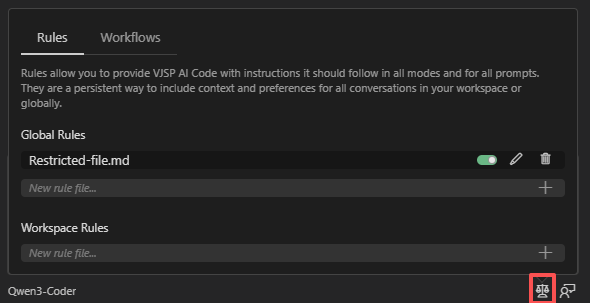
The easiest way to create and manage rules is through the built-in UI:
- Access the rule management interface from the VJSP panel
- Choose to create either a project rule or a global rule
- Create, edit, or toggle rules directly in the interface
- Rules are automatically saved and take effect immediately
Creating Rules via File System
To manually create rules:
Steps to create project rules:
- Create the
.vjsp/rules/directory if it doesn’t already exist - Create a Markdown file with a descriptive name in this directory
- Write your rule content using Markdown format
- Save the file
Steps to create global rules:
- Create the
~/.vjsp/rules/directory if it doesn’t already exist - Create a Markdown file with a descriptive name in this directory
- Write your rule content using Markdown format
- Save the file
Once created, rules are automatically applied to all subsequent VJSP interactions, and updates take effect immediately.
Rule Examples
Example 1: Table Formatting Requirements
# Table Formatting Requirements
When generating tables, an exclamation mark (!) must be added to every column header.This rule instructs the AI to automatically add an exclamation mark to all column headers when generating tables within the project.
Example 2: Sensitive File Access Restrictions
# Restricted File List
The following files contain sensitive data. The AI must never read these files:
- supersecrets.txt
- credentials.json
- .envThis rule prevents the AI from reading or accessing specified sensitive files, even if the user explicitly requests it.
Use Cases
Custom rules are widely applicable in the following development scenarios:
- Code Style: Enforce consistent code formatting, naming conventions, and documentation standards
- Security Control: Restrict access to sensitive files or directories
- Project Structure: Define standardized paths for different file types
- Documentation Requirements: Specify formatting standards and content requirements for documentation
- Testing Standards: Define structural guidelines for test cases
- API Specifications: Clarify API usage patterns and documentation requirements
- Error Handling: Establish unified conventions for exception handling in code
Custom Rule Examples
- "Strictly follow the project-specific code style guide"
- "Indentation must use spaces, with a width of 4 spaces"
- "Variable names must use camelCase"
- "All new functions must include unit tests"
- "Explain design rationale before providing code"
- "Prioritize code readability and maintainability"
- "Prefer mainstream open-source libraries when available"
- "When adding new website features, ensure responsive design and accessibility compliance"
Best Practices
- Clarity: Clearly define the scope and purpose of each rule
- Categorization: Group related rules under unified headings to improve readability
- Separation of Concerns: Store different types of rules in separate files
- Examples: Include code examples to illustrate expected rule behavior
- Conciseness: Keep rule descriptions clear, concise, and unambiguous
- Dynamic Updates: Regularly review and update rules as project requirements evolve
💡 Pro Tip: Version-Controlled Team Standards
In team collaboration scenarios, consider including rule files like .vjsp/rules/codestyle.md in your version control system. This ensures consistent VJSP behavior across your development team, enforcing uniform code styles, documentation standards, and development workflows.
Limitations
- Rule enforcement depends on the AI model’s ability to optimally interpret instructions; 100% accuracy cannot be guaranteed
- Complex rules may require multiple examples to ensure accurate model understanding
- Project rules only apply to their respective project
- Global rules apply to all projects
Troubleshooting
If custom rules aren’t behaving as expected, follow these steps to troubleshoot:
- Check rule status in UI: Use the rule management interface to confirm the target rule is active and properly loaded
- Validate rule format: Ensure rules are written in standard Markdown with clear, unambiguous structure
- Verify rule paths: Confirm rules are placed in supported directories
- Global rules:
~/.vjsp/rules/ - Project rules:
.vjsp/rules/
- Global rules:
- Confirm rule clarity: Verify that rule descriptions are precise and free of ambiguity
- Restart IDE: Restart your editor to ensure all rule configurations are fully loaded