
Automatic approval
⚠️ Security Warning: Enabling auto-approval bypasses confirmation prompts, allowing VJSP direct access to your system. This could lead to data loss, file corruption, or worse. Command-line access is especially dangerous, as it may execute harmful operations that damage your system or compromise security. Only enable auto-approval for actions you fully trust.
Auto-approval settings accelerate your workflow by eliminating repetitive confirmation prompts, but they significantly increase security risks.
Quick Start Guide
Click the Auto-Approval toolbar above the chat input
Select which actions VJSP can perform without requesting permission
Use the master switch (leftmost checkbox) to quickly enable/disable all permissions
Auto-Approval Toolbar
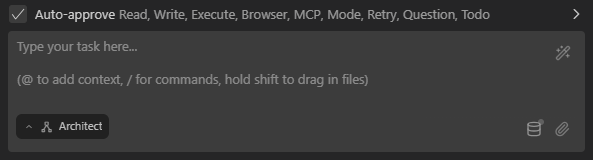
Click the toolbar to expand it and configure individual permissions:
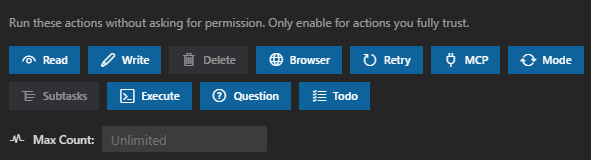
Available Permissions
| Permission | Function | Risk Level |
|---|---|---|
| Read Files and Directories | Allows VJSP to access files without asking | Medium |
| Edit Files | Allows VJSP to modify files without asking | High |
| Execute Approved Commands | Automatically runs terminal commands from an allowlist | High |
| Use Browser | Allows headless browser interactions | Medium |
| Use MCP Server | Allows VJSP to use configured MCP services | Medium–High |
| Switch Modes | Automatically switches between VJSP modes | Low |
| Create and Complete Subtasks | Manages subtasks without confirmation | Low |
| Retry Failed Requests | Automatically retries failed API requests | Low |
| Answer Follow-up Questions | Selects default answers for follow-up questions | Low |
| Update To-Do List | Automatically updates task progress | Low |
Master Switch for Quick Control
The leftmost checkbox acts as a master switch:

Use the master switch when:
Working on sensitive code (turn off)
Doing rapid development (turn on)
Switching between exploration and editing tasks
Advanced Settings Panel
The settings panel offers granular control and important security context:
Allow VJSP to automatically perform actions without approval. Only enable these settings if you fully trust the AI and understand the associated security risks.
To access these settings:
Click the ⚙️ icon in the top-right corner
Navigate to Auto-Approval Settings
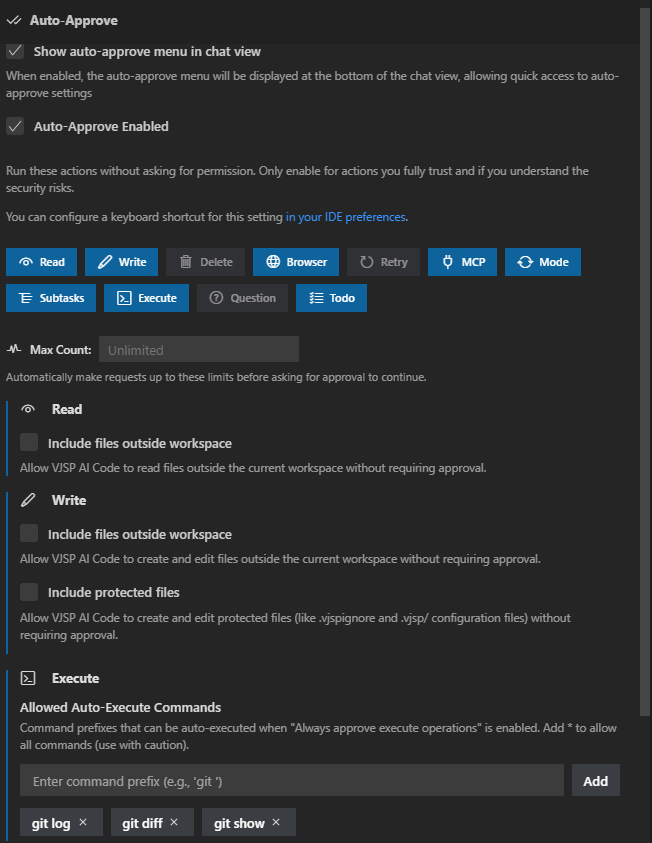
Read Operations
⚠️ Read Operations

Setting: “Always approve read-only operations”
Description: “When enabled, VJSP will automatically view directory contents and read files without requiring you to click an approval button.”
Risk Level: Medium
While this setting only permits reading files (not modifying them), it may expose sensitive data. For most users, it’s still recommended as a starting point—but be mindful of which files VJSP can access.
Write Operations
⚠️ Write Operations
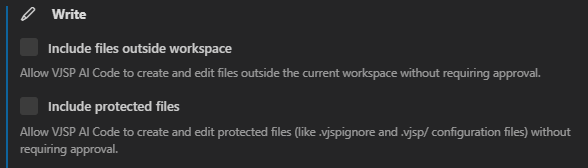
Setting: “Always approve write operations”
Description: “Automatically creates and edits files without approval”
Risk Level: High
Write Delay and Problems Pane Integration
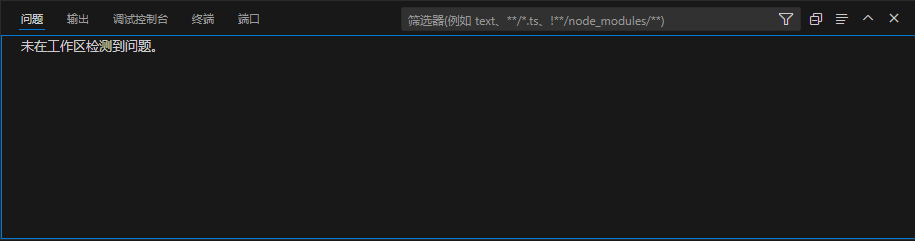
When you enable auto-approval for file writes, the delay timer works together with your IDE’s Problems pane:
VJSP makes changes to your files
Your IDE’s diagnostics analyze those changes
The Problems pane updates with any errors or warnings
VJSP notices these issues before proceeding
This mimics a developer pausing after code changes to check for errors. You can adjust the delay based on:
Project complexity
Language server speed
How important error detection is to your workflow
Browser Operations
ⓘ Browser Operations
Setting: “Always approve browser operations”
Description: “Automatically performs browser actions without approval”
Note: “Only applies when the model supports computer use”
Risk Level: Medium
Allows VJSP to control a headless browser without confirmation. This may include:
Opening websites
Navigating pages
Interacting with web elements
Consider the security implications of allowing automated browser access.
API Requests
ⓘ API Requests

Setting: “Always retry failed API requests”
Description: “Automatically retries failed API requests when the server returns an error response”
Delay Slider: “Delay before retrying requests” (Default: 10 s)
Risk Level: Low
This setting automatically retries API calls that fail. The delay controls how long VJSP waits before retrying:
Longer delays are gentler on API rate limits
Shorter delays recover faster from transient errors
MCP Tools
⚠️ MCP Tools
Setting: “Always approve MCP tools”
Description: “Enables auto-approval for individual MCP tools in the MCP Server view (requires both this setting and the tool-specific ‘Always Allow’ checkbox)”
Risk Level: Medium–High (depends on configured MCP tools)
This setting works in combination with per-tool permissions in the MCP Server view. Both this global setting and the tool-specific permission must be enabled for auto-approval to take effect.
Mode Switching
ⓘ Mode Switching
Setting: “Always approve mode switching”
Description: “Automatically switches between different modes without approval”
Risk Level: Low
Allows VJSP to switch between modes (e.g., Code, Architect) without requesting permission. This primarily affects AI behavior, not system access.
Subtasks
ⓘ Subtasks
Setting: “Always approve creation and completion of subtasks”
Description: “Allows creating and completing subtasks without approval”
Risk Level: Low
Enables VJSP to automatically create and complete subtasks. This relates to workflow organization, not system access.
Command Execution
⚠️ Command Execution
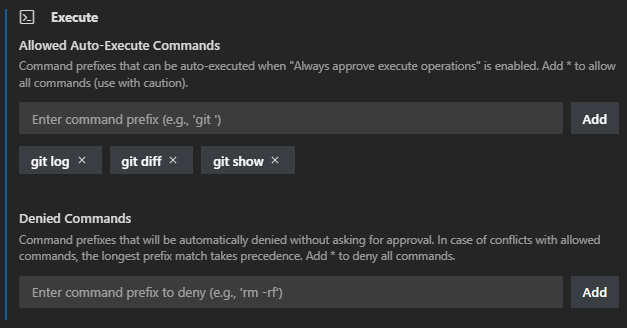
Setting: “Always approve allowed execution operations”
Description: “Automatically executes allowed terminal commands without approval”
Command Management: “When ‘Always approve execution operations’ is enabled, command prefixes that can be auto-executed. Add * to allow all commands (use with caution).”
Risk Level: High
This setting enables terminal command execution via VJSP. While risky, the allowlist feature restricts which commands can run. Key security features:
Allowlist specific command prefixes (recommended)
Never use the * wildcard in production or with sensitive data
Consider the security implications of each allowed command
Always validate commands that interact with external systems
UI Elements:
Text field for entering command prefixes (e.g., “git”)
“Add” button to add new prefixes
Clickable command buttons with an X to delete them
Follow-up Questions
ⓘ Follow-up Questions (Risk: Low)

Setting: "Always provide default answers to follow-up questions"
Description: After a configurable timeout, automatically selects the first AI-suggested answer to follow-up questions. This accelerates your workflow by letting VJSP proceed without manual intervention.
Visual Countdown: When enabled, a countdown timer appears on the first suggestion button, showing time remaining before auto-selection. The timer displays as a circular progress indicator that depletes over time.
Timeout Slider: Adjust the wait time using a slider from 1 to 300 seconds (default: 60 seconds).
Override Options: You can cancel auto-selection at any time by:
Clicking a different suggestion
Editing any suggestion
Typing your own response
Clicking the timer to pause it
Risk Level: Low
Use Cases:
Nightly runs where VJSP needs to operate continuously
Repetitive tasks where native suggestions are typically accurate
Workflow testing scenarios where human interaction is not essential
Update To-Do List
ⓘ Update To-Do List (Risk: Low)
Setting: “Always approve to-do list updates”
Description: “Automatically updates the to-do list without approval”
Risk Level: Low
This setting allows VJSP to automatically update task progress and the to-do list during a work session. This includes:
Marking tasks as complete
Adding newly discovered tasks
Updating task status (pending, in progress, complete)
Reordering task priorities
Benefits:
Maintains real-time visibility of task progress
Reduces interruptions in multi-step workflows
Keeps project status accurately reflected
Helps track complex task dependencies
Use Cases:
Long development sessions
Multi-step refactoring projects
Complex debugging workflows
Feature implementations with many subtasks
This is especially useful when combined with subtask permissions, as it allows VJSP to maintain a complete view of project progress without constant approval requests.