
Using Local Models
If you already have a computing power server and have completed the local deployment of large models, you only need to complete the relevant configuration in VJSP to directly call and use this local model.
ⓘ Information
Having multiple configuration files allows you to quickly switch between different models and settings without having to reconfigure everything each time you change settings.
Pre-configuration Preparation
Before starting configuration, please confirm the following information:
| Information Item | Description | Example |
|---|---|---|
| Server Address | IP address or hostname of the internal network server | 192.168.1.1 or ai-server.com |
| Server Port | Port on which the model service listens | e.g., 11434 or 8000 |
| API Path | Full path of the API interface | /v1 |
| API Key | API key set for the deployed model | sk-xxx... |
How to Obtain This Information?
Ask the Server Administrator: Obtain server address, port, and authentication information
Check Server Documentation: Model services typically have configuration documentation
Test Connection: Use curl to test if the API is accessible
# Test if the API is accessible (replace with your server address)
curl http://192.168.1.1:11434/v1How It Works
Each configuration file can independently maintain the following:
API key and authentication information
Model selection
Temperature settings for controlling response randomness
Setting Up in VJSP
Step 1: Open Model Configuration
- In the IDE, click the VJSP icon
- Click the "Settings" interface in the top-right corner
- Select the "Model Configuration" tab to enter the settings page
Note:
defaultis the configuration file pre-configured by VJSP, which is not recommended to modify. If you need to use local models, please create a new configuration file.
Step 2: Create New Configuration
Click the "+" button to create a new configuration file.
Step 3: Fill in Configuration Parameters
| Configuration Item | Description | Example Value |
|---|---|---|
| Configuration File Name | Custom name for easy identification | Internal-Qwen3.5 or TEST |
| API Provider | Select OpenAI Compatible | OpenAI Compatible |
| OpenAI Base URL | Full API address of the local large model server | http://192.168.1.1:11434/v1 |
| API Key | API key required by the server (if no authentication, fill any value but cannot be empty) | sk-xxx... |
Step 4: Select Model
After filling in the correct server address and key, the model list will be automatically loaded from the server into the dropdown menu.
- Select the required model from the dropdown menu
- No need to manually enter the model name
Step 5: Advanced Settings (Optional)
Adjust the following settings based on actual requirements:
| Setting Item | Description | Recommended Value |
|---|---|---|
| Enable R1 Model Parameters | Enable for QWQ/R1 series models | Check when using R1 models |
| Use Traditional OpenAI API Format | Compatible with older API | As required by server |
| Enable Streaming | Support streaming responses | ✓ Recommended to check |
| Include Maximum Output Tokens | Limit output length | ✓ Recommended to check |
Step 6: Save and Test
- Click the "Save" button
- Select the newly configured model in the session window
- Send a test message to verify the connection
Switching Configuration Files
Two quick switching methods are supported:
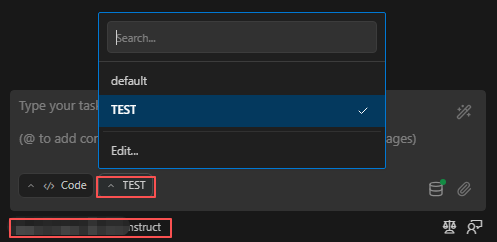
In the settings panel, directly select the configuration file from the dropdown menu.
In the chat interface, use the top API configuration dropdown menu to switch.
Pinning and Sorting Configuration Files
You can pin frequently used configuration files to improve switching efficiency:
- Hover over the configuration file to display the pin icon.
- Click the pin to pin the configuration file.
- Pinned files appear at the top of the menu, sorted alphabetically.
- Unpinned files appear below the separator, also sorted alphabetically.
- Click the pin again to unpin.
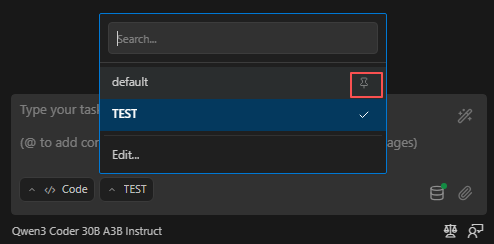
This feature makes it easier to navigate between frequently used configuration files, especially when you have many configurations.
Editing and Deleting Configuration Files

In the settings, select the configuration file to modify any parameters.
Click the pencil icon to rename the configuration file.
Click the trash icon to delete the configuration file (cannot delete the last configuration file).
Security Notice
API keys are securely stored in the IDE's encrypted storage (Secret Storage) and are not exposed in plain text.
Related Features
Supports integration with Custom Modes
Supports configuring Temperature Parameters separately for each mode
Can optimize cost management through Rate Limiting and Usage Statistics