
Checkpoints
Checkpoints automatically provide version control for your workspace files during VJSP tasks, enabling non-destructive exploration of AI suggestions and easy recovery from unwanted changes.
Checkpoints allow you to:
- Safely experiment with AI-suggested changes
- Easily revert unwanted modifications
- Compare different implementation approaches
- Restore previous project states without losing work
ⓘ Important Notes
- Checkpoints are enabled by default.
- Git must be installed for checkpoints to function properly.
- No GitHub account or repository is required.
- No Git user configuration (e.g., name/email) is needed.
- The shadow Git repository operates independently of any existing Git setup in your project.
Configuration Options
Access checkpoint settings in the Archive Points section of VJSP Settings:
- Click the gear icon ⚙️ → Archive Points to open settings
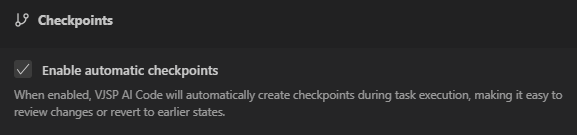
- Check or uncheck the Enable Auto Archive Points checkbox
How Checkpoints Work
VJSP uses a shadow Git repository—isolated from your main version control system—to capture snapshots of your project state. These snapshots, called checkpoints, are automatically recorded throughout your AI-assisted workflow—whenever a task begins, files change, or commands run.
Checkpoints are stored as Git commits in the shadow repository and capture:
- File content modifications
- Newly added files
- Deleted files
- Renamed files
- Binary file changes
Using Checkpoints
Checkpoints are seamlessly integrated into your workflow directly through the chat interface.
They appear in your chat history in two forms:
- Initial Checkpoint: Marks your starting project state

- Regular Checkpoints: Appear after file modifications or command executions

Each checkpoint provides two primary actions:
View Diff
To compare your current workspace against a previous checkpoint:
- Locate the checkpoint in your chat history
- Click the View Diff button on the checkpoint

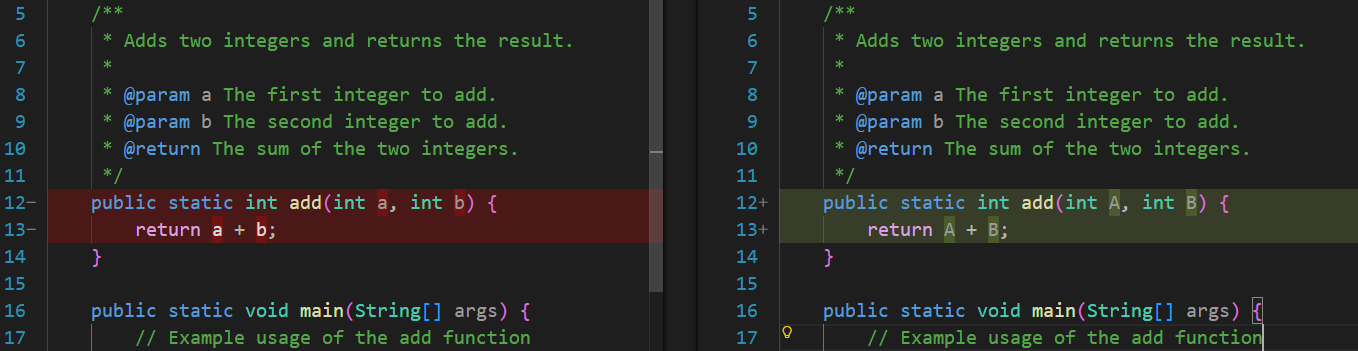
- Review changes in the diff view:
- Added lines highlighted in green
- Removed lines highlighted in red
- Modified files show detailed line-by-line changes
- Renamed/moved files track path changes
- New or deleted files are clearly labeled
Restore Checkpoint
To revert your project to a previous checkpoint state:
- Find the desired checkpoint in your chat history
- Click the Restore Checkpoint button

- Choose one of the following restore options:

Restore Files Only – Reverts only your workspace files to the checkpoint state without altering chat history. Ideal for comparing alternative implementations while preserving conversation context, allowing seamless switching between project states. This option requires no confirmation and enables rapid toggling between versions.
Restore Files and Task – Reverts both workspace files and deletes all subsequent chat messages. Use this when you want a complete reset of both code and conversation to the exact moment of the checkpoint. This action requires explicit confirmation in a dialog, as it cannot be undone.

Limitations and Considerations
- Scope: Checkpoints only capture changes made during an active VJSP task
- External Changes: Modifications made outside the task (manual edits, other tools) are not included
- Large Files: Very large binary files may impact performance
- Unsaved Work: Restoration will overwrite any unsaved changes in your workspace
Technical Implementation
Checkpoint Architecture
The checkpoint system consists of:
- Shadow Git Repository: An isolated Git repo created specifically for checkpoint tracking, serving as the persistent storage mechanism for checkpoint states.
- Checkpoint Service: Handles Git operations and state management via:
- Repository initialization
- Checkpoint creation and storage
- Diff computation
- State restoration
- UI Components: Interface elements displayed in the chat that enable interaction with checkpoints.
Restoration Process
When a restore is performed, VJSP:
- Executes a hard reset to the specified checkpoint commit
- Copies all files from the shadow repository to your workspace
- Updates internal checkpoint tracking state
Storage Scope
Checkpoints are task-scoped, meaning they are specific to a single task session.
Diff Computation
Checkpoint comparisons leverage Git’s native diffing capabilities to generate structured file diffs:
- Modified files show line-by-line changes
- Binary files are correctly detected and handled
- File renames and moves are accurately tracked
- File creations and deletions are clearly identified
File Exclusion and Ignore Patterns
The checkpoint system uses intelligent file exclusion to track only relevant files:
Built-in Exclusions
The system includes comprehensive built-in patterns that automatically ignore:
- Build artifacts and dependency directories (
node_modules/,dist/,build/) - Media and binary assets (images, videos, audio)
- Cache and temporary files (
.cache/,.tmp/,.bak) - Sensitive configuration files (
.env) - Large data files (archives, executables, binaries)
- Database files and logs
These patterns are written to .git/info/exclude in the shadow repository during initialization.
.gitignore Support
The checkpoint system respects .gitignore patterns in your workspace:
- Files excluded by
.gitignoredo not trigger checkpoint creation - Excluded files do not appear in checkpoint diffs
- Standard Git ignore rules apply when staging file changes
.vjspignore Behavior
The .vjspignore file (which controls AI file access) is separate from checkpoint tracking:
- Files excluded by
.vjspignorebut not by.gitignorewill still be included in checkpoints - Changes to files inaccessible to the AI can still be restored via checkpoints
This separation is intentional: .vjspignore restricts what the AI can access, not what should be version-tracked.
Nested Git Repositories
The checkpoint system includes special handling for nested Git repositories:
- Temporarily renames nested
.gitdirectories to.git_disabledduring operations - Restores them afterward
- Enables correct tracking of files within nested repos
- Ensures nested repositories remain functional and unaffected
Concurrency Control
Operations are queued to prevent concurrent Git operations that could corrupt repository state. This ensures safe completion of rapid checkpoint actions, even under high-frequency requests.
Git Installation
Checkpoints require Git to be installed on your system. The implementation uses the simple-git library, which depends on the Git command-line tool to create and manage the shadow repository.
macOS
Install via Homebrew (recommended):
bashbrew install gitAlternative: Install via Xcode Command Line Tools:
bashxcode-select --installVerify Installation:
- Open Terminal
- Run
git --version - You should see a version number, e.g.,
git version 2.40.0
Windows
Download Git for Windows:
Run the Installer:
- Accept the license agreement
- Choose installation location (default recommended)
- Select components (defaults usually sufficient)
- Choose default editor
- Select how to use Git from the command line (recommended: "Git from the command line and also from 3rd-party software")
- Configure line ending conversions (recommended: "Checkout Windows-style, commit Unix-style line endings")
- Complete installation
Verify Installation:
- Open Command Prompt or PowerShell
- Run
git --version - You should see a version number, e.g.,
git version 2.40.0.windows.1
Linux
UOS:
sudo apt install git -yVerify Installation:
- Open terminal
- Run
git --version - You should see a version number