
Modes
Modes in VJSP are specially designed roles that adapt the assistant’s behavior based on the current task. Each mode offers distinct capabilities, expertise, and access permissions to help you achieve specific objectives.
Why Use Different Modes?
- Task Specialization: Get precisely tailored assistance for your current task
- Safety Control: Prevent accidental file modifications while focusing on planning or learning
- Focused Interaction: Receive responses optimized for your current activity
- Workflow Optimization: Seamlessly switch between planning, implementation, debugging, and learning
Switching Modes
- Dropdown Menu: Click the selector to the left of the chat input box
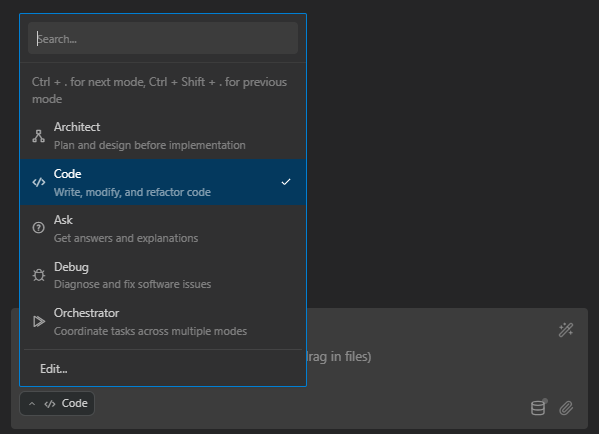
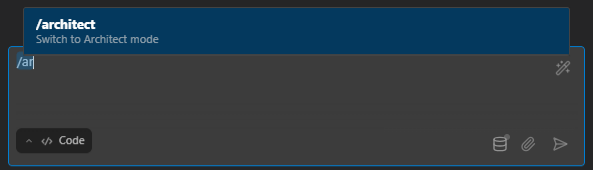
- Slash Commands: Type
/architect,/ask,/debug, or/codein the chat input box
- Toggle Command / Keyboard Shortcut: Use the keyboard shortcut appropriate for your operating system. Each press cycles sequentially through available modes, looping back to the first mode after reaching the end.
| Operating System | Shortcut |
|---|---|
| macOS | ⌘ + . |
| Windows | Ctrl + . |
| UOS | Ctrl + . |
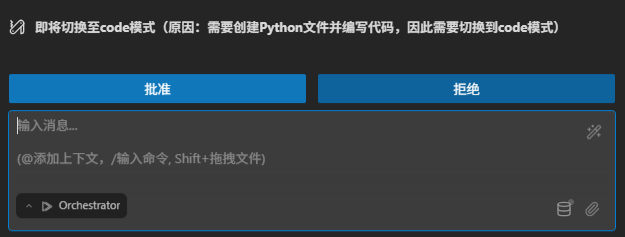
- Accept Suggestions: Click VJSP’s suggested mode switches when appropriate
Built-in Modes
Code Mode (Default)
| Aspect | Details |
|---|---|
| Description | A skilled software engineer proficient in programming languages, design patterns, and best practices |
| Tool Access | Full access to all tool groups: read, edit, browser, command, mcp |
| Use Cases | Writing code, implementing features, debugging, and everyday development tasks |
| Special Features | No tool restrictions—complete flexibility for all coding tasks |
Ask Mode
| Aspect | Details |
|---|---|
| Description | A knowledgeable technical assistant focused on answering questions without modifying the codebase |
| Tool Access | Limited access: only read, browser, and mcp (cannot edit files or run commands) |
| Use Cases | Code explanations, concept exploration, and technical learning |
| Special Features | Optimized to deliver informative responses without altering the project |
Architect Mode
| Aspect | Details |
|---|---|
| Description | An experienced technical leader and planner who helps design systems and create implementation plans |
| Tool Access | Access to read, browser, mcp, and restricted edit (Markdown files only) |
| Use Cases | System architecture design, high-level technical planning, and architectural discussions |
| Special Features | Employs a structured approach, progressing step-by-step from requirements analysis to solution delivery |
Debug Mode
| Aspect | Details |
|---|---|
| Description | An expert troubleshooter skilled in systematic fault diagnosis and resolution |
| Tool Access | Full access to all tool groups: read, edit, browser, command, mcp |
| Use Cases | Error tracing, issue diagnosis, root cause analysis, and fixing complex failures |
| Special Features | Applies a structured debugging methodology: step-by-step analysis, scope narrowing, precise localization, and resolution |
Orchestrator Mode
| Aspect | Details |
|---|---|
| Description | A strategic workflow coordinator that delegates complex tasks to the appropriate specialized modes |
| Tool Access | Restricted permissions, primarily for creating new tasks and coordinating workflows across modes |
| Use Cases | Complex project management: breaking down overarching goals into executable subtasks and intelligently assigning them to relevant specialized modes |
| Special Features | Efficiently orchestrates resources via the new_task tool to enable multi-mode collaboration |
Custom Modes
Create your own specialized assistants by defining tool access permissions, file permissions, and behavioral instructions. Custom modes help enforce team standards or build purpose-specific assistants. For setup instructions, see the Custom Modes Documentation.