
Enhanced Prompts
The Enhanced Prompts feature helps you improve the quality and effectiveness of your prompts before they are sent to the AI model. By clicking the Enhance Prompt icon in the chat input, you can automatically refine your initial request to make it clearer, more specific, and more likely to produce the desired results.
Why Use Enhanced Prompts?
Improved Clarity: VJSP can rephrase your prompt to make it easier for the AI model to understand.
Added Context: The enhancement process can inject relevant context into your prompt—such as the current file path or selected code.
Better Instructions: VJSP can add directives to guide the AI toward more helpful responses (e.g., requesting a specific format or level of detail).
Reduced Ambiguity: Enhanced prompts help eliminate vagueness and ensure VJSP accurately grasps your intent.
Consistency: VJSP will always format prompts to the AI in the same standardized way.
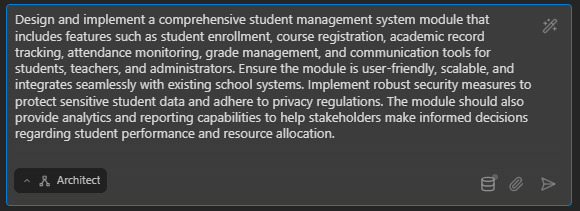
Before and After
Before

After
How to Use Enhanced Prompts
Enter Your Initial Prompt: Type your request into the VJSP chat input box as usual. This can be a simple question, a complex task description, or anything in between.
Click the 【Enhance Prompt】 Icon: Instead of pressing Enter, click the Enhance Prompt icon in the bottom-right corner of the chat input field.
Review the Enhanced Prompt: VJSP will replace your original prompt with an enhanced version. Review it carefully to ensure it accurately reflects your intent. You may further refine the enhanced prompt before sending.
Send the Enhanced Prompt: Press Enter or click the send icon to submit the enhanced prompt to VJSP.
Customizing the Enhancement Process
Custom Templates
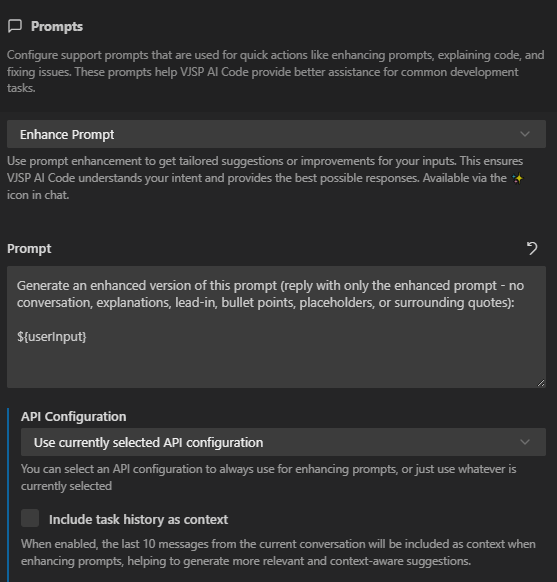
The Enhanced Prompts feature uses a customizable prompt template. You can modify this template to tailor the enhancement process to your specific needs.
Open Settings: Click the settings icon in VJSP’s top menu bar.
Go to the “Prompts” Tab: In the settings interface, switch to the Prompts tab.
Edit the Prompt Template: From the dropdown menu, select Enhanced Prompt, then view and edit the enhancement prompt template.
The default enhanced prompt template is as follows:
Generate an enhanced version of this prompt (reply with only the enhanced prompt - no conversation, explanations, lead-in, bullet points, placeholders, or surrounding quotes):

${userInput}Here, ${userInput} is a placeholder that will be automatically replaced with your original prompt. You can modify this template based on your requirements and the prompt formatting guidelines of your AI model.
Custom Provider
Speed up prompt enhancement by switching to a lighter-weight LLM provider. This delivers faster results at lower cost while maintaining quality.
Follow the API Configuration Guide to create a dedicated configuration profile for prompt enhancement.
Limitations and Best Practices
Review Carefully: Always carefully review the enhanced prompt before sending. VJSP might introduce changes that don’t align with your intent.
Iterative Process: You can apply the Enhance Prompt feature multiple times to iteratively refine your prompt.
Not a Substitute for Clear Instructions: While Enhanced Prompts can help, it’s still important to write clear and specific prompts from the start.
By using the Enhanced Prompts feature, you can improve the quality of your interactions with VJSP and receive more accurate and useful responses.