
Code Actions
Code Actions are a powerful feature of VS Code that provides quick fixes, refactoring suggestions, and other code-related recommendations directly within the editor. VJSP integrates with this system to offer AI-assisted solutions for common coding tasks.
What are Code Actions?
Code actions appear as a lightbulb icon (💡) in the editor gutter (the area to the left of line numbers). They are also available via the right-click context menu. They are triggered under the following circumstances:
- You have selected a block of code.
- Your cursor is on a line with a problem (error, warning, or info hint).
- You invoke them via a command.
Clicking the lightbulb, right-clicking and selecting "VJSP," will display a menu of available actions.
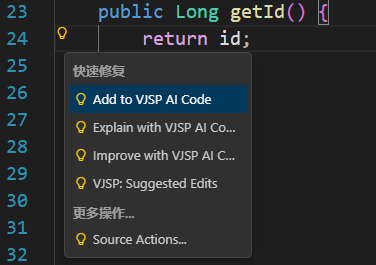
VJSP's Code Actions
VJSP provides the following Code Actions:
Add to Context: Quickly adds the selected code to the chat with VJSP, including line numbers, so VJSP knows exactly where the code comes from. It appears first in the menu for easy access. (More details below).
Explain Code: Prompts VJSP to explain the selected code.
Fix Code: Prompts VJSP to fix issues in the selected code (available when there are diagnostics).
Improve Code: Prompts VJSP to suggest improvements for the selected code.
Deep Dive into "Add to Context"
The Add to Context action appears first in the Code Actions menu, allowing you to quickly add code snippets to the conversation. When you use it, VJSP includes the filename, line numbers, and the code itself.
This helps VJSP understand the exact context of the code within your project, enabling it to provide more relevant and accurate assistance.
Example Chat Input:
Can you explain this function?
@myFile.js:15:25(where @myFile.js:15:25 indicates code added via "Add to Context")
Each of these actions can be performed either in a new task or in the current task.
Using Code Actions
There are three primary ways to use VJSP’s code actions:
1. Via the Lightbulb Icon (💡)
- Select Code: Highlight the code you want to work with. You can select a single line, multiple lines, or an entire code block.
- Find the Lightbulb: The lightbulb icon will appear in the gutter next to the selected code (or on lines with errors/warnings).
- Click the Lightbulb: Click the icon to open the code actions menu.
- Choose an Action: Select the desired VJSP action from the menu.
- Review and Approve: VJSP will propose a solution in the chat panel. Review the suggested changes and approve or reject them.
2. Via the Right-Click Context Menu
- Select Code: Highlight the code you want to work with.
- Right-Click: Right-click the selection to open the context menu.
- Select “VJSP”: Choose the “VJSP” option from the context menu. A submenu with available VJSP actions will appear.
- Choose an Action: Select your desired action from the submenu.
- Review and Approve: VJSP will propose a solution in the chat panel. Review the suggested changes and approve or reject them.
3. Via the Command Palette
- Select Code: Highlight the code you want to work with.
- Open Command Palette: Press
Ctrl+Shift+P(Windows/Linux) orCmd+Shift+P(macOS). - Type Command: Type “VJSP” to filter commands, then select the relevant code action (e.g., “VJSP: Explain Code”). You can also type the beginning of a command like “VJSP: Explain” and choose from the filtered list.
- Review and Approve: VJSP will propose a solution in the chat panel. Review the suggested changes and approve or reject them.
Code Actions and Task Context
Each code action gives you two options:
- In a New Task: Choose this to start a dedicated conversation with VJSP focused solely on this code action.
- In the Current Task: If a conversation is already active, this option appends the code action as a new message to the existing thread.
Customizing Code Action Prompts
You can customize the prompt used for each code action by editing the Prompts tab under “Support Prompts.” This lets you fine-tune the instructions given to the AI model and tailor responses to your specific needs.
- Open the Prompts Tab: Click the icon in VJSP’s top menu bar.
- Locate “Support Prompts”: You’ll see prompts such as “Enhance Prompt,” “Explain Code,” “Fix Code,” and “Improve Code.”
- Edit the Prompt: Modify the text in the input field for the prompt you want to customize. You can use placeholders like
${filePath}and${selectedText}to include information about the current file and selection. - Click “Done”: Save your changes.
By using VJSP’s code actions, you can quickly get AI assistance directly within your coding workflow—saving time and helping you write better code.