
Chatting with VJSP
VJSP is an AI coding assistant that lives inside VS Code and IDEA. You can chat with it using natural language, and it will write, edit, and explain code for you.
Quick Setup
Find the VJSP icon in the sidebar of VS Code or IDEA. Click it to open the chat panel.
How to Chat with VJSP
Key Insight: Just describe what you want in natural language—no special commands needed.

Example Requests:
Create a new file named `utils.java` and add a function called `add`
that takes two numbers as arguments and returns their sum.In the file `@src/components/Button.java`, add pagination to the findAllUsers method,
with a default of 10 items per page.In `@/src/App.js`, find all instances of the variable `oldValue` and replace them with `newValue`.What Makes Requests Effective:
Be specific → “Fix the bug in
calculateTotalwhere it returns an incorrect result” is better than “Fix the code.”Use @ mentions → Reference files and code directly using
@filename.One task at a time → Break complex work into manageable steps.
Include examples → Show the style or format you want.
Chat Interface
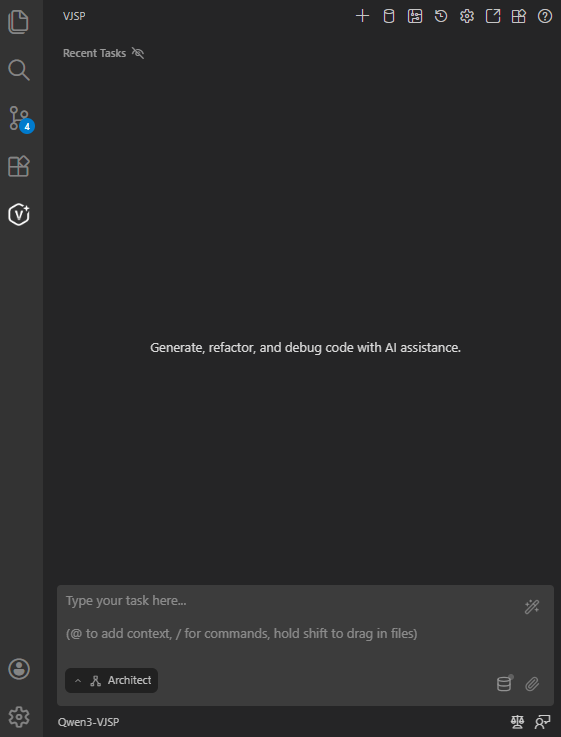
Basic Controls:
Plus button: Start a new task session.
Database Designer: Open the database designer in VJSP to visualize and edit your database schema.
Workflow Designer: Visually build and edit workflows via drag-and-drop to automate processes.
History: View your conversation and task history.
Settings: Configure various VJSP options, including model selection, agent behavior, and advanced features.
Open in Editor: Open the chat interface directly in your code editor.
App Marketplace: Browse and install VJSP plugins and extensions.
Documentation: Access VJSP’s official documentation for more help and guidance.
Input Field: Enter your request here (press Enter to send).
Action Buttons: Approve or reject VJSP’s proposed changes.
Mode Selector: Choose how VJSP should handle your task.
Index Ready: Configure codebase indexing settings to enable semantic search across your project.
Add Context(@): In the chat interface, use the @ symbol to add context by referencing specific files or code snippets, helping VJSP understand and respond to your request more accurately.
Send Message: Click Send Message to submit the request in the input box.
Select Model: Choose an appropriate model from the dropdown menu.
Manage VJSP AI Code Rules and Workflows: Go to the rules and workflows management page.
Quick Interactions
Click Actions:
File paths → Open the file
URLs → Open in browser
Messages → Expand/collapse details
Code blocks → Show copy button
Status Indicators:
Spinning → VJSP is working
Red → Error occurred
Green → Success
Common Mistakes to Avoid
| Instead of... | Try using |
|---|---|
| "Fix the code" | “Fix the bug in calculateTotal where it returns an incorrect result” |
| Assuming VJSP knows the context | Use @ to reference specific files |
| Multiple unrelated tasks | Submit one focused request at a time |
| Overuse of technical jargon | Clear, direct language works best |
Why It Matters: When you communicate as you would with a professional collaborator—giving clear, precise instructions—VJSP performs at its best.
Ready to start coding? Open the chat panel and describe the feature you’d like to build!